

Pinterest’s help pages describe three controls over AI Pins: a setting for your whole feed, an option on a single Pin and a button in some searches. This guide walks through each one with the labels from Pinterest’s help pages. Why so much of Pinterest involves AI, from recommendations to labels, is in our guide on whether Pinterest uses AI (opens in a new tab), and making your own Pins with AI is covered in our method for making Pins with AI tools (opens in a new tab).
How to turn off AI on Pinterest
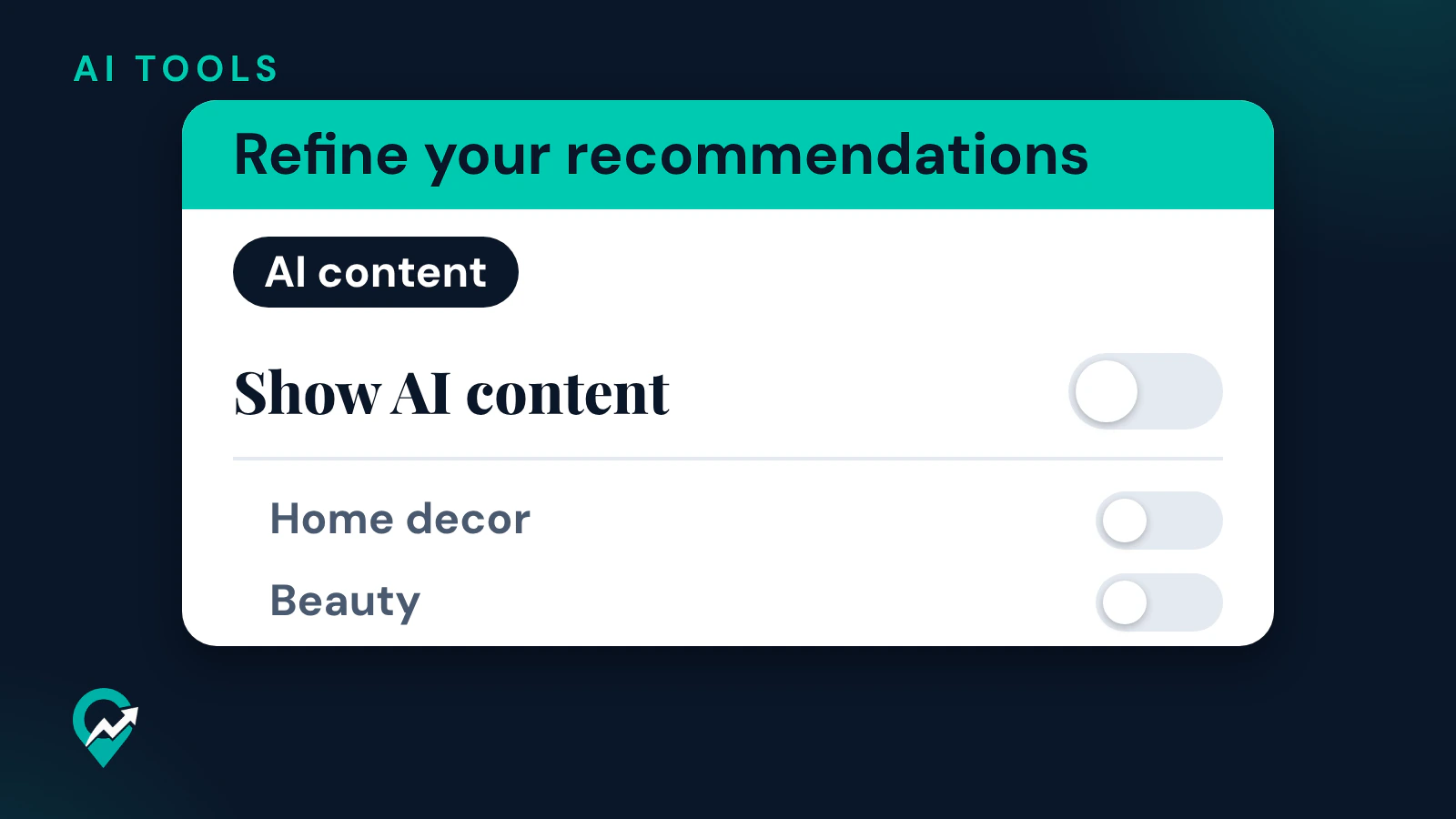
The main setting sits in Refine your recommendations, under the AI content tab. Pinterest’s help page lists three things you can do there:
- Choose to see fewer GenAI Pins in certain categories in your feed.
- Use the Show AI content toggle to reduce AI content in your feed. The page says: “If you turn this toggle off, all AI topics will be turned off.”
- Turn individual topics on or off under the Manage AI content by topic section.
Pinterest’s newsroom post on these controls says they let you see less GenAI content on eligible image Pins in categories that are highly prone to AI modification or generation. Its update of December 2025 lists architecture, art, beauty, entertainment, men’s, women’s and children’s fashion, health, home decor, sport, and food and drink, and says the controls will continue to roll out to more categories.
Turn off AI content in Refine your recommendations
The path depends on your device and account type. These steps come from Pinterest’s Refine your recommendations help page.
On desktop
- Log in to your Pinterest account.
- Click the more options icon at the bottom left of your screen.
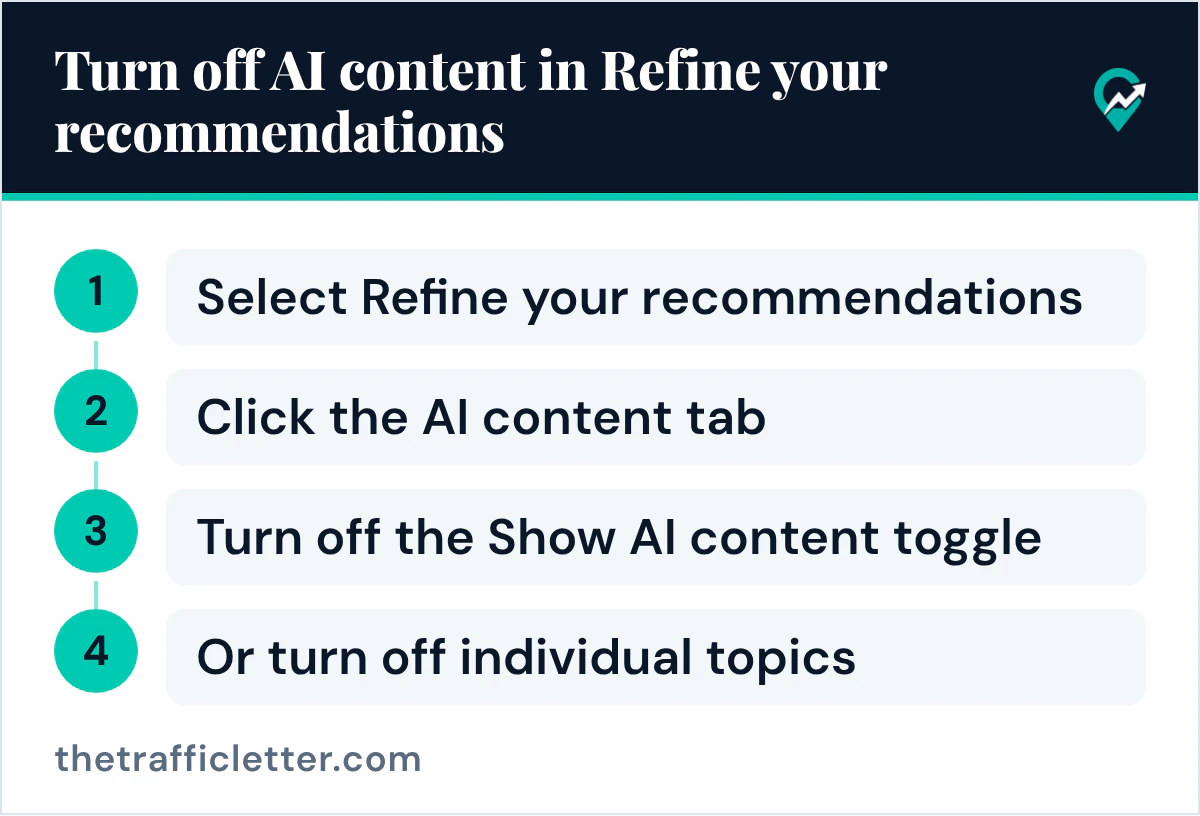
- Select Refine your recommendations.
- Click the AI content tab.
- Turn off the Show AI content toggle, or turn off individual topics under Manage AI content by topic.
In the Pinterest app
- Open the Pinterest app and log in to your account.
- Tap your profile picture at the bottom-right corner.
- Tap the more options icon at the top-right of your screen.
- Tap Refine your recommendations.
- Tap the AI content tab, then turn off the Show AI content toggle or the topics you choose.
With a business account
Pinterest’s page gives a different route for business accounts in the app: tap your profile photo at the bottom-right of the screen, tap the ellipsis icon at the top-right corner, tap Settings, then select Refine your recommendations. The AI content tab is the same from there.
All topics or a few
Pinterest’s help page says turning off the Show AI content toggle turns off all AI topics at once. If you want less AI in one area only, leave the toggle on and turn off only the topics you want less of under Manage AI content by topic. The newsroom post says you can adjust your selections at any time.
Use see fewer on a single Pin
When an AI Pin appears in your feed, you can act on it directly. Pinterest’s See fewer AI Pins page gives the steps:
- Click or tap the ellipsis icon at the bottom right of the Pin when viewed in the feed.
- If the Pin is in one of the supported categories, select the see fewer AI Pins option.
The page says this sends a signal to Pinterest’s systems to recommend less of this type of content. The help page ties the option to Pins in the supported categories, so you may not see it on every Pin.
Use the Less AI button in search
Pinterest’s search help page says that for some searches, you can click or tap the Less AI button to see less AI-modified content. The page says it appears for some searches, so you may not see it every time you search for an idea.
What these settings change, and what they don’t
The three controls work on what Pinterest recommends to you. Pinterest’s help pages describe them as ways to reduce or see less AI content, and the pages read for this guide do not describe a setting that removes every AI Pin from Pinterest.
Two limits are stated on Pinterest’s pages:
- Ads. The Refine your recommendations page says: “Turning on or off recommendations won’t affect the ads you see on your home feed.”
- Categories. The feed controls apply to certain categories, which the newsroom post says will keep expanding.
The AI modified label is described on another page. Pinterest’s Gen AI labels page says it shows the label on the close-up of a Pin when its systems detect AI use or when the content owner indicated it. The pages read for this guide do not say that the feed settings remove or hide the label. What the label means is in our guide to the AI modified label on Pinterest (opens in a new tab).
If you find content that breaks the rules, the AI help page says Pinterest’s Community Guidelines apply to all content, regardless of how it has been created, and asks you to report content that should not be on Pinterest.
If you post AI Pins yourself
These controls are in the hands of the people who see your Pins. Pinterest’s newsroom post says viewers can choose to see less GenAI content on eligible image Pins in the supported categories. Pinterest’s labels page says the label can come from your own indication that the Pin was generated or modified with AI, so indicate it when it applies, and contact Pinterest’s support team if a label on your Pin looks wrong.
Where AI helps a Pinterest workflow and where a person still has to decide is in our guide to AI for Pinterest work (opens in a new tab).
Right after
- Open Refine your recommendations now and choose between the Show AI content toggle and a few topics.
- Read how Pinterest uses AI (opens in a new tab) to see where AI sits beyond your feed.
- If you publish Pins, check which of yours carry a label with our guide to what the AI modified label means (opens in a new tab).