

Making a Pin takes more steps than it looks: a background, a headline, a description, a layout and a check against the post. AI can speed up some of those steps and does nothing useful for others. This guide sets out a workflow that uses AI where it saves time and keeps people in charge of the rest, and it explains what Pinterest says about AI-generated content. If you are new to Pinterest as a traffic source, start with the Pinterest traffic guide for bloggers (opens in a new tab), because a good Pin still depends on the account, boards and links around it.
What does making Pins with AI mean, and where does AI fit?
Making Pins with AI, in the sense used here, means any AI-assisted way to produce the parts of a Pin: an image, text options, or both. No single step turns a blog post into a finished, accurate Pin by itself. The useful question is which jobs to hand to AI and which to keep.
The split below is practical opinion, not a Pinterest rule. It follows one idea: AI is good at producing many options quickly, and a person is needed to decide which option is true and fits the brand.
| Job | Let AI draft it | Keep it human |
|---|---|---|
| Background image | Yes, as a plain scene with room for text | Choosing the image and rejecting odd details |
| Headline | Yes, a list of options | Picking one and checking it against the post |
| Description | Yes, a first draft | Editing for accuracy and plain wording |
| Message of the Pin | No | Deciding what the reader gets from the post |
| Fact check | No | Every claim, number and name |
| Final layout | Optional help | Readability, brand and the final look |
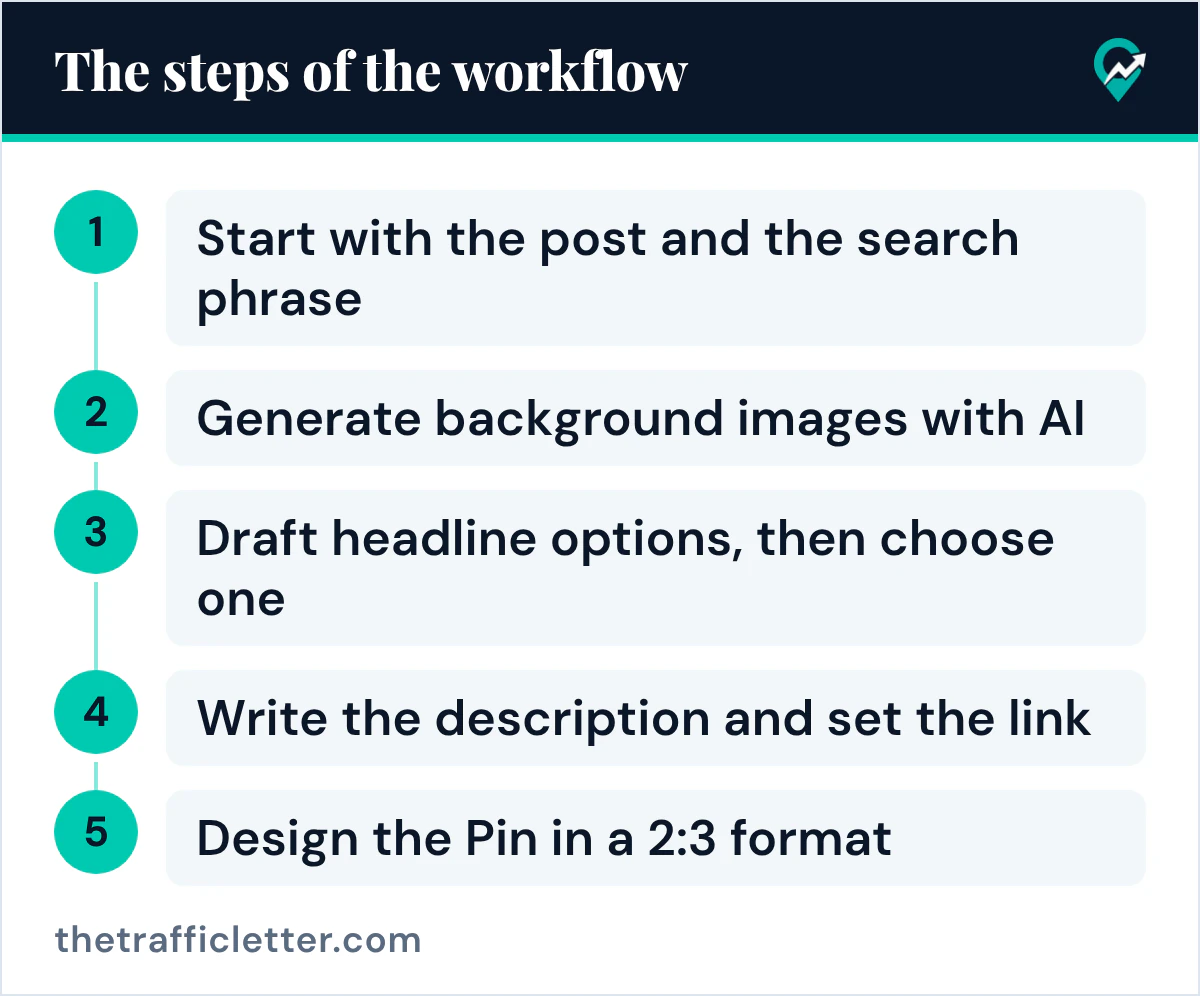
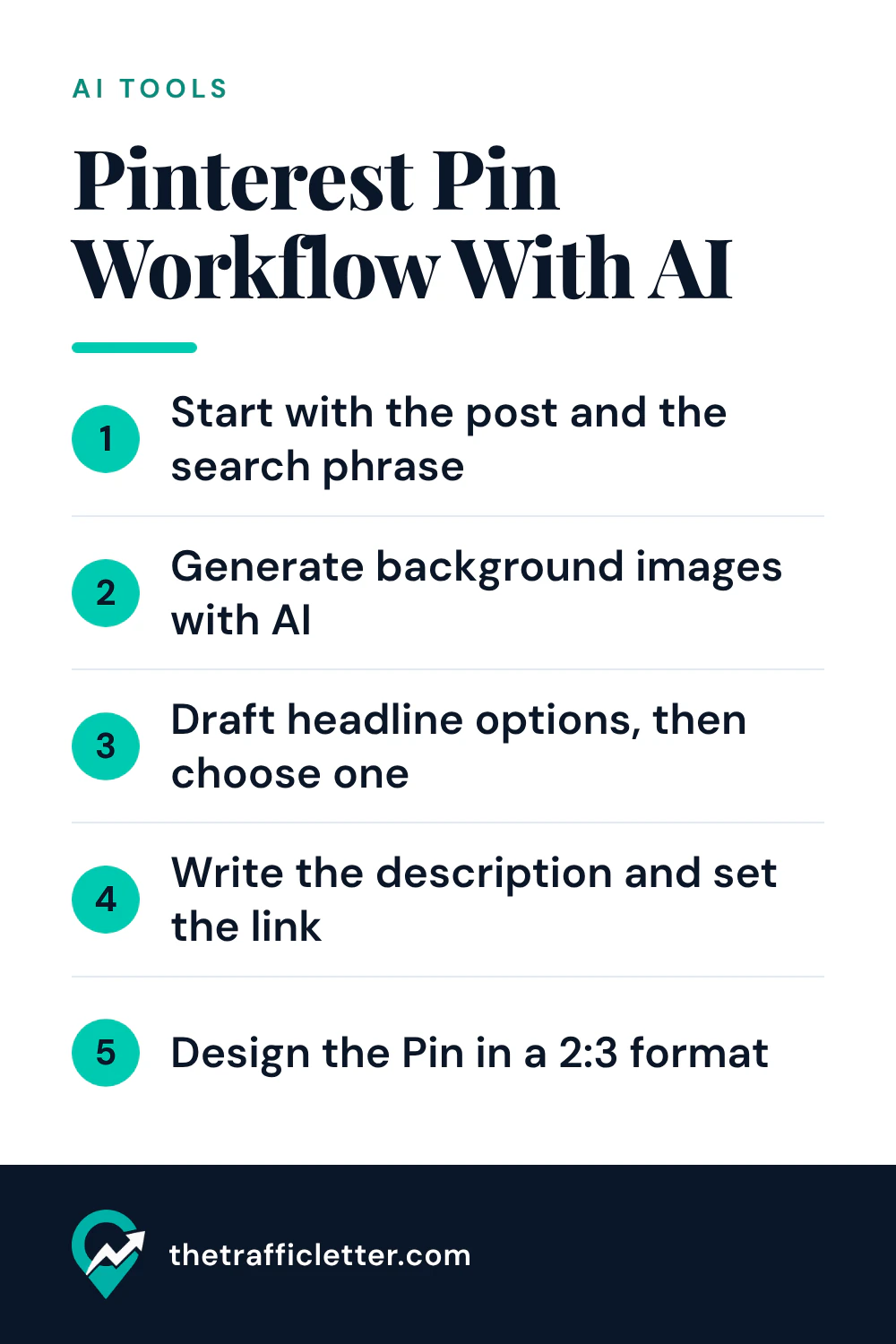
Step 1: Start with the post and the search phrase
Before you open any AI tool, decide what the Pin promises. Read the post and write one sentence that says what the reader gets from it. Then pick the phrase people would search to find that topic. Our guide to choosing the right search phrase (opens in a new tab) covers how to choose it, and our guide to placing keywords on a Pin (opens in a new tab) shows where that phrase belongs.
This step stays human because everything else depends on it. Pinterest says some Pin fields are not shown to people but still power its recommendation engines, and it asks you to include a title and description that use relevant keywords to give your content context. An AI draft built on a vague idea produces a vague Pin.
Step 2: Generate background images with AI
Backgrounds are the safest job to give an image generator, because a background does not have to be accurate about anything. A few habits help.
- Describe a simple scene or abstract shapes that suit the topic, in your brand colors.
- Ask for empty space where the headline will go, since you will add the text yourself.
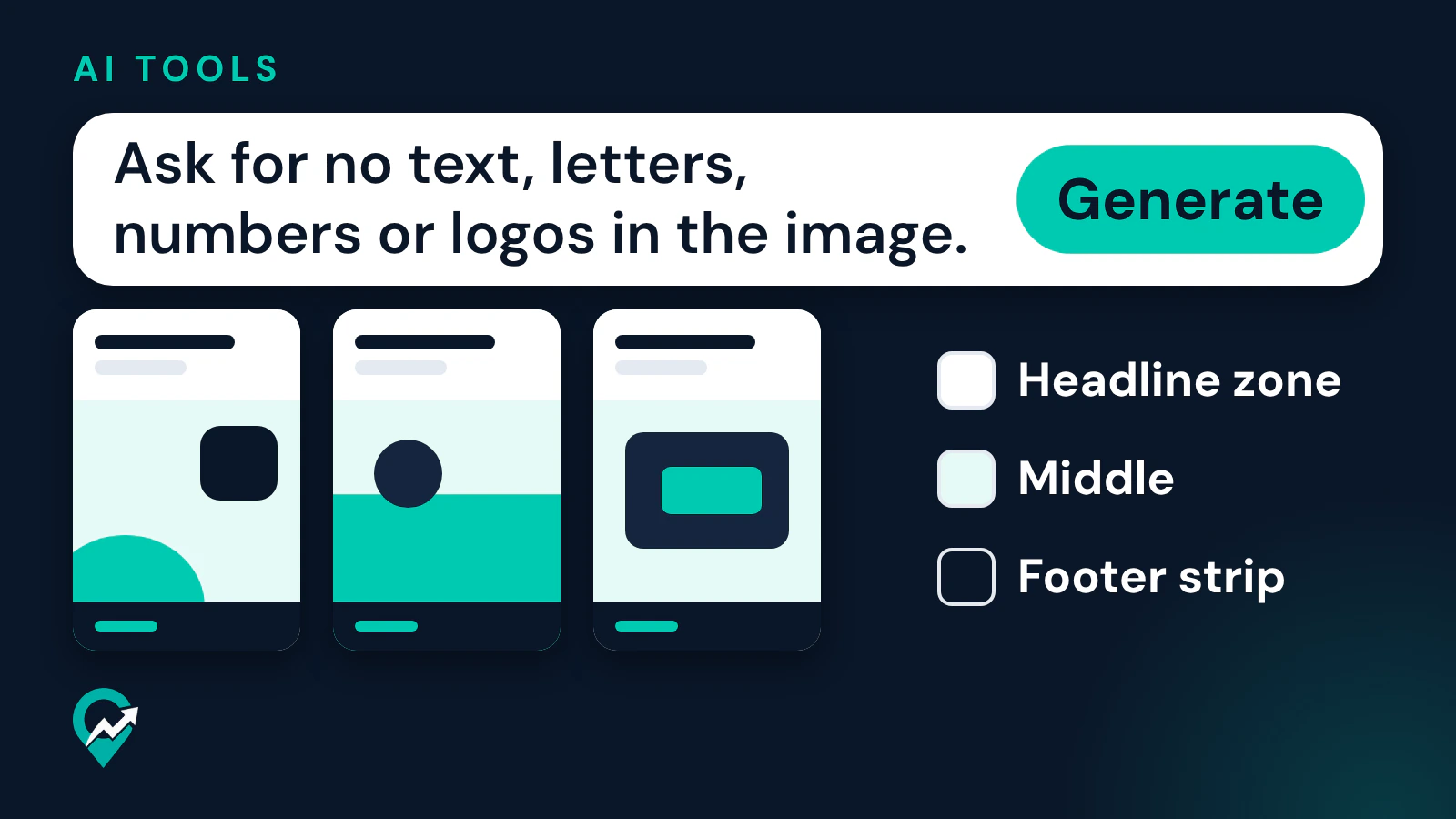
- Ask for no text, letters, numbers or logos in the image. Generated lettering is often garbled, and adding your own text gives you control over wording and spelling.
- Generate several versions and choose one. Reject any image with distorted shapes or details that do not belong.
A word of caution about content that shows a real thing. If the Pin shows a product or a result, the image has to represent it honestly. Pinterest’s updated Community Guidelines, which take effect on November 12, 2026, add a line to the section on scams, deceptive goods and practices that covers synthetically generated or manipulated media used to misrepresent the appearance, efficacy or nature of a product. The current guidelines already say Pinterest is not a place for false or misleading content. For a blog Pin, the simple rule is that an AI image should decorate a topic, not claim to show something it does not. If an image comes from somewhere else, check whose permission you need first: Pinterest’s position on reusing images (opens in a new tab) explains it.
Step 3: Draft headline options, then choose one
Ask AI for a list of headline options based on your post and your search phrase, then pick the one that is clearest. Our article with ChatGPT prompts for Pinterest titles and descriptions (opens in a new tab) has copy-ready prompts for this.
Pinterest’s ad specifications, the only place its pages give a figure, allow a Pin title of up to 100 characters and say the first 40 are most likely to show. Treat that as a guide for organic Pins too, and put the main phrase at the start. Cut any option that promises more than the post delivers. Pinterest’s guide for creators says the platform is not a place for clickbait, and its guidelines ask for a no surprises approach so that people can anticipate where a link takes them.
Step 4: Write the description and set the link
Use AI for a first draft of the description if it helps, then edit it. Keep it to one or two plain sentences that say what the Pin shows and what the reader gets, with the main phrase used once. The formula, with examples, is in our guide to writing Pin descriptions (opens in a new tab).
Pinterest says to fill in every Pin field, because some fields are not shown to people but still feed its recommendation engines, and to add a URL so the Pin drives traffic back to your site. Link each Pin to the exact post it promotes.
 Save
Step 5: Design the Pin in a 2:3 format
Pinterest’s creative best practices say most people use Pinterest on mobile devices, so you should aim for a vertical 2:3 aspect ratio. The same page recommends 1000 x 1500 pixels for a standard image and warns that larger aspect ratios may get cut off in feeds. It also suggests putting the visual in the middle, stacking the text overlay with key messaging at the top and extra details at the bottom, and making sure a logo or brand name is clearly visible without taking over.
That page is written for ads, and the pages read for this guide do not give the same numbers for organic Pins, so this is guidance rather than a stated organic rule. It is a reasonable default for blog Pins. Pinterest’s pages on making Pins describe organic Pins as free content built from images, videos or both, with features such as text overlay available when you create one.
How do you build a reusable Pin template?
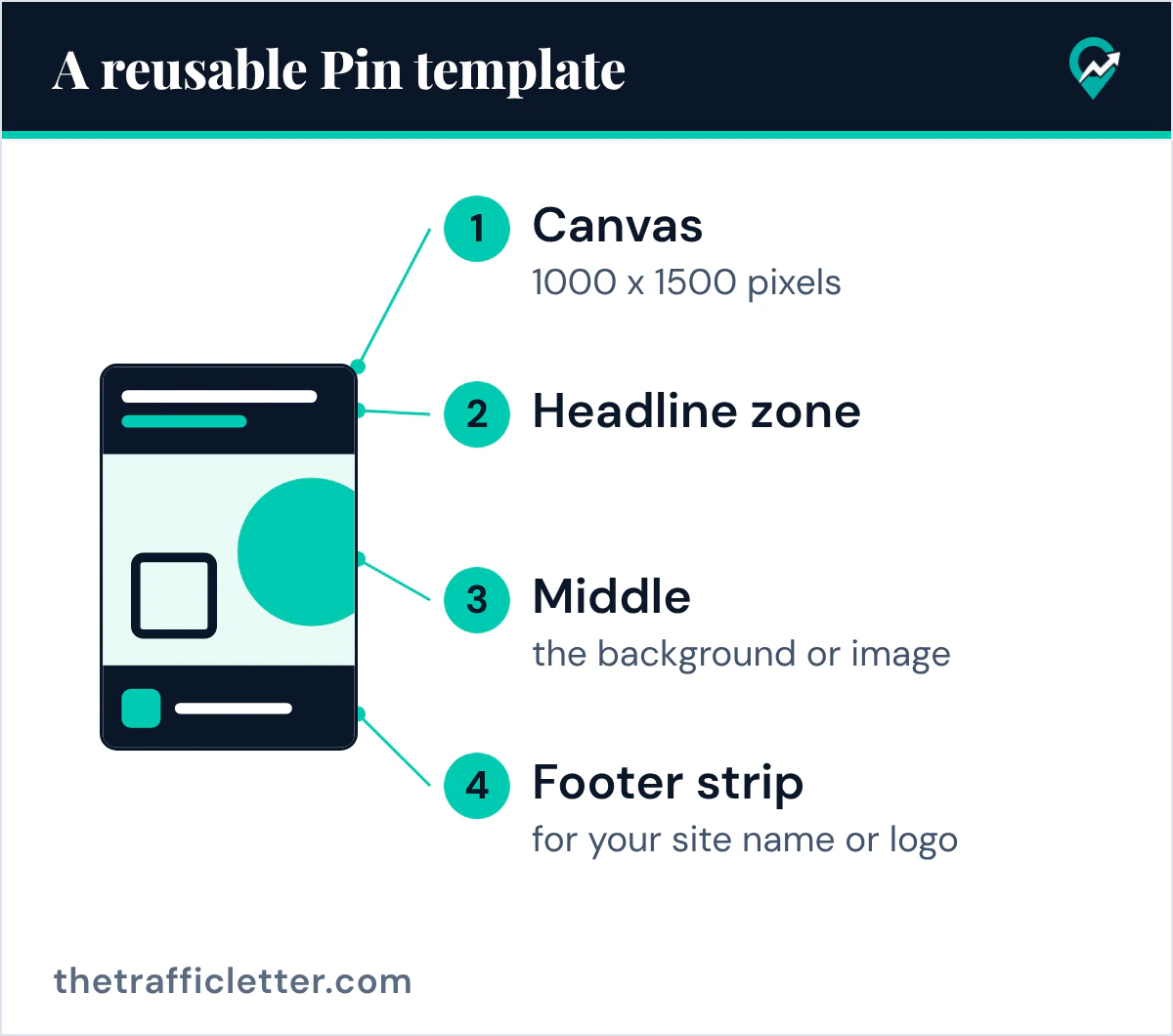
Once you have a layout that reads well, turn it into a template so that each new Pin means swapping two things, the background and the headline. This part is common practice, not something Pinterest documents.
- Fix the canvas at 1000 x 1500 pixels.
- Reserve a headline zone at the top, with a set font, size range and color, and a safe margin from the edges.
- Reserve the middle for the background or image.
- Reserve a footer strip for your site name or logo.
- Save the template and name the versions clearly, so each Pin for a post is a new file and not an edit of an old one.
A template keeps your Pins consistent, which helps people recognize your content. It should not make every Pin identical. Pinterest’s guidelines ask users not to create or save content that is repetitive, deceptive or irrelevant in an attempt to make money, so use the template for the frame and change the angle, image and headline each time.
Quality checks before you publish
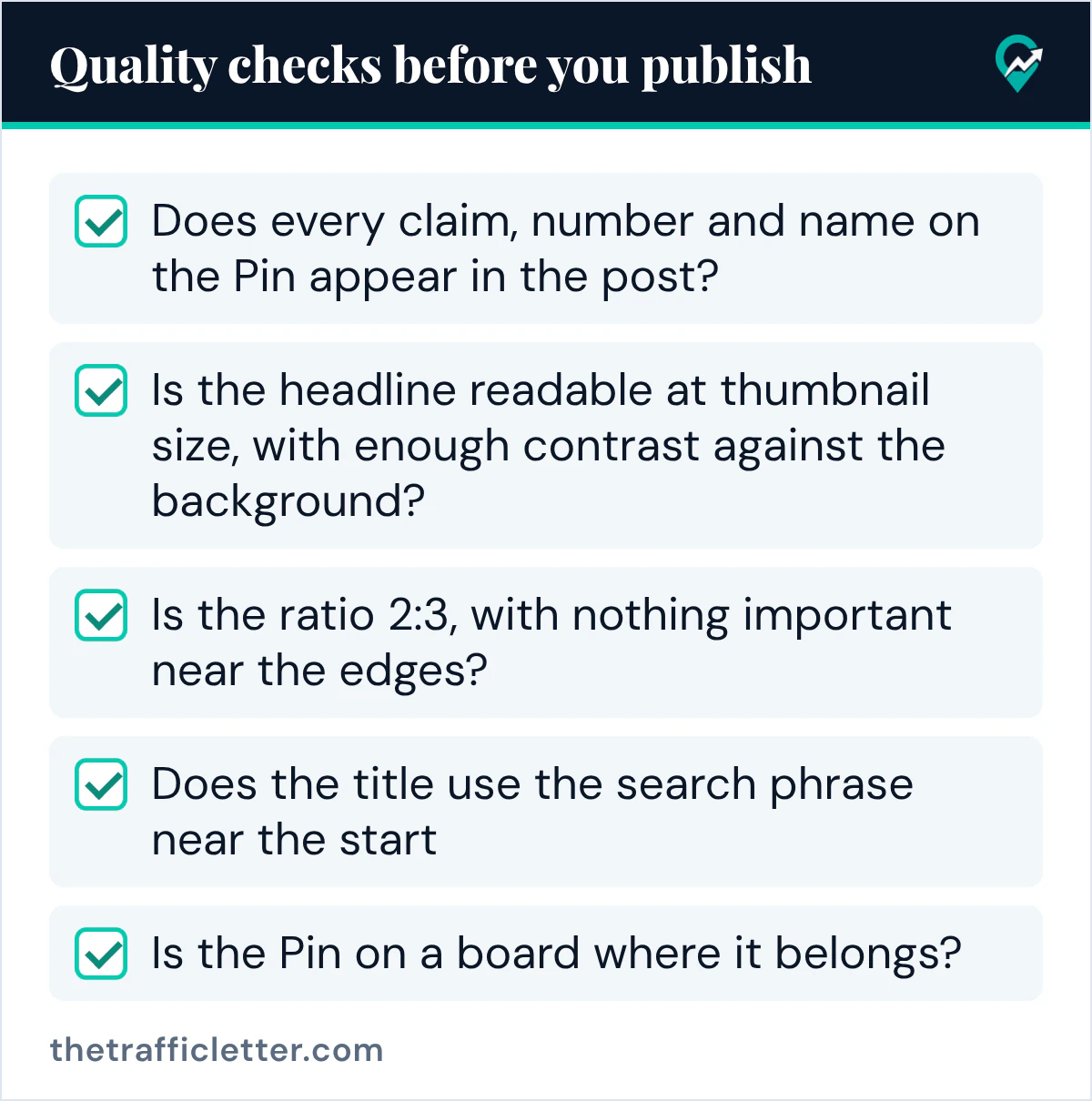
Run each Pin through this list. It takes a minute and catches most problems.
- Does every claim, number and name on the Pin appear in the post?
- Is the headline readable at thumbnail size, with enough contrast against the background?
- Is the image free of odd shapes, garbled lettering and anything that misleads?
- Is the ratio 2:3, with nothing important near the edges?
- Does the title use the search phrase near the start, and does the description read as plain sentences?
- Does the link go to the exact post, and does the post deliver what the Pin promises?
- Is the Pin on a board where it belongs? See naming rules for Pinterest boards (opens in a new tab) and how to organize them (opens in a new tab).
What does Pinterest say about AI-generated and AI-modified content?
These points come from Pinterest’s own pages, read on October 22, 2026.
- Labels. Pinterest says that when its system detects that AI was used to generate or modify a Pin that is not promoted, you will see an AI modified label in close-up at the bottom left after you open the Pin. Detection uses image metadata that follows the IPTC Metadata Standard and classifiers that look for AI content even without obvious markers. Some Pins may also carry the label because the content owner indicated that AI was used. Our guide to the AI modified label on Pins (opens in a new tab) shows where a creator can say so when creating a Pin.
- Appeals. Pinterest says its systems are not perfect and offers an appeal. If you find an AI label on one of your Pins and want to appeal it, contact the support team.
- Rules. The AI help page says the Community Guidelines apply to all content on Pinterest, regardless of how it was created. The spam rules ask you not to create or save repetitive, deceptive or irrelevant content to make money.
- Viewer controls. People can choose to see fewer AI-generated or modified Pins in certain categories, through the “see fewer” option on a Pin or through Refine your recommendations. Pinterest’s newsroom listed categories including art, beauty, home decor, fashion and food and drink when it described these controls.
- A checking tool. Pinterest offers a GenAI transparency tool that checks whether an image was generated or modified with Pinterest’s own GenAI tools. Pinterest notes it may not detect everything made with third-party tools.
What the pages do not say matters too. None of the pages read states how a label affects the reach of a Pin, so do not assume either way. What the viewer controls show is that some people choose to see less AI content in certain categories, which is a reason to make your Pins useful and accurate and not merely produced quickly. Where Pinterest uses AI on its own side, from recommendations to ad backgrounds, is in our guide on how Pinterest itself uses AI (opens in a new tab).
Common mistakes
- Letting the image generator write the text on the Pin.
- Publishing the first output without reading it as a reader would.
- Making twenty near-identical Pins for one post instead of a few distinct ones.
- Using an AI image to suggest a result, product or place that the post does not actually show.
- Leaving the Pin’s text out of line with the post, so the click feels like a bait and switch.
For deeper detail on where AI helps and where it does not across the whole Pinterest workflow, read our guide to AI for Pinterest (opens in a new tab).
What to do next
Take one published post, write the one-sentence promise and the search phrase, and make a single Pin using the steps above. Check it against the list, publish it, and review it in Pinterest Analytics after a few weeks before you build more. When you are ready to publish on a schedule, our roundup of Pinterest marketing tools by job (opens in a new tab) lists the free Pinterest tools to set up first.