

If you make Pin images with AI, or edit photos with AI features, one of your Pins may show a small AI modified label. This guide explains what Pinterest says the label means, how a Pin gets it, and what a creator and a viewer can each do about it. It builds on our pillar guide to AI-made Pins (opens in a new tab), and every fact below comes from Pinterest’s own help pages and newsroom, read on the day this guide was published.
What the AI modified label means
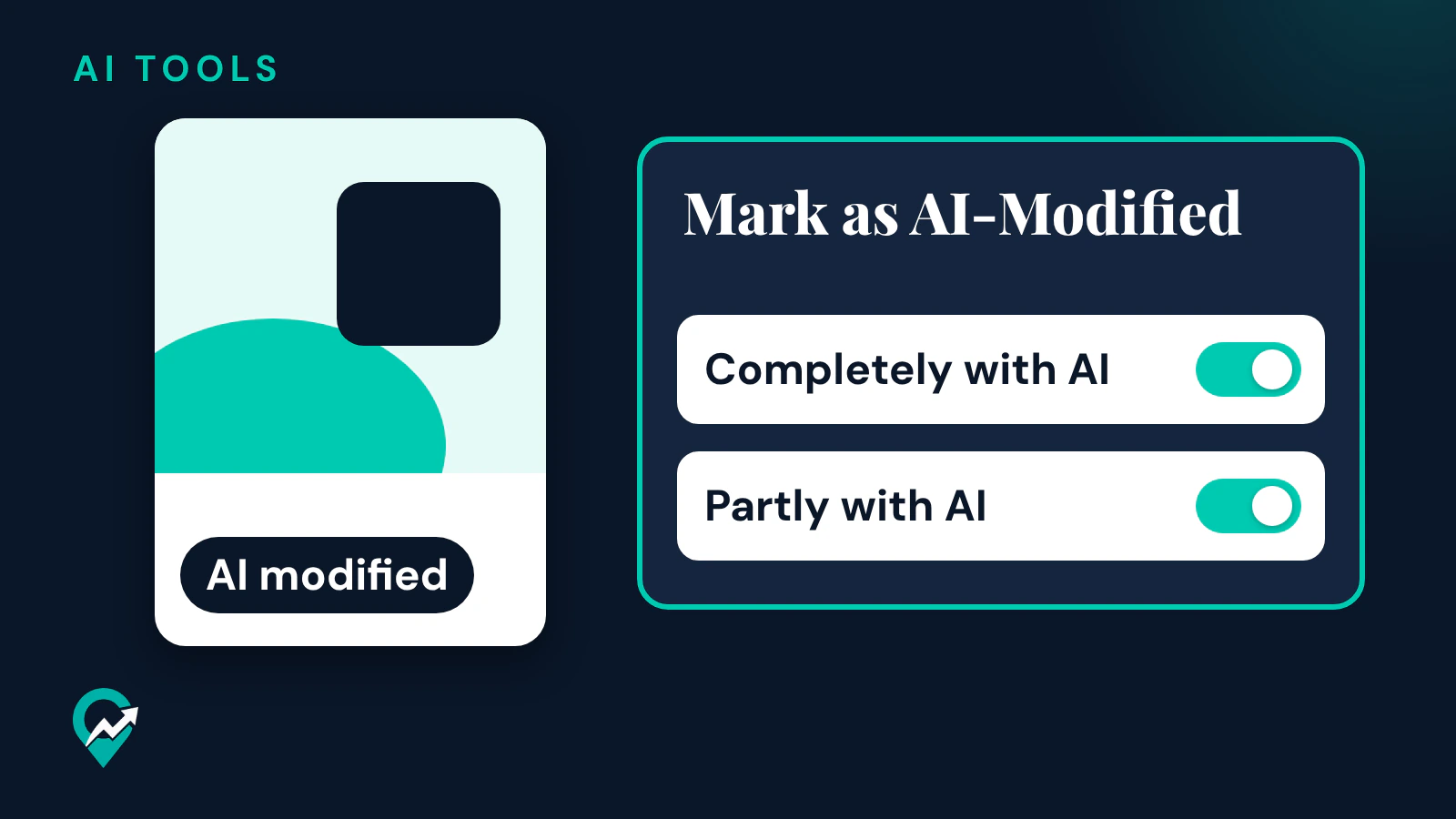
Pinterest’s help page on Gen AI labels says that when its system detects that AI was used to generate or modify a Pin that isn’t in a promoted state, you see an AI modified label in close-up, at the bottom left, after you click on the Pin. Pinterest’s newsroom post that introduced the labels in April 2025 describes the same thing for image Pins in closeup.
The label is a disclosure to the viewer. Pinterest’s AI at Pinterest page says the labeling of AI-generated or modified content helps provide relevant context about the content people see on Pinterest.
Ads work differently. The help page says that for ads the label won’t appear when you click on the Pin. You see it with the other details about the ad by clicking or tapping the ellipsis icon next to the Pin. The disclosure says the Pin was modified with AI or contains an AI-generated person, based on what the content owner indicated, or that the Pin may be modified with AI if Pinterest’s systems flagged it.
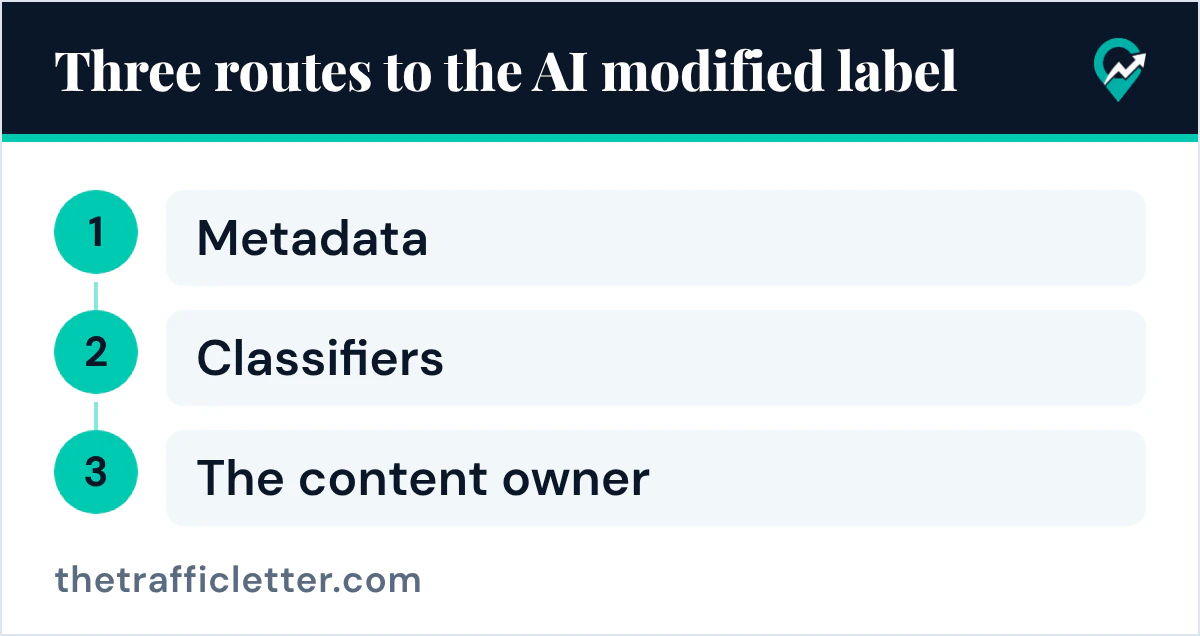
How a Pin gets the label: three routes
Pinterest’s pages describe three ways a label ends up on a Pin.
- Metadata. Pinterest says it analyzes a Pin’s metadata following the IPTC Metadata Standard.
- Classifiers. Pinterest says it also developed classifiers that automatically detect Gen AI content, even if the content doesn’t have obvious markers. So a Pin can be labelled even when its file has no obvious markers.
- The content owner. Pinterest says some Pins carry the label because the content owner indicated that the Pin was generated or modified using AI.
The pages read for this guide describe labels on image Pins. Our wider guide to what AI can and can’t do for Pinterest (opens in a new tab) covers the rest of Pinterest’s AI documentation.
Mark your own Pins as AI-Modified
The third route is the one you control. Pinterest’s help page on creating a Pin from an image or video lists a field called Mark as AI-Modified in the desktop steps: use the toggles to indicate if the content was made completely or partly with AI or includes an AI-generated person.
How to decide, before you publish:
- The image was generated by an AI tool: it was made completely with AI.
- A real photo or design was changed with an AI feature, for example a generated background: it was made partly with AI.
- The image shows a person that an AI tool generated: it includes an AI-generated person.
If none of these apply, leave the toggles off. Pinterest says it also uses classifiers that detect Gen AI content, so the toggles are not the only route to the label.
Pinterest also offers a GenAI transparency tool. Its help page says you can upload an image to check whether it was generated or modified using GenAI tools in Pinterest, and it warns that the tool may not detect all images generated or modified by third-party GenAI tools. Use it only as a check for Pinterest’s own tools.
What to do if you think the label is wrong
Pinterest’s help page gives one route: if you find an AI label on one of your Pins and want to appeal it, contact the support team. The newsroom post that introduced the labels says Pinterest set up an appeals system for creators and users who believe their content may be mislabeled, because its systems aren’t perfect.
On the Gen AI labels page, the words contact our support team link to Pinterest’s contact form for Gen AI label appeals. The pages read for this guide do not give a response time or a way for a creator to switch the label off on a published Pin. So keep the appeal factual and short. Say which Pin, why you believe the label is wrong, and how the image was made. If the image was in fact changed with AI, the label is accurate, and the toggle is the right way to say so on your next Pins.
Draft the appeal message with an AI assistant
This prompt works in ChatGPT, Claude, Gemini or any AI assistant. Replace the text in square brackets, and keep only facts you can stand behind.
Write a short, polite message to Pinterest support to appeal an AI modified label on one of my Pins.

Facts:
- Pin URL: [link to the Pin]
- How the image was made: [for example: my own photo, edited for brightness and crop in (name of app), no AI features used]
- Why I believe the label is wrong: [one sentence]

Rules: 4 to 6 sentences, plain language, no claims I did not give you, no threats, no request for anything other than a review of the label.
Read the draft against the facts before you send it. If the assistant adds anything you did not give it, delete it.
How viewers can see fewer AI Pins
If you want fewer AI images in your feed, note that the pages read for this guide do not describe a switch that hides every label. Pinterest documents three controls.
- Refine your recommendations. Pinterest’s newsroom says you manage these preferences in Settings by visiting refine your recommendations, where you can see fewer GenAI images in each supported category. The October 2025 post lists categories such as beauty, art, fashion and home decor, and its December 2025 update adds food and drink.
- See fewer on a Pin. Pinterest’s help page says you click or tap the ellipsis icon at the bottom right of a Pin in the feed and, if the Pin is in one of the supported categories, select the see fewer AI Pins option. This sends a signal to recommend less of this type of content.
- Less AI in search. Pinterest’s search help page says that for some searches you can click or tap the Less AI button to see less AI-modified content.
Each of these settings, step by step, is in our guide on turning off AI on Pinterest (opens in a new tab).
What the label means for your reach
The Pinterest pages read for this guide do not say whether the label changes how a Pin is distributed, so this guide makes no claim either way. What the pages do show is that viewers can ask for fewer AI Pins in some categories, and that the request sends a signal to recommend less of that content. If your niche is in one of those categories, keep some Pins built from your own photos and designs, and judge the AI ones by their own results, using our walkthrough of Pinterest Analytics reports (opens in a new tab).
For the text of your Pins, our prompts for Pin titles and descriptions (opens in a new tab) show how to use an assistant without copying its output blindly.
Right after
- Open your next AI-made Pin before publishing and set the Mark as AI-Modified toggles that apply.
- Review the image workflow in our guide to creating Pins with AI tools (opens in a new tab), and keep a note of which tool made or changed each image.
- If a Pin carries a label you believe is wrong, send a factual appeal to Pinterest support, using the draft above.