

If you have a private profile and expect a list of follow requests to approve, Pinterest’s help pages, read on 22 November 2026, describe another method: you send an invite link to the people you want. This guide is part of our what a blogger’s Pinterest profile needs (opens in a new tab), and the profile is one part of getting blog traffic from Pinterest (opens in a new tab).
How following works on a private Pinterest profile
Pinterest’s Make your profile private or public page says you can set your profile to private or public to control who can see your profile, boards, and Pins, and activity. It adds that private profiles won’t appear in search results on Pinterest or in search engines, but you can invite people you know to follow you. The Find and follow people page says you won’t be able to search for people with private Pinterest profiles.
So on a private profile, you choose who joins before they arrive: the pages read for this guide describe no follow request to approve, and the Invite people to follow you page describes a unique profile link that you share with people you trust.
| Step | What Pinterest’s pages say |
|---|---|
| Who can find you | Private profiles won’t appear in search results on Pinterest or in search engines |
| How people join | You can share a unique profile link with people you trust to invite them to follow you |
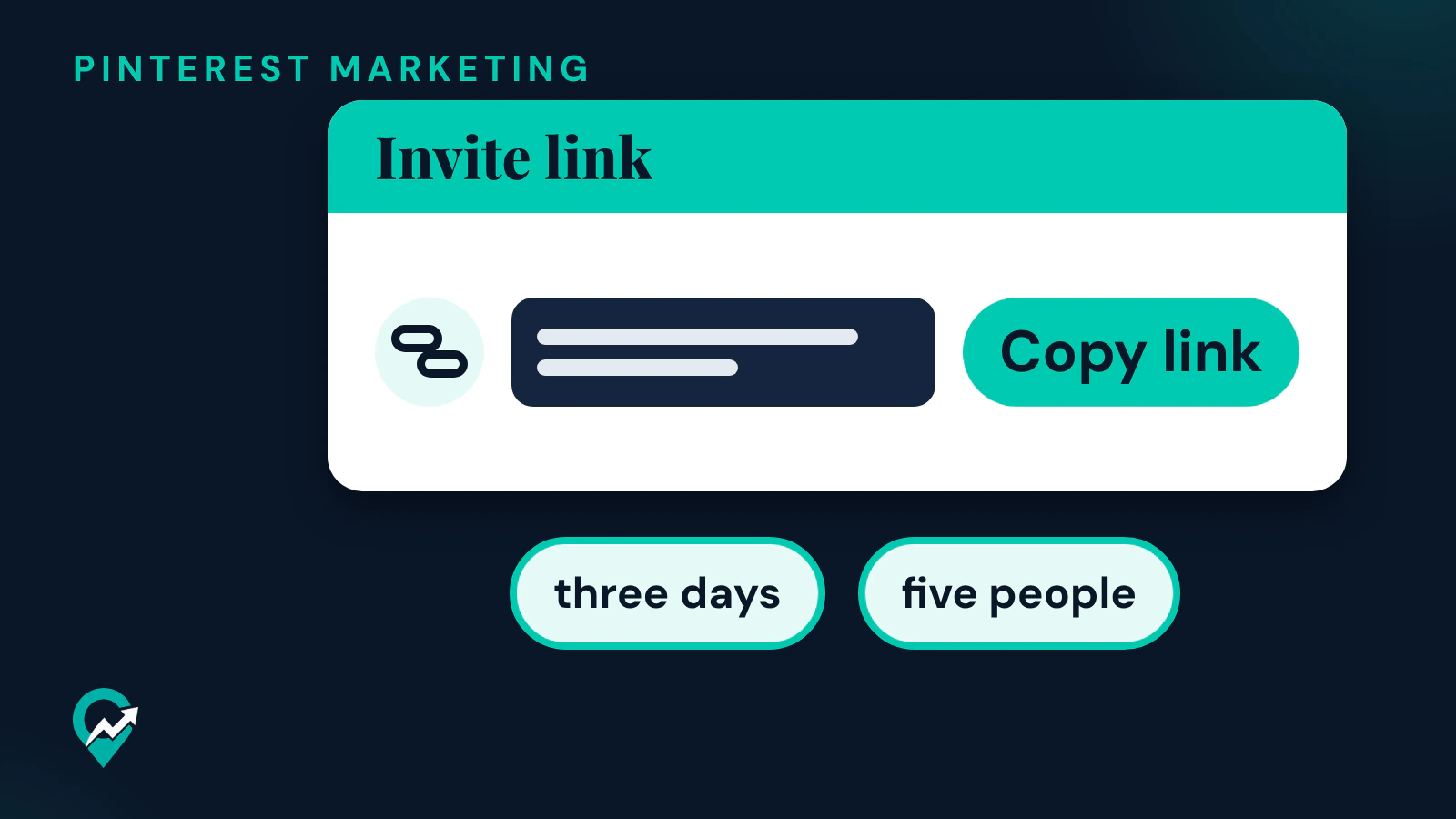
| How long a link works | Each link will expire after three days or after it’s used by five people |
| Where to check | Click Followers under your name to see your followers |
Before you start: who can make a profile private
Two rules from Pinterest’s help pages decide whether this method applies to you.
- Business profiles are always public. If you have a business account, you’ll need to change it to a personal account in order to make your profile private.
- Teen profiles are private by default. The Make your profile private or public page says profiles for teens from 13-16 years old are private by default and cannot be made public, and that you must be 16 or over to edit your profile visibility. The Teen safety options page words the ages a little differently: it lists personal profiles of 16-17 year olds as private by default, with the choice to make their profile public.
For a blog, a private profile is rarely the goal: it stays out of Pinterest search. Use it for a personal account that you share with family or a small group, and keep the blog’s account public.
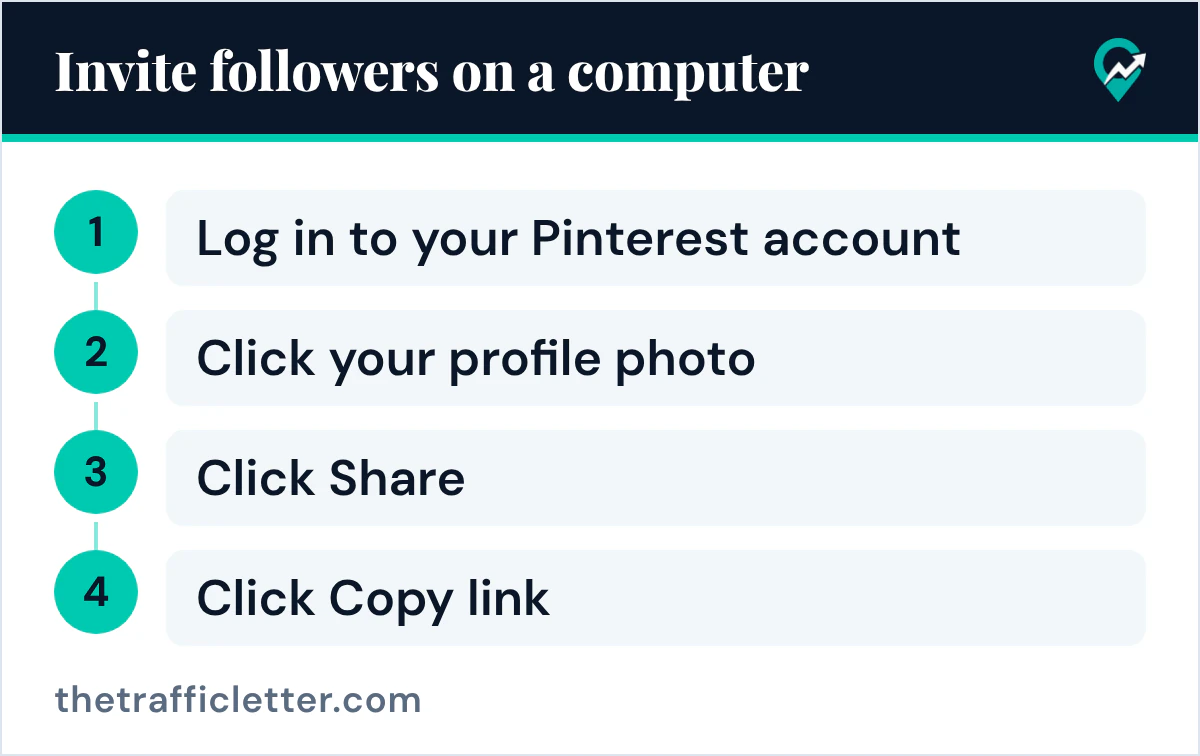
How to invite followers on a computer
Pinterest’s steps to share your unique profile link on a computer:
- Log in to your Pinterest account.
- Click your profile photo at the top-right corner to open your profile.
- Click Share.
- Click Copy link to copy your invite link and share it with your friends.
Paste the link in a message to the people you want to let in. Because Pinterest says each link will expire after three days or after it’s used by five people, send it when they are ready to open it, and copy a new one for the next group.
How to invite followers in the Pinterest app
On Android, the help page gives these steps:
- Open the Pinterest app on your device and log in to your Pinterest account.
- Tap your profile photo at the bottom-right corner to open your saved tab.
- Then tap your profile photo at the top-left corner of your screen.
- Tap View profile.
- Tap the share Android icon at the top-right corner.
- Tap Copy link to copy your invite link and share it with your friends.
On iPhone and iPad, the steps are the same, with the share IOS icon at the top-right corner. The page adds a note for a business account: tap your profile photo at the bottom-right corner to open your profile, tap the share icon at the top-right corner, then Copy link.
Check who joined and remove anyone you did not invite
Once people have used the link, check the list. Pinterest’s Manage your following and followers page says that if your profile is private, you’ll need to invite others to follow you, and gives these steps to review your followers on a computer: click on your profile picture at the top-right corner of the screen to go to your profile, then click Followers under your name. In the app, your profile picture is at the bottom-right of the screen.
If someone on the list should not be there, click or tap the ellipsis icon next to them, select Remove and confirm. Our steps to remove a follower or block someone (opens in a new tab) cover both options, and our guide to view your Pinterest followers (opens in a new tab) explains what the count includes.
Turn on the private profile first
Pinterest’s invite page describes the link for a private profile, so turn the private setting on first. On a computer, Pinterest’s page says to click the more-options-refresh icon at the bottom left of your screen, click Settings, click Profile visibility at the left side of the screen and toggle the switch next to Private profile. Our steps to switch on the Private profile setting (opens in a new tab) cover the app and the search privacy switch on the same page.
Right after
- Decide what to share once the profile is public again with our steps to share your Pinterest profile URL (opens in a new tab).
- Clean up the list with our guide to removing unwanted Pinterest followers (opens in a new tab).