

Sharing your Pinterest profile puts every board of your blog behind one link: in your newsletter, on your About page or in a message to a reader. The steps below come from Pinterest’s help pages read on 14 November 2026, for a computer and for the app. Before you share it, make the profile worth the visit with our profile ideas for a blogger on Pinterest (opens in a new tab).
Your profile link: www.pinterest.com/ (opens in a new tab) and your username
Pinterest’s Edit your profile page says that with your username, Pinterest is able to create a unique web address for your profile. Its example: Pinterest has the username “Pinterest” and can be found at www.pinterest.com/Pinterest (opens in a new tab). So your profile link is www.pinterest.com/ (opens in a new tab) followed by your username.
Your username appears next to your profile picture under your profile name. The same page gives the rules for it: letters only, or letters mixed with numbers and the _ character, between three and 30 characters, with no spaces or punctuation marks, and not made up of just numbers. If your blog has a short name, use it as the username so the link is easy to read and to type.
Since the address is built from the username, check the links on your blog again whenever you edit the username.
How to share your profile on a computer
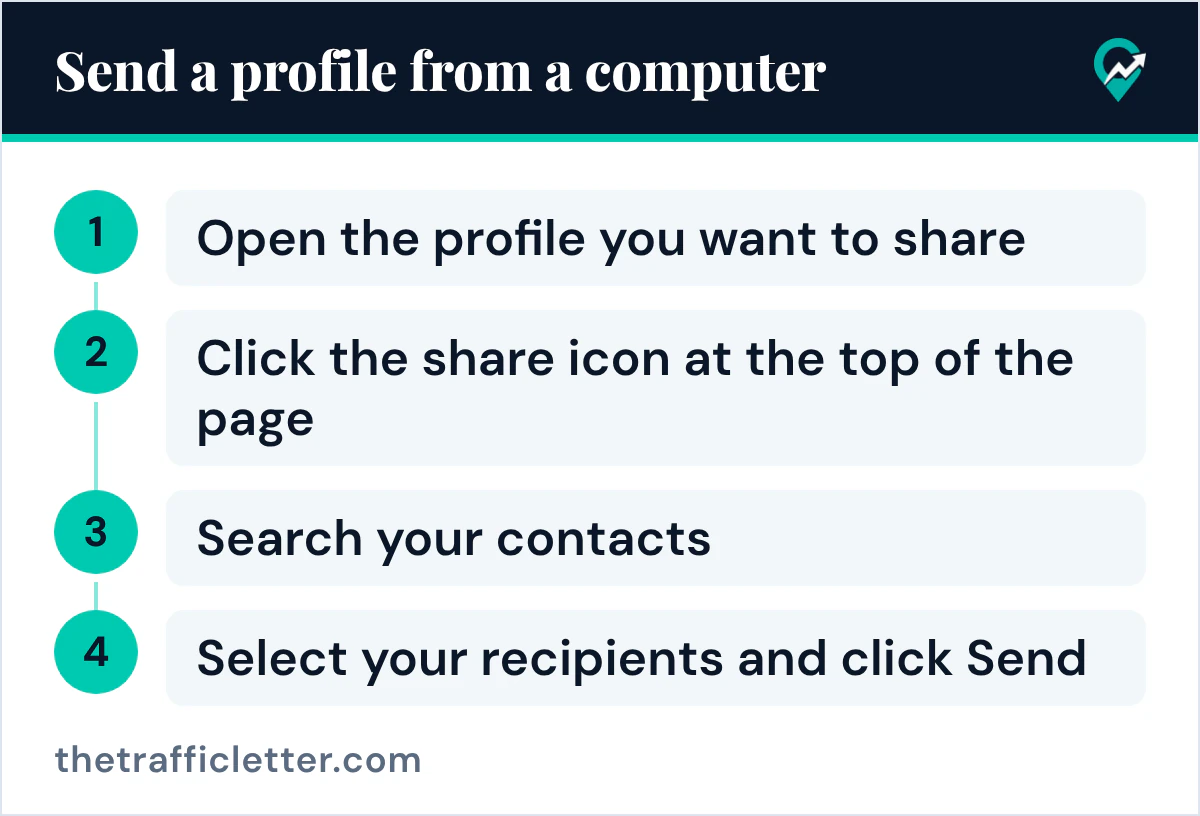
Pinterest’s Share Pins, boards, and profiles page gives these steps to send a profile:
- Open the profile you want to share.
- Click the share icon at the top of the page.
- Search your contacts by entering someone’s name or email in the search bar, or select suggested people on Pinterest.
- Select your recipients and click Send.
The same steps work for any profile you want to recommend, not only yours.
How to share your profile in the Pinterest app
In the app, the help page gives this version:
- Open the profile you want to share.
- Tap the share icon below the profile name.
- Send to a suggested Pinterest account, or tap Search to search for contacts.
- To send the profile to someone outside of Pinterest, tap Copy link or select an app.
- Tap Send.
The page shows a second app version where the share icon is at the top of the screen and you can share a profile link on a third-party app. Look for the share icon in both places.
Copy link is the step to use for your blog: paste the link on your About page, in your email signature or at the end of a newsletter.
Share a private profile with an invite link
Pinterest’s Make your profile private or public page says private profiles won’t appear in search results on Pinterest or in search engines, but you can invite people you know to follow you. The Invite people to follow you page says you can share a unique profile link with people you trust, and that each link will expire after three days or after it’s used by five people.
On a computer, Pinterest’s steps are:
- Log in to your Pinterest account.
- Click your profile photo at the top-right corner to open your profile.
- Click Share.
- Click Copy link to copy your invite link and share it with your friends.
A blog needs a public profile, since a private one stays out of search (opens in a new tab). Business profiles are always public, according to the Make your profile private or public page.
Share your profile in the real world with a Pincode
Pinterest’s Create Pincodes page says Pincodes are special codes you can create to share your Pinterest profile in the real world, and that people scan them with Pinterest Lens. On a computer, the steps for a profile Pincode are:
- Log into your Pinterest account.
- Click your profile picture at the top-right corner of your screen to open your profile.
- Click your profile picture at the middle of your screen, above your profile name.
- Click Download Pincode.
A Pincode can also send people to one of your boards. Pinterest notes that if you delete the board, its Pincode will no longer function. A Pincode fits printed material, such as a flyer or a card for an event.
Where to put the link on your blog
A shared profile link brings readers who already know your blog. Place the link where readers are ready to follow: the About page, the footer, the end of a post, or a welcome email. To share one topic instead of the whole profile, send a single board with our steps to share a Pinterest board (opens in a new tab).
Right after
- Turn the visits into followers with our follower growth guide (opens in a new tab).
- Check your username and profile photo with our steps to change your profile picture on Pinterest (opens in a new tab).
- Link the profile back to your site by claiming your blog on Pinterest (opens in a new tab).