

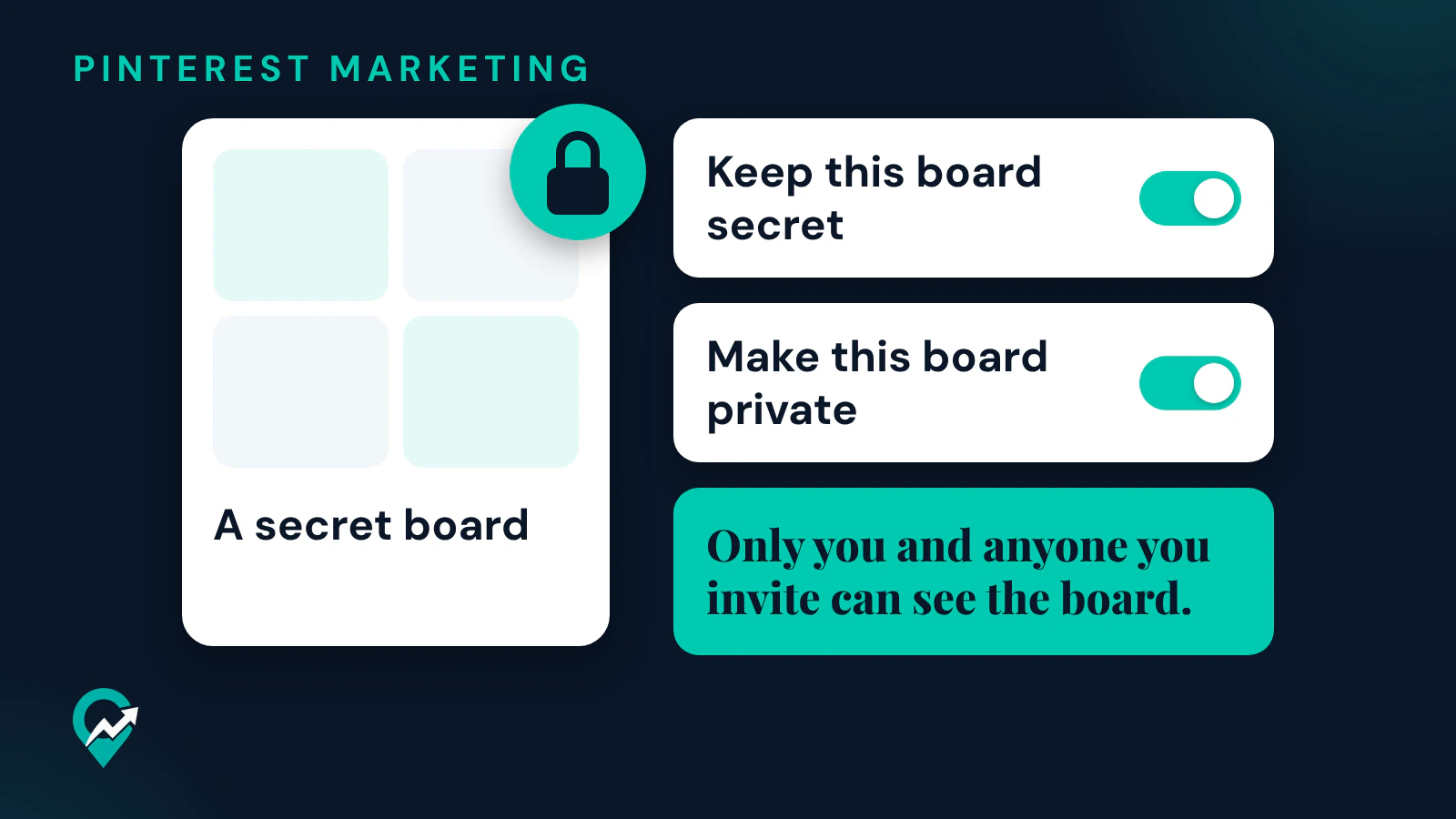

A secret board keeps a set of Pins off your public profile while you still save to it. This guide gives the steps from Pinterest’s help pages read on 11 November 2026, for a new board and for a board you already have, then what Pinterest says a private board changes. It is part of our guide to organizing boards for a blog profile (opens in a new tab).
Secret or private: two words for one setting
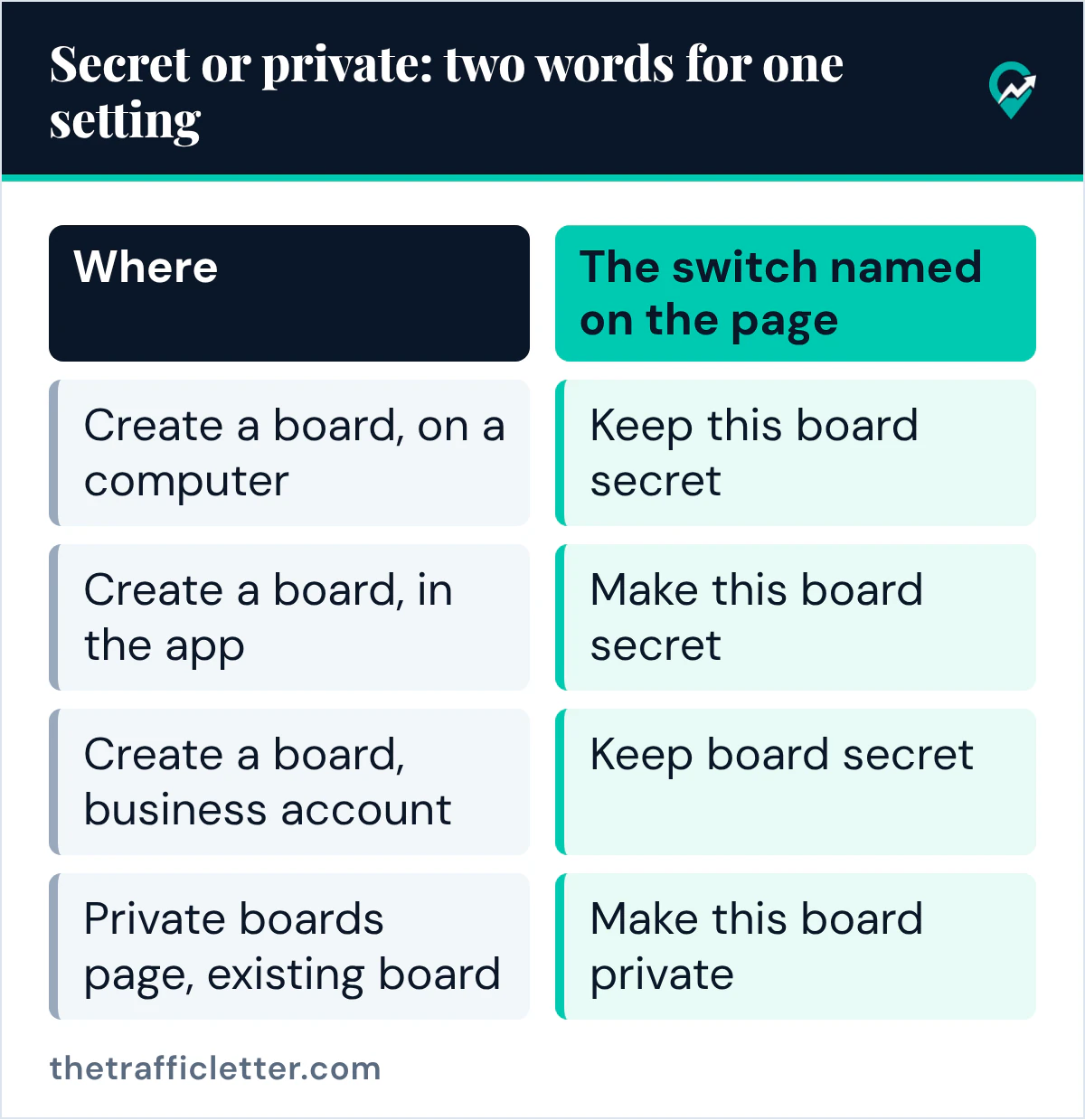
Pinterest’s help pages do not use one word for this setting. The Create a board pages call it secret, and the Private boards page, whose address still ends in secret-boards, calls it private. The switch you are told to turn on changes with the page and the device:
| Where | The switch named on the page |
|---|---|
| Create a board, on a computer | Keep this board secret |
| Create a board, in the app | Make this board secret |
| Create a board, business account | Keep board secret |
| Private boards page, existing board | Make this board private |
Whatever the label on your screen, the steps below lead to the same switch.
How to make a secret board when you create it
Pinterest’s Create a board page gives these steps on a computer:
- Log in to your Pinterest account.
- Click the square-plus icon in the navigation bar at the left side of your screen.
- Select Board.
- Enter a name for your board.
- Toggle the switch next to Keep this board secret.
- Click Create.
In the Pinterest app, tap the plus icon, tap Board, enter a name, toggle Make this board secret and tap Create at the top-right corner. On a business account, Pinterest’s business help page says to go to your profile, click the Saved tab, click the plus icon underneath Saved, select Board, and turn on the switch next to Keep board secret.
You can also make a secret board while you save a Pin. On a computer, Pinterest says to click the directional-chevron-down icon next to the suggested board name on the Pin, click Create board, enter a name, toggle Secret and click Create. The full set of options on the board form, including collaborators, is in our walkthrough of every way to create a Pinterest board (opens in a new tab).
How to make an existing board private
Pinterest’s Private boards page gives these steps on a computer:
- Log in, then click your profile picture at the top-right corner of your screen to open your profile.
- Click the board you want to make private.
- Click the ellipsis icon at the right of the screen.
- Click Edit info and settings.
- Scroll down and toggle Make this board private.
- Click Done.
In the app, tap your profile picture at the bottom-right corner, tap the board, tap the ellipsis icon at the top-right corner, then select Edit board and header image or Edit info and settings (the page shows both, depending on the app). Toggle Make this board private and tap Done.
Another label differs between Pinterest’s own pages: the Edit a board page calls the computer menu option Edit board, while the Private boards page calls it Edit info and settings. Pick whichever of the two your menu shows.
What Pinterest says a private board changes
The Private boards page lists what changes once a board is private:
- Only you and anyone you invite can see the board.
- On your home feed, you may see Pin suggestions based on your private boards, and these are only visible to you.
- When you save a Pin to a private board, the person you saved from will not get a notification and the Pin’s count will not increase.
- When you save a Pin from a private board, Pinterest will not show the name of the person you saved it from on your new Pin.
- Private boards and Pins can not be promoted through Pinterest ads.
Two other Pinterest pages add rules that touch private boards. If you merge a secret board with a public board, the Merge boards and sections page says the privacy settings of the destination board apply. And a private board is different from an archived one: the Archive or delete a board page says archived boards will not show up in your public profile and you will not be able to save Pins to them.
How to share a private board or make it public again
To share a private board (opens in a new tab) without making it public, the Private boards page points to inviting friends to collaborate. Pinterest’s group boards page says you invite people from the plus circle icon below the board name, by searching their name, username or email address, or by sending a copied link.
To make the board public, toggle off Make this board private in the board settings.
How a blogger can use secret boards
A secret board is useful before a board goes public. You can build a new board for a topic, save Pins to it until it looks complete, check that its name matches a phrase readers search, and then switch it to public. Our list of board name examples that get found (opens in a new tab) helps with that last step.
Secret boards also keep personal saves away from a profile built for your blog, so visitors see the boards that match your posts. When a public board no longer fits your blog, you have other choices, from moving its Pins to deleting them; our guide to taking Pins off a board (opens in a new tab) compares them.
Right after
- Open your profile and list the boards that do not match your blog. Make the personal ones private.
- Start your next topic board as a secret board, and make it public once it holds enough Pins.
- Then plan the Pins that will fill it, with our plan for turning Pins into blog visits (opens in a new tab).