

A board is where you save, collect and organize your Pins, so it is the first thing to set up on a new Pinterest profile. This guide explains what a board is, then gives the steps from Pinterest’s help pages read on 11 November 2026 for each device and account type. It belongs to our guide to structuring Pinterest boards for a blog (opens in a new tab).
What is a Pinterest board?
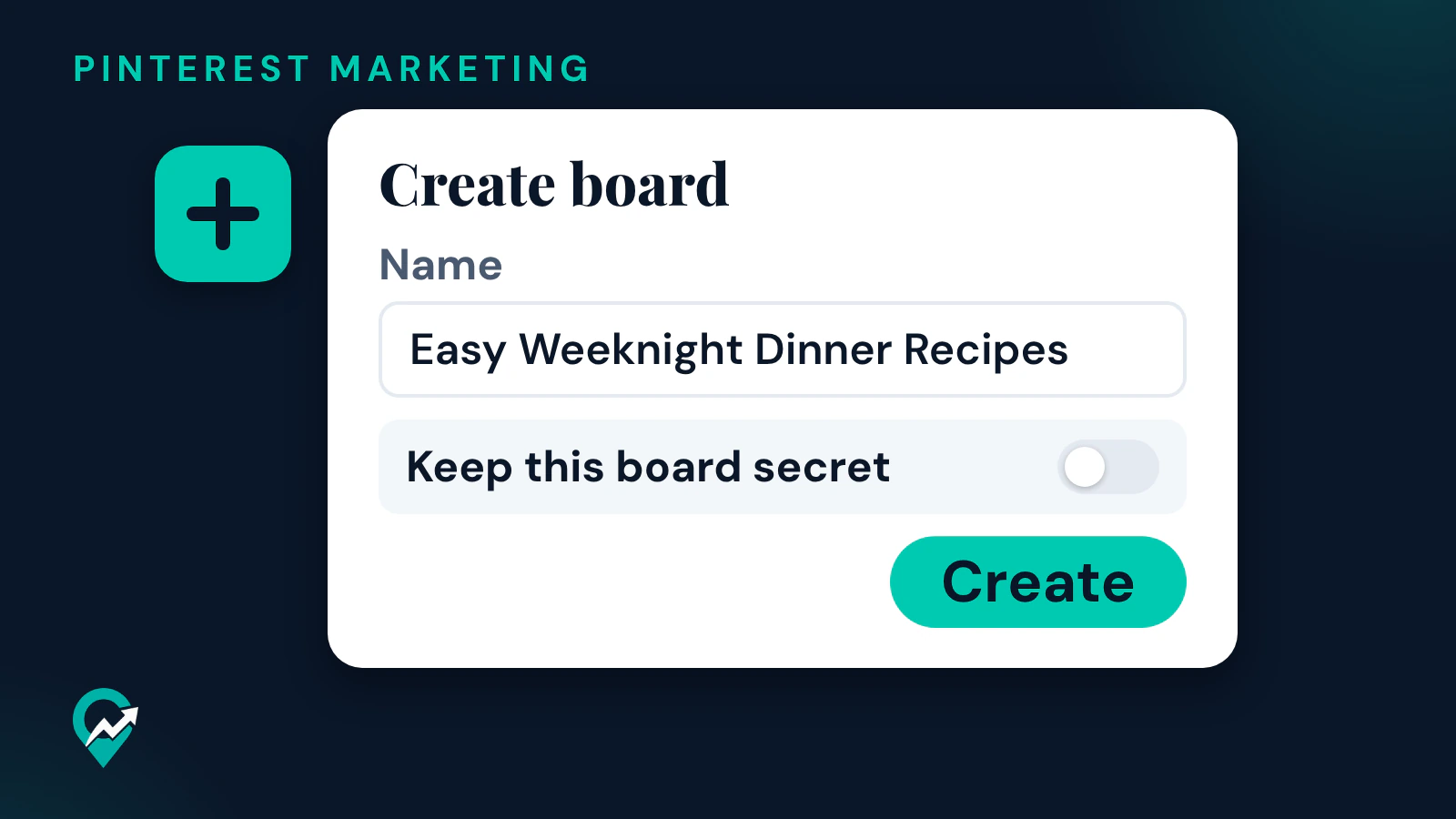
Pinterest’s help page puts it in one line: boards are collections for your Pins, and you can make a board anytime or as you save a Pin. Its business help page says boards are where you save, collect and organize your Pins, so that people can easily browse your profile. For a blog, that means one board per main topic you write about, such as Easy Weeknight Dinner Recipes for a food blog.
Decide the name before you start
The create form asks for a name first, and Pinterest may suggest one based on your activity; you can edit it before you create the board. Use the phrase a reader would type for the topic, keep it plain, and check it against the posts you will link to. Our list of board names that work in search (opens in a new tab) shows weak and strong examples, and finding the phrases people search on Pinterest (opens in a new tab) covers the research behind them.
How to create a Pinterest board on a computer
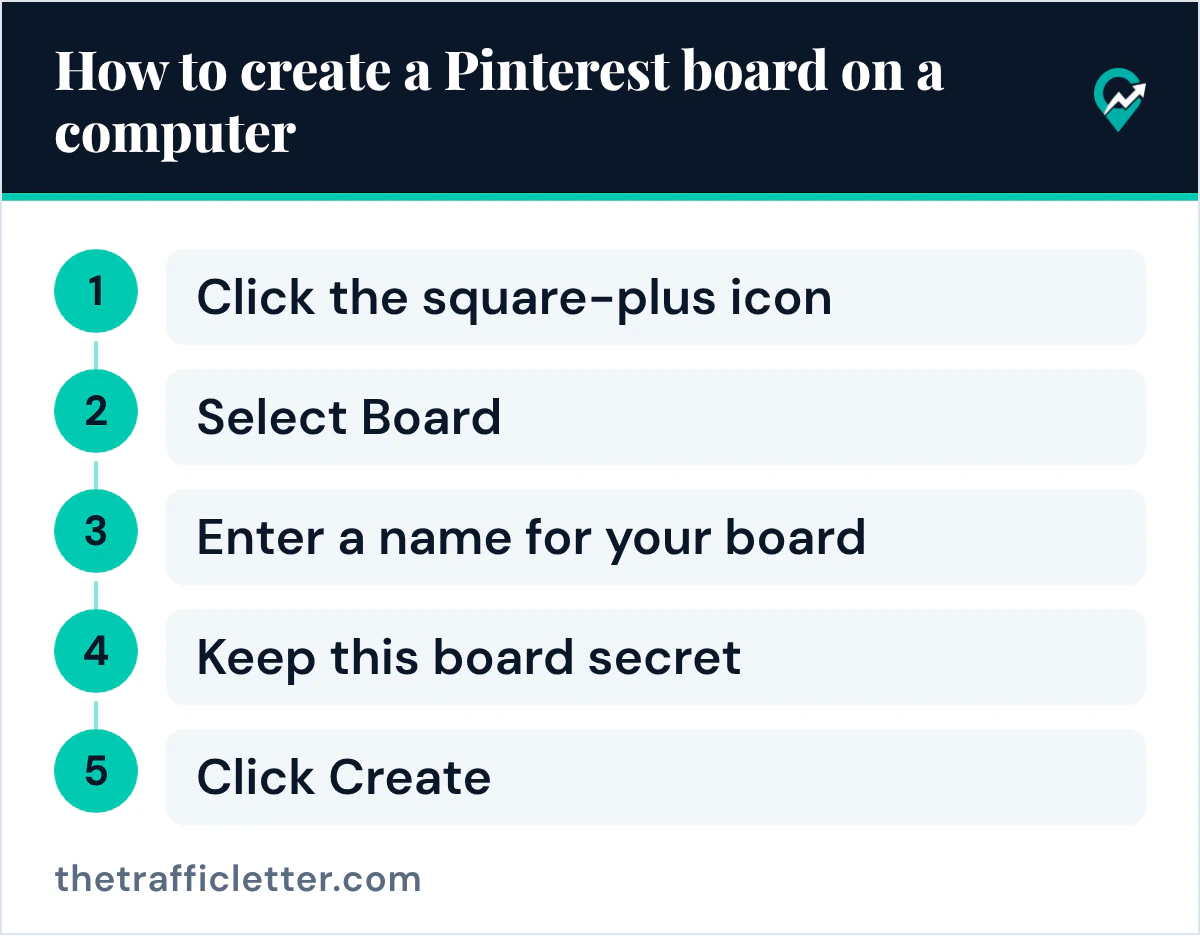
Pinterest’s Create a board page gives these steps:
- Log in to your Pinterest account.
- Click the square-plus icon in the navigation bar at the left side of your screen.
- Select Board.
- Enter a name for your board.
- Toggle the switch next to Keep this board secret if you want to make it secret.
- Add collaborators to join the board if you’d like.
- Click Create.
The page adds that you can also click Create from your profile to create a new board, and that the board icon in the sidebar at the left side of your screen gives quick access to your boards later.
How to create a board in the Pinterest app
- Open the Pinterest app and log in to your account.
- Tap the plus icon.
- Tap Board.
- Enter a name for your board.
- Toggle Make this board secret if you want to keep it secret, or invite collaborators.
- Tap Create at the top-right corner.
How to create a board while saving a Pin
You can also create a board from a Pin you are looking at. On a computer, Pinterest says to hover over a Pin in your home feed, click the directional-chevron-down icon next to the name of the suggested board, click Create board, enter a name (or edit the suggested one), toggle Secret if you want and click Create. In the app, tap a Pin to open it, tap Save, tap Create board, enter a name and tap Create.
How to create a board on a business account
Pinterest’s business help page starts from your profile:
- Log in to your Pinterest business account and go to your profile.
- Click the Saved tab.
- Click the plus icon on the right of your screen underneath Saved.
- Select Board.
- Enter a name, add collaborators or turn on the switch next to Keep board secret.
- Tap Create (the page’s wording), then select Pins for your board and click Done when you’re finished.
In the app on a business account, the page says to tap the plus icon at the bottom of your screen from your home feed or profile, then tap Board.
The options on the board form
The secret switch keeps the board off your public profile: Pinterest’s Private boards page says only you and anyone you invite can see a private board. The steps for an existing board are in our guide to making a board private on Pinterest (opens in a new tab).
Collaborators turn the board into a group board. Pinterest’s group boards page says you create one by inviting friends to one of your existing boards, and the owner decides what collaborators can do.
What to set right after you create it
Pinterest’s Edit a board page says you can change the board name, description, board cover and, once at least one Pin is saved to the board, a header image. On a computer, open the board, click the ellipsis icon next to the board name, select Edit board, add the description and click Done.
When one board covers several subtopics, sections keep it tidy. Pinterest’s Create a board section page says to open the board, click the plus icon, select Section, enter a name for your section and click Add. And if a Pin later ends up on the wrong board, our guide to moving or deleting a Pin on a board (opens in a new tab) has the steps.
Right after
- Write the board description from the posts the board will hold, in plain sentences.
- Save the Pins of your matching posts to it, so the board has Pins from the start.
- Then place the board on your profile and plan its Pins with our guide to Pinterest traffic for a blog (opens in a new tab).