

A blog template decides much of what search engines see before you write a word. This checklist takes what Google Search Central asks of a page and turns it into two parts: what the theme must output on every post, and a post outline you can copy. It sits next to our method for writing blog posts for SEO (opens in a new tab), which covers the writing itself, and if your traffic comes from Pinterest too, our pillar on how search works on the Pinterest side (opens in a new tab) covers that platform.
The Google pages read for this guide do not name or rank blog themes. They describe what a page should contain, so every item below is something you can check on a sample post of any theme.
Two layers of a blog template
A blog template has two layers, and they fail in different ways.
The theme layer is the HTML your blogging platform outputs around every post: the title element, the heading that holds the post title, the byline and dates, the image markup, the links, the structured data and the mobile layout. You set it once. A fault in it repeats on every post.
The post layer is the outline you fill in each time: the headings, the introduction, the sections, the meta description and the internal links. A post outline gives every article the same sound structure without making them read the same.
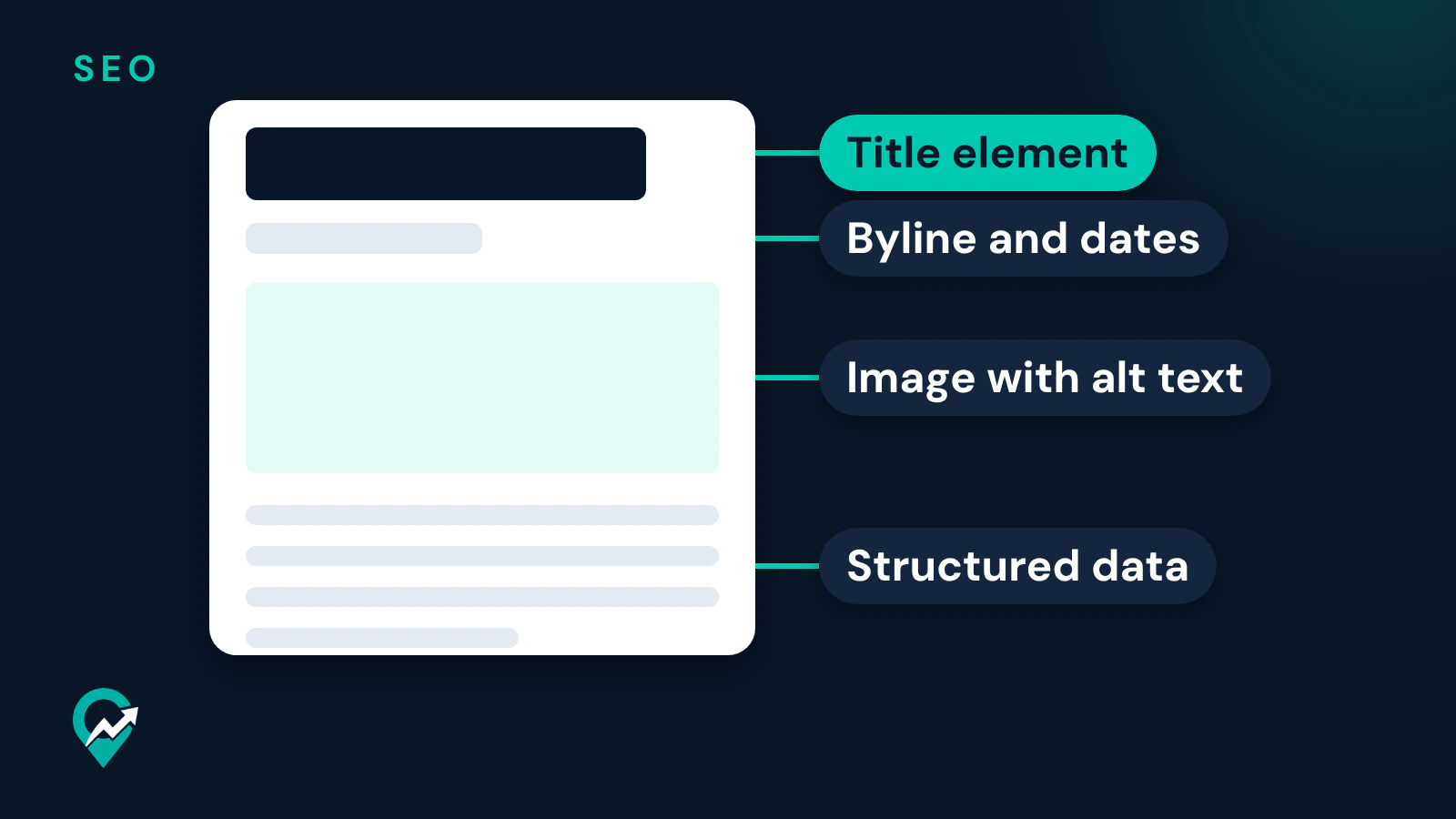
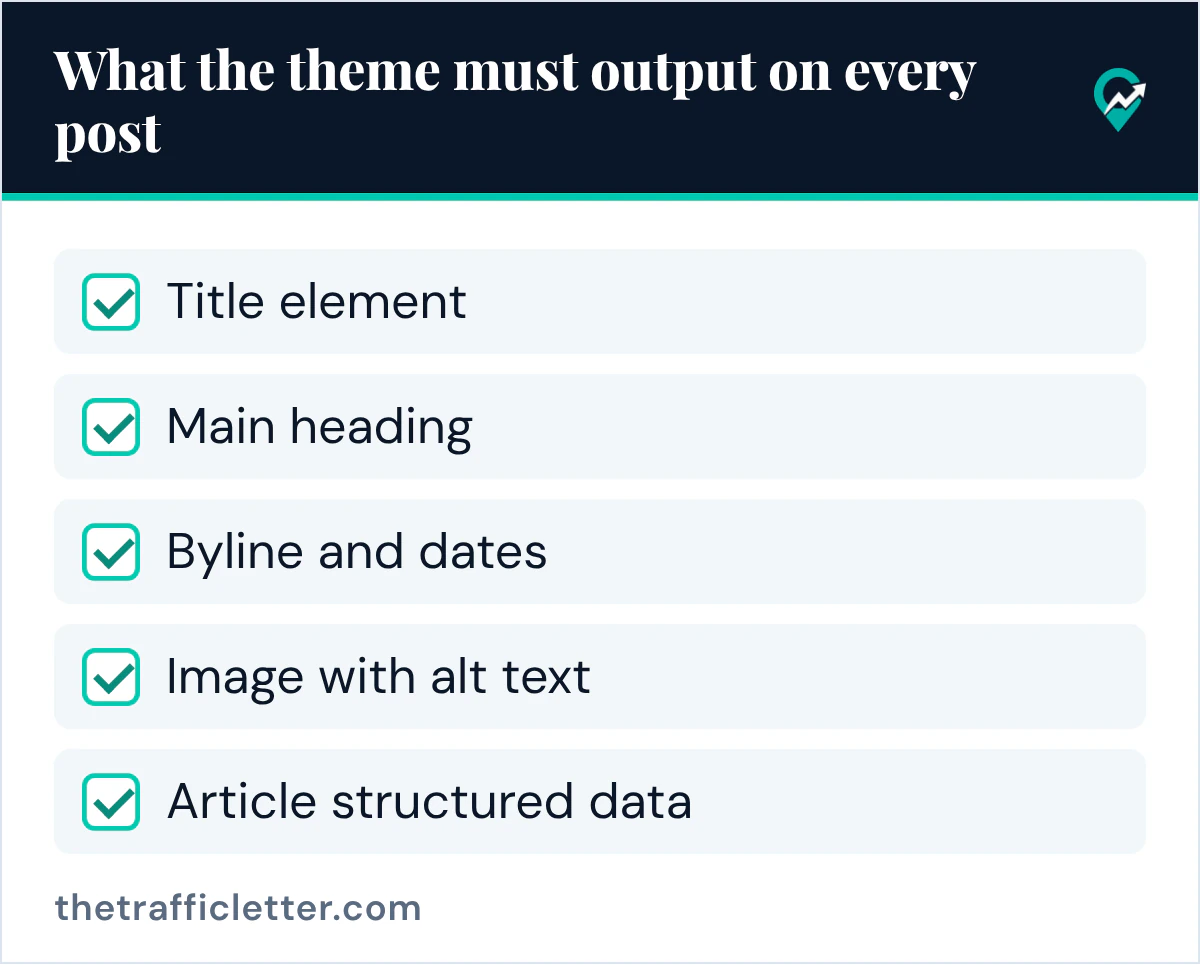
What the theme must output on every post
These are the theme items, each with what the Google page says and how to check it on a sample post.
| Template element | What Google’s page says | How to check |
|---|---|---|
| Title element | Every page needs a title element with descriptive, concise text, distinct for each page; avoid boilerplate and keyword stuffing. | View the page source and read the title element of two posts. |
| Main heading | Make the main title the most prominent text, for example in the first visible h1. | Look for one h1 that holds the post title. |
| Meta description | Google sometimes uses the meta description for the snippet; write a unique one for each page. | Check that the theme or the platform lets you set it per post. |
| Byline and dates | Add a visible date labelled “Published” or “Last updated”; pages should carry a byline where readers expect one. | Read the top of a post. |
| Links | Google says it can generally only crawl a link that is an a element with an href attribute. | Check that navigation, related posts and pagination are real links. |
| Images | Google finds images in the src of an img element and does not index CSS images. | Check that the post image is an img element with alt text. |
| Structured data | Article structured data has no required properties; author, datePublished, dateModified, headline and image are recommended. | Run the Rich Results Test on a post. |
| Canonical | Include a rel=“canonical” link on the canonical page itself. | Find the canonical link in the page source. |
| Mobile | Same content and the same structured data on mobile and desktop. | Open the post on a phone. |
Title element and h1
Google’s title link page asks for a title element on every page, with descriptive and concise text. It warns against repeated or boilerplate text and against keyword stuffing, and it suggests putting the site name at the beginning or end of each title, separated by a delimiter such as a hyphen, colon or pipe. A good theme builds the title element from the post title and adds the site name once.
The same page says Google looks at the main visual title and heading elements when it creates title links, and it can be confusing when several headings carry the same visual weight. It suggests making the main title the most prominent text on the page, for example in the first visible h1 element. In practice: one h1 with the post title, and section headings below it.
Meta description field
Google’s snippet page says snippets come mainly from the page content, and that Google sometimes uses the meta description when it describes the page better. It asks for a unique description for each page, and it notes that a blog post description can list the author or the date of publication. It also says a CMS such as WordPress or Blogger may offer its own way to set meta tags instead of editing the HTML. Your template needs a per post field for it, whether it comes from the theme or from a plugin.
Byline and dates
Google’s byline date page asks you to add a user-visible date, feature it prominently and label it with text like “Published” or “Last updated”. Its people-first content page asks whether pages carry a byline where one might be expected, and whether bylines lead to more information about the author. A template that shows the author name with a link to an author page and both dates meets these two pages.
Crawlable links and anchor text
Google’s link page says it can generally only crawl a link if it is an a element with an href attribute, and that links inserted by JavaScript are crawlable as long as they use that markup. Check the parts of the theme that hold links: the site navigation, the breadcrumb, related posts and pagination. The same page asks for anchor text that is descriptive, reasonably concise and relevant, and it warns against chaining several links next to each other.
Image with alt text
Google’s image page says it finds images in the src attribute of an img element, including inside a picture element, and that it does not index CSS images. A theme that shows the featured image as a CSS background hides it from Google Images. The page also asks for short, descriptive file names and alt text that is useful and in context, without keyword stuffing, and it points to responsive images with srcset or the picture element. The theme should output an image with alt text for every post image, and let you write the alt.
Article structured data
Google’s Article page says Article structured data can help Google understand the page and show better title text, images and date information. Its title names three types: Article, NewsArticle and BlogPosting. Schema.org defines BlogPosting as “A blog post”, a type under Article. Google lists no required properties for Article and recommends author (with name and url), dateModified, datePublished, headline and image, with dates in ISO 8601 format and time zone information.
For the image, the same page recommends several high-resolution images with 16x9, 4x3 and 1x1 aspect ratios, a minimum of 50K pixels when you multiply width and height. If your theme or plugin outputs this markup, check it rather than adding a second copy by hand.
Breadcrumbs and the URL
Google’s starter guide says parts of the URL can be shown in search results as breadcrumbs, and that Google learns breadcrumbs from the words in the URL. It suggests URLs with words useful to users rather than random identifiers. Google’s breadcrumb page adds that a breadcrumb trail shows the page’s position in the site hierarchy, and that BreadcrumbList structured data is available on desktop. A template with a visible breadcrumb and readable post URLs covers both.
Canonical link
Google’s canonical page lists redirects, rel=“canonical” link annotations and sitemap inclusion as ways to state a preferred URL, and says none of them is required. It still recommends a rel=“canonical” link on the canonical page itself, called a self-referential canonical, and it warns against stating different canonical URLs for the same page in different places. Check that the theme outputs it and that it points to the post’s own URL.
Mobile and page experience
Google’s mobile-first indexing page asks for the same content on mobile and desktop, the same structured data on both versions, and no primary content that only loads after a user interaction. Its page experience page lists self-assessment questions: good Core Web Vitals, pages served securely, content that displays well on mobile, no excessive ads that distract from the main content, no intrusive interstitials, and main content that visitors can tell apart from the rest.
The Core Web Vitals page names three metrics and the targets for a good experience: Largest Contentful Paint within 2.5 seconds, Interaction to Next Paint under 200 milliseconds and Cumulative Layout Shift under 0.1. Google’s image page adds that images are often the largest contributor to page size, which can make pages slow, so the test below runs on a real post with an image. If you plan to apply to an ad network later, our overview of what ad networks check on a blog (opens in a new tab) shows where page speed comes up.
Room in the head for verification tags
Pinterest’s claim your website help page offers an HTML tag method: you add the tag to the <head> section before the <body> section of your site. A template that lets you add code to the head, or a platform field for it, saves you a theme edit later. Our guide to adding Pinterest’s claim tag to your blog (opens in a new tab) shows where that tag goes on common platforms.
A blog post template for SEO
The post layer is an outline you copy for each article. Google’s starter guide asks for text that is easy to read and well organized, broken into paragraphs and sections with headings that help users navigate. It also says there is no magical word count target, minimum or maximum, and that from Google Search’s perspective the order of headings does not matter, while semantic order helps screen readers. So the outline below sets sections and headings in order, not a length.
SEO title (title element): [main keyword first, then the promise of the post] | [site name]
Meta description: [one or two sentences on what the reader gets, with the main keyword once]
URL: /[category]/[short-words-from-the-main-keyword]/
H1: [post title, close to the SEO title]
Byline: [author name, linked to the author page] | Published [date] | Last updated [date]
Introduction: [two or three sentences: the question and the direct answer]
Featured image: [file name with descriptive words] | alt: [what the image shows, in context]
H2: [first question the reader has]
  H3: [step or detail, only when the section needs it]
H2: [second question]
H2: [common mistakes or what to check]
H2: [what to do next, with two or three internal links]
Internal links: [2 to 6 related posts, descriptive anchor text, spaced out]
Sources: [pages you read, linked where they support a claim]
Before you fill the outline, pick the main keyword. On the Pinterest side, our keyword research before you fill the outline (opens in a new tab) uses Pinterest’s own tools.
Prompts to fill or audit a template
The text of the outline can be drafted with an AI assistant. These prompts work in ChatGPT, Claude, Gemini or any AI assistant. Check every fact in the answer and rewrite it in your own words: Google’s starter guide asks for unique content you create yourself, not a rehash of what others published.
You are helping me outline a blog post. Topic: [your topic]. Main keyword: [your main keyword]. Reader: [who the post is for]. My notes: [paste your notes].
Fill this outline: SEO title, meta description, URL slug, H1, introduction of 2 or 3 sentences that answers the question, then 3 to 6 H2 headings phrased as the questions the reader has, each with one sentence on what the section covers.
Rules: use the main keyword once in the SEO title, the H1 and the meta description, and not more. Do not add facts, numbers or claims that are not in my notes. Mark anything you are unsure of with [check].Here is the HTML head and the first screen of the body of one of my blog posts: [paste the page source].
Check it against this list and answer with a table (item, found or missing, the exact line):
1. one title element with text distinct to this post
2. one h1 with the post title
3. a meta description
4. a link rel="canonical" to this post's own URL
5. a visible published or last updated date
6. an author name
7. the featured image in an img element with an alt attribute
8. Article or BlogPosting structured data with headline, image, datePublished, dateModified and author
Do not guess: if an item is not in the code I pasted, write "not in the pasted code".How to check a theme before you commit
Test a theme on one published sample post with an image, two headings and a few links, then run these checks in order.
- View the page source of a sample post and find the title element, the h1, the meta description and the rel=“canonical” link.
- Test the post in the Rich Results Test, which Google’s Article page names for validating structured data, and fix any critical error.
- Inspect the URL in Search Console with the URL Inspection tool, which Google’s pages name to see how Google sees the page.
- Run PageSpeed Insights on the post, which Google’s image page names for analyzing site speed, and look at the Core Web Vitals report in Search Console once real visitors arrive.
- Open the post on a phone and compare it with the desktop version: same text, same images, no pop-up covering the content.
If the theme fails an item and offers no option to fix it, that item will be missing on every post you publish with it.
Common template problems
These issues come from the Google pages above:
- Boilerplate titles. Google’s title link page shows a title element with only ”| Site Name” as a half-empty title, and it warns against long titles that vary by only a single piece of information.
- Several headings with the same weight as the title, which makes the main title hard to identify.
- A featured image set as a CSS background, which Google’s image page says it does not index.
- Navigation or pagination built with script events instead of a elements with an href attribute.
- Content that only loads after a user interaction on mobile, which Google’s mobile-first page asks you to avoid for primary content.
Right after
- Run the five theme checks on one sample post and note each item that is missing.
- Save the outline above in your editor as your post template, then write your next post with the blog writing steps for search (opens in a new tab).
- If you publish Pins for your posts, follow the Pinterest website claim walkthrough (opens in a new tab) so your template’s head holds the HTML tag until the claim is done.