

If you use hashtags on other networks, the first question about them on Pinterest is simple: do they still do anything? This guide answers from Pinterest’s own pages, read on the day it was published, and keeps what Pinterest documents apart from this guide’s own advice. For the wider picture of how Pins get found, start with our overview of Pinterest search ranking (opens in a new tab).
What Pinterest’s help pages say about hashtags today
Pinterest’s help page on creating a Pin from an image or video describes the fields you fill in. In the app steps, the Description field reads: write a description of your Pin, and you can also include hashtags. In the desktop steps on the same page, the description is simply a description of your Pin, with no mention of hashtags.
That is all the current help page says about hashtags, in each of its app sections. It does not say what a hashtag does once the Pin is live, and none of the other Pinterest pages read for this guide explain how hashtags affect search or distribution. So the honest answer to “do hashtags work on Pinterest” is that Pinterest still accepts them, and the pages read do not describe them as a ranking signal.
What the pages do describe, in detail, is the rest of the Pin. Pinterest Create’s content guide says Pinterest is a search engine for inspiration, and that when you add the right text to your Pins more people will discover them: add a title and description, list ingredients or instructions, and add relevant topic tags. Its creator guide to SEO says to work keywords into your titles, descriptions, image names and even your descriptive alt text.
Hashtags versus topic tags
The phrase “Pinterest tags” can mean one of two different things. The Pinterest pages read for this guide treat them separately: hashtags go in the description text, topic tags have their own field.
| Hashtags | Topic tags | |
|---|---|---|
| Where you add them | Inside the description text | The Tag related topics field when you create a Pin |
| What Pinterest says | You can also include hashtags (app steps) | Add up to 10 related topics to help people searching for similar ideas find your Pin |
| Who sees them | Readers of the description | People won’t see your tagged topics |
| Documented purpose | None described in the pages read | Helping people searching for similar ideas find your Pin |
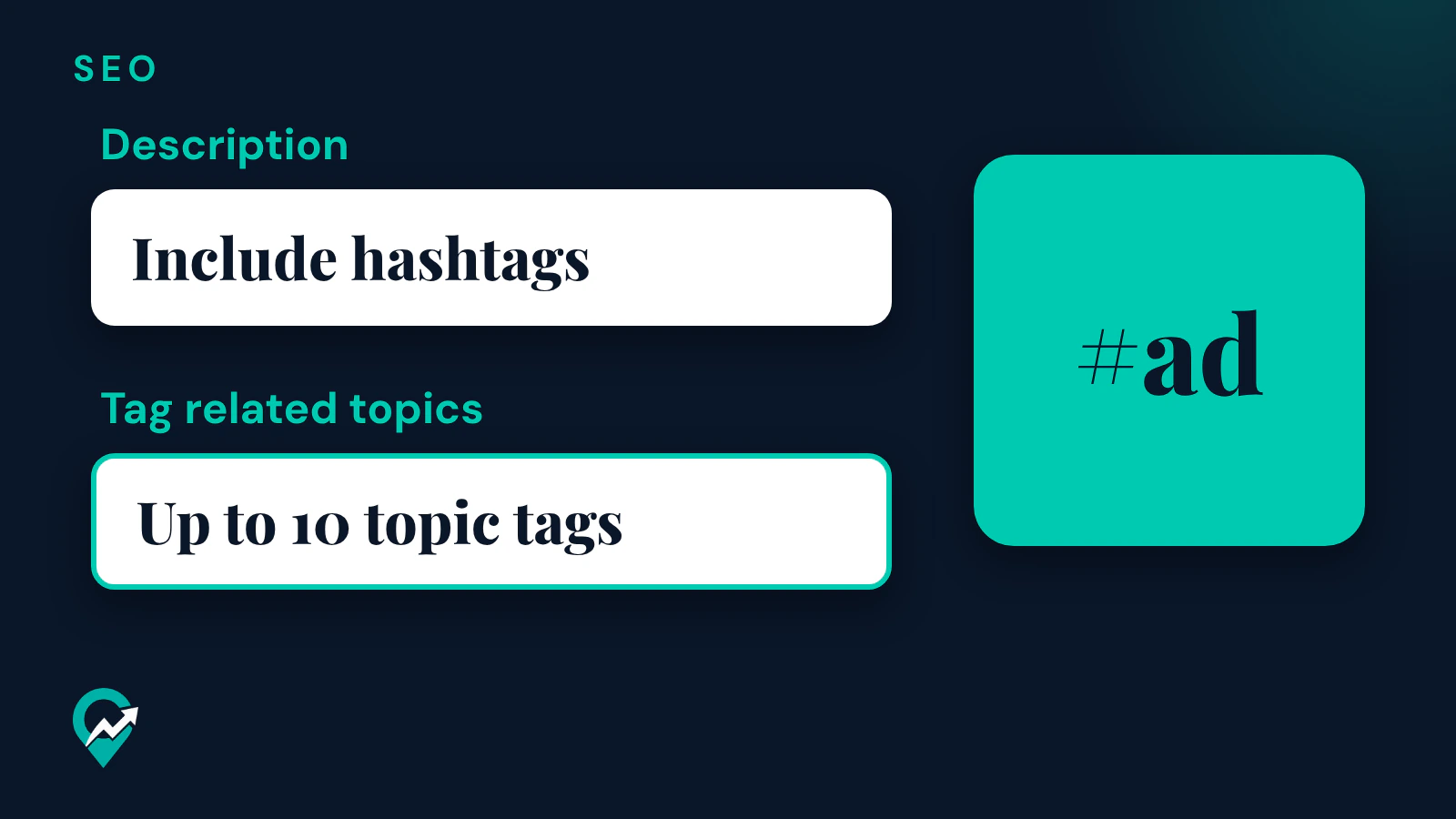
Pinterest Create’s content guide says to tag topics related to your content before publishing, to search for and select up to 10 topic tags per Pin, and that people won’t see your tagged topics. Topic tags are the field the pages read document for this job, so fill them in on every Pin.
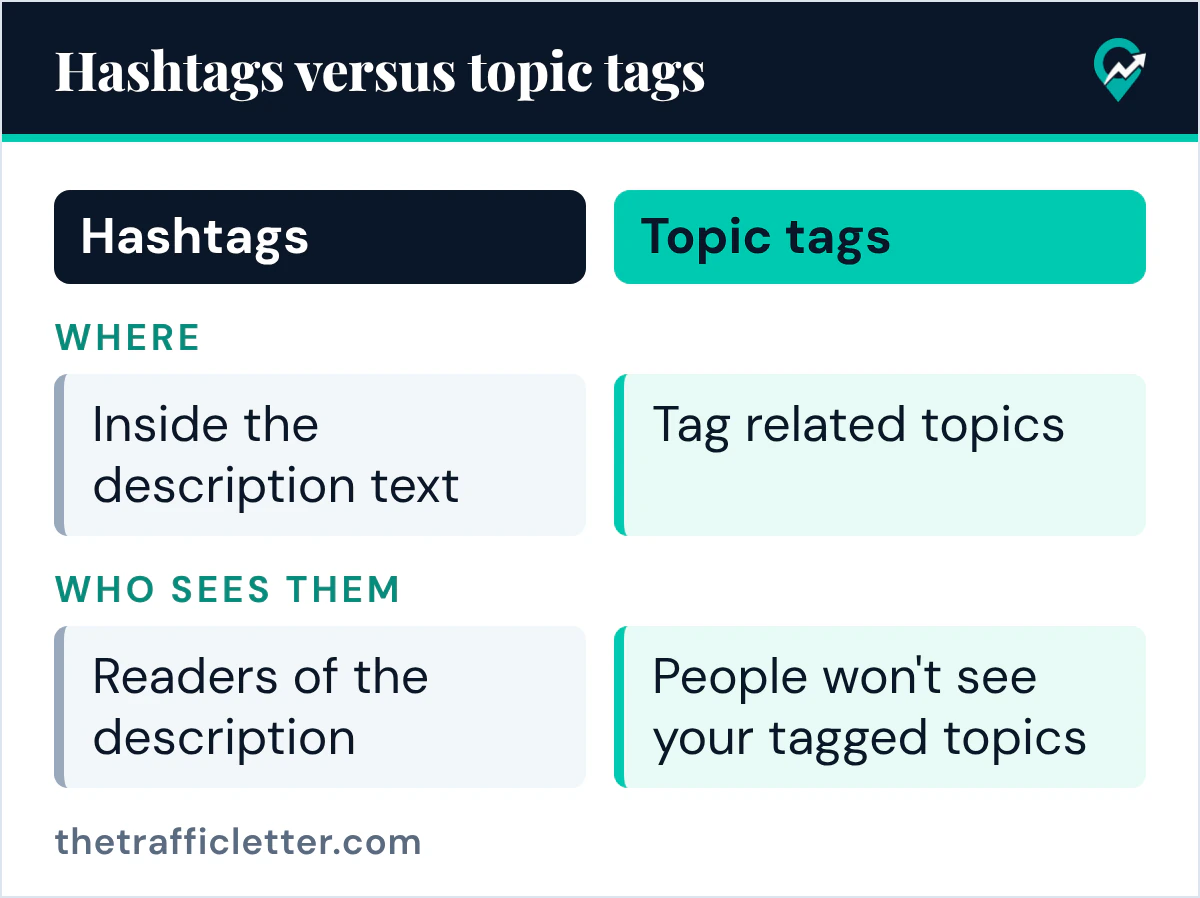
The hashtag Pinterest’s pages name: #ad
In the pages read for this guide, one case names a hashtag. Pinterest’s commercial and branded content guidelines say that all paid partnerships must disclose the commercial nature of their content, with a clear disclosure such as the use of #ad, or a label applied with Pinterest’s paid partnership tool.
Pinterest’s help page on paid partnerships for creators describes that tool. In the Pin creation steps you toggle on Add paid partnership label, and the label appears when the Pin is published. The page adds that if your brand partner is not on Pinterest, you can still use the label to disclose your branded relationship.
If you earn from affiliate links, our guide to affiliate disclosure on your Pins (opens in a new tab) covers where the disclosure goes and what the FTC adds. Put the disclosure in plain sight near the start of the description, not at the end of a row of tags.
Why a row of hashtags is a risk
Pinterest’s Community Guidelines list tactics that improperly influence distribution, including “stuffing” irrelevant keywords. A long row of loosely related hashtags is close to that pattern. Pinterest documents no benefit from hashtags in the pages read for this guide, while the guidelines do warn about stuffing, so the trade is easy to call: write a clear sentence instead.
The same keyword discipline applies to everything you type in a Pin. Pick one main phrase per Pin, use it once in natural wording in the title and the description, and let the topic tags cover the related ideas.
How to write a description that gets found without hashtags
This four-step rewrite turns a hashtag-heavy description into one built on what Pinterest documents.
- Find the main phrase. Type your topic into Pinterest search and pick the phrase people use. Our comparison of free Pinterest keyword tools (opens in a new tab) shows which tool answers which question.
- Write the title around it. Put the phrase near the start, in plain words.
- Write one or two sentences of description. Say what the Pin shows and what the reader gets from the post, with the phrase used once. Our formula for Pin descriptions (opens in a new tab) has examples.
- Move the related ideas into topic tags. Use the Tag related topics field for them, up to 10.
The Pinterest pages read for this guide set no number of hashtags, so this guide gives none. If you still add one or two, keep them specific and true to the Pin, after the sentences and never in place of them.
Rewrite old descriptions with an AI assistant
If your older Pins carry rows of hashtags, an AI assistant can draft cleaner text for new Pins of the same posts. This prompt works in ChatGPT, Claude, Gemini or any AI assistant. Replace the text in square brackets first.
Here is an old Pinterest Pin description that relies on hashtags: [paste the old description].

The Pin links to a blog post about [topic of the post]. The main search phrase is [your main keyword].

Write a new description for a new Pin of the same post:
- 1 to 2 plain sentences that say what the Pin shows and what the reader gets from the post.
- Use the main search phrase once, in natural wording, near the start.
- No hashtags, no lists of keywords, no promises of results and no numbers that are not in my text.

Then list up to 10 related topics I could add in the Tag related topics field, one per line, as short plain phrases.
Read the result before you use it. Pinterest’s help page gives no character limit for the description in the Pin creation steps, so check the field in your own account.
Right after
- Open your three newest Pins and fill the topic tags on any Pin that has none.
- Pick your next post and find its main phrase with the routine in our keyword research guide (opens in a new tab).
- Write its next Pin with the Pin title and description formula (opens in a new tab), with no hashtag row.