

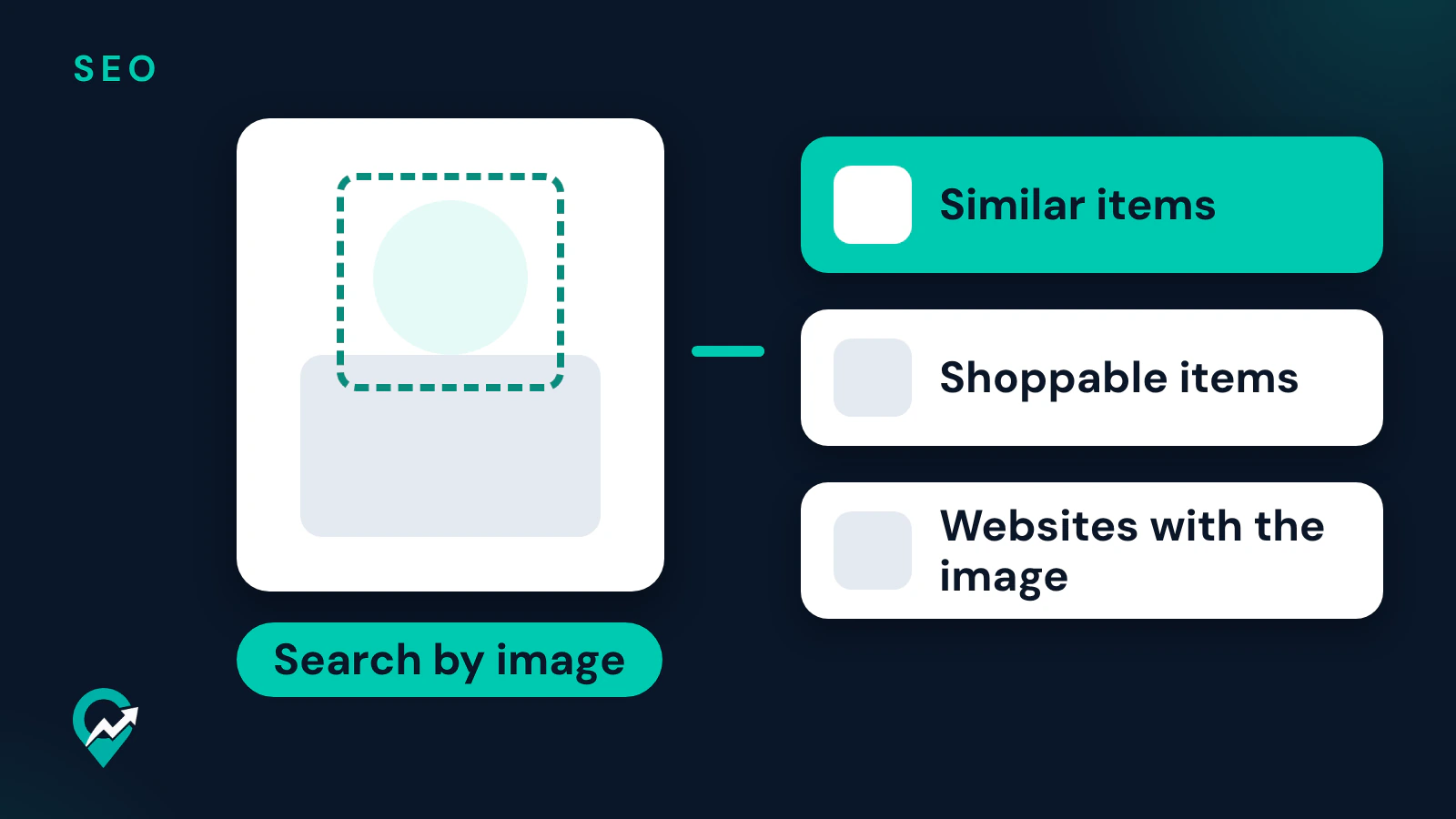

Sometimes you have a picture and no words for it: a lamp, a recipe photo, a style. Pinterest lets you search with the image itself, through Lens and visual search. This guide gives the steps from Pinterest’s help pages, read on 8 November 2026, then shows how to look for where an image appears outside Pinterest. Text search and its filters are covered in our guide to the Pinterest search bar and filters (opens in a new tab), and how Pins get found is in our overview of Pinterest SEO for bloggers (opens in a new tab).
Two ways to search by image on Pinterest
Pinterest describes two features:
- Lens starts from your own image. Pinterest’s Lens page says it lets you discover ideas inspired by anything you point your Pinterest camera at, and on desktop you can upload an image.
- Visual search starts from a Pin. Pinterest’s visual search page says you can search by individual objects in a Pin: select and zoom in on part of the image to find Pins featuring similar items.
Lens returns ideas inspired by your image, and visual search returns Pins featuring similar items. Neither page describes a way to find the first upload or the owner of an image (see the section on image sources below).
Reverse image search on desktop with Lens
Pinterest’s Lens page gives these steps for the website:
- Log in to your Pinterest account and click on the lens icon in the search bar.
- Upload an image in the search bar, then click the chevron-right icon. You can also select from your previously uploaded images.
- Explore and discover ideas.
Crop or choose an image where the object you care about fills most of the frame, so the results focus on it.
Search with your camera in the Pinterest app
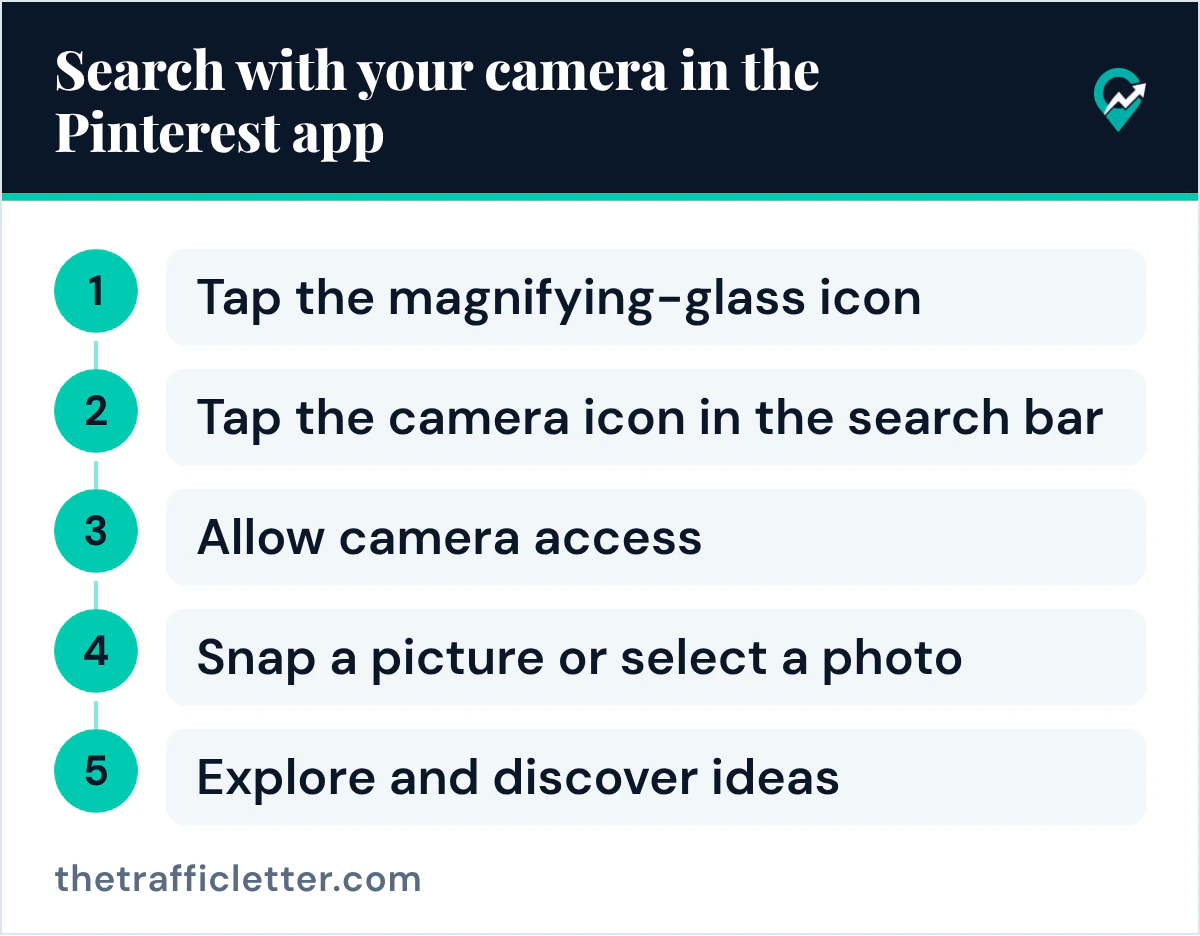
The Lens page gives the steps for the app:
- Log in to your Pinterest account on your mobile device and tap the magnifying-glass icon.
- Tap the camera icon in the search bar.
- Allow camera access when Pinterest asks. The help page shows two versions of this screen: one with While using the app or Only this time, the other with Continue, then Allow.
- Pinch to zoom or tap on a specific object to focus your camera.
- Tap the button to snap a picture or select a photo from your camera roll.
- Explore and discover ideas.
The page adds a tip: hold your camera steady for a clearer picture, and if your photo is too dark, turn on the flash by tapping the lightning bolt in the upper-right corner of the camera screen.
Search inside a Pin with visual search
Visual search is the way to search with an image you already see on Pinterest. The visual search page says to get the most out of it on the Pinterest Android or iOS app, and lists three ways to open it:
- Tap on a Pin to open it in closeup, then tap anywhere on the Pin to search the image.
- Tap on a Pin to open it in closeup, then tap the magnifying-glass-sparkle icon.
- Tap and hold a Pin in your home feed or boards, then drag and select the magnifying-glass-sparkle icon.
Once it is open, searchable or shoppable items in the Pin glow. Tap any glowing item to select it, pinch to zoom on an area, or drag the corners of the cropper tool to adjust your selection. Similar or shoppable items appear below the image, and the page says the results may change depending on what object you select. On some Pins, suggested keywords below the image let you refine the results.
The page also gives steps for the website: click a Pin to open it in closeup view, click the magnifying-glass-sparkle icon, then select specific areas of the image. It says visual search features are not available on ads or collage Pins at this time.
Search with a Pin and your own words
Pinterest’s search help page describes a related option, Search with this Pin. After a text search, click a Pin from the results, click Search with this Pin, then type more words, such as a color or a style. The page says this feature is only available on iOS and desktop at this time.
Find where an image appears outside Pinterest
Lens and visual search show ideas and similar items inside Pinterest. To see which websites use an image, a general search engine is the tool. Google’s help page says results of a search with an image can include similar images and websites with the image or a similar image.
Google’s page gives these steps on a computer:
- Go to google.com.
- Click Search by image, then Upload a file.
- Select an image, then click Open or Choose.
You can also drag the image to the search box, or paste an image link. In Chrome, right-click an image on a website and click Search with Google Lens to see results in a sidebar.
On ownership, Pinterest’s copyright page is direct: Pinterest does not have any information about who owns the copyright of a given Pin, and permission to use an image should be sought from its copyright holder. Before you put an image from Pinterest on your blog, read our guide on using Pinterest images on your website (opens in a new tab).
Find copies of your own images
If you publish original photos or graphics, the same tools help you check where they travel.
- On Pinterest: upload your image with Lens and look through the ideas it returns.
- On the web: run a Google search by image and look at the websites listed with the image.
- If a Pin infringes your copyright: Pinterest’s copyright page says only the owner of a copyright, or an authorized agent, can submit a copyright report, through its reporting form or its designated agent. For an image, you can ask Pinterest to “remove all Pins that contain the image”. The page says Pinterest can only remove identical copies, so a resized or altered file will not be found that way.
Pinterest’s claim page says that when an image from your claimed website is saved, your profile picture appears alongside the Pin and the Pin links to your Pinterest profile. Our walkthrough for claiming your site on Pinterest (opens in a new tab) has the steps.
Right after
- Open a Pin from your niche in the app, tap the magnifying-glass-sparkle icon and see which similar items Pinterest suggests.
- Run a Google search by image on one of your own blog photos and note the websites that use it.
- Remove past searches you no longer want under Recent searches with our steps to clear your Pinterest search history (opens in a new tab).