


Pinterest’s business blog says people use Pinterest as they would a search engine, so the search bar your readers use is also a useful place for a blogger to see how ideas are grouped. This guide walks through each search feature with the labels from Pinterest’s help pages, on desktop and in the app. How Pins rank once someone searches is covered in our guide to how Pins rank in Pinterest search (opens in a new tab).
Where is the search bar on Pinterest?
The search bar sits in a different place on desktop and in the app, according to Pinterest’s “Search for ideas on Pinterest” help page.
- On desktop: click the search bar at the top of the screen.
- In the app (Android and iOS): tap the search icon at the bottom of your screen, then tap the search bar at the top of your screen.
In the app, the search icon opens the search tab first. The help page says the types of searches you might see there include popular searches, personalized searches, handpicked search topics or “Today’s inspiration”.
How do you search on Pinterest?
Once the search bar is open, the desktop steps on the help page give three ways to start:
- Enter the search terms you want to search for.
- Click on a recent search to search again for a previous idea.
- Click on a suggested term to explore new ideas.
Pinterest’s “Discover ideas on Pinterest” page adds that you can search for Pins, boards, or people in the search bar. When you are not sure what you want, it suggests typing in something general, like “dinner ideas”, then using Pinterest’s suggestions in the search bar, like “healthy” or “for kids”, to narrow down your results.
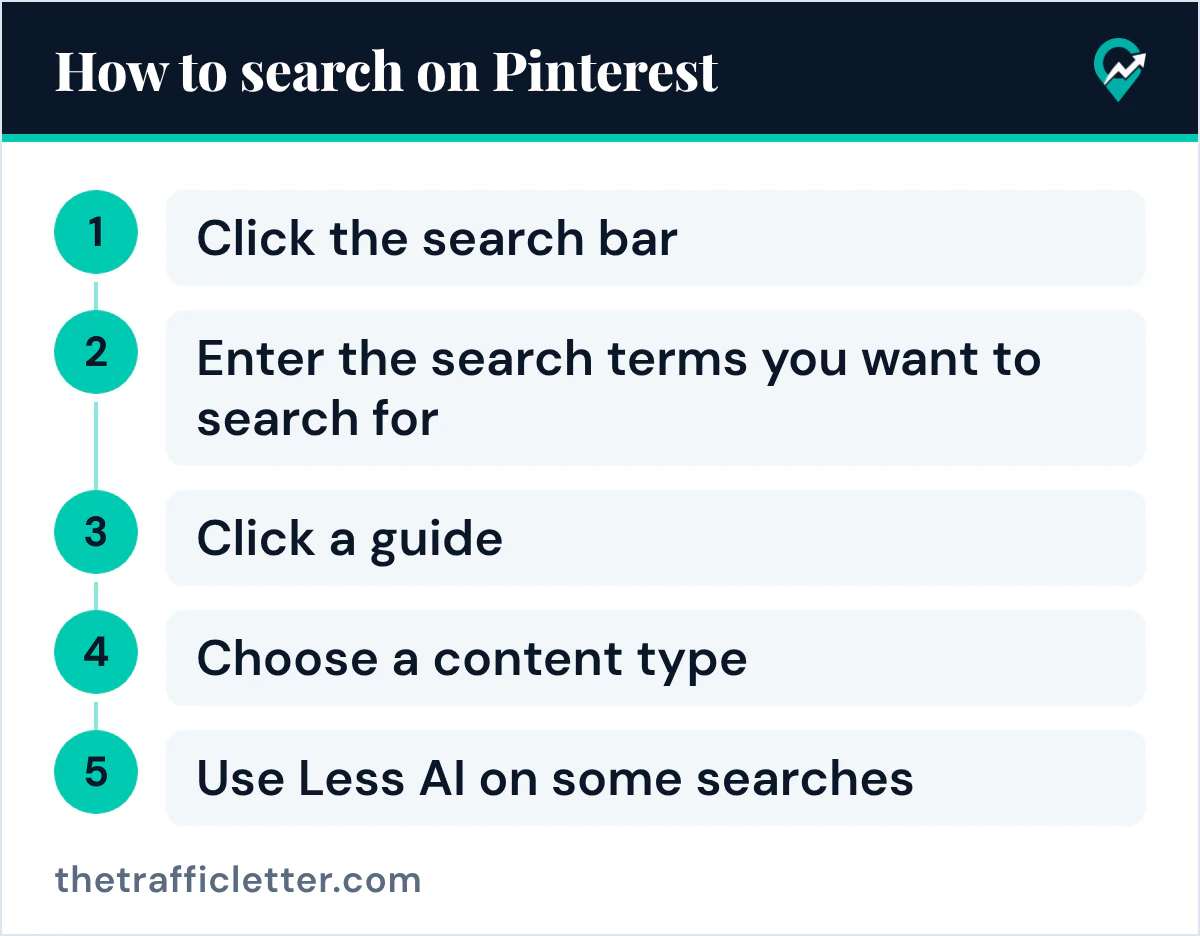
How to narrow your search results
A first search is often broad. Pinterest gives three tools to narrow it.
Click a guide
After you search for an idea, you might see suggested terms near your search bar. Pinterest calls these terms guides and says they are designed to help you find what you are looking for. When you click a guide, you are taken to a new search with the guide term added to your original search.
On desktop, the help page says to press enter after your search terms, then click the guide below the search bar that you want to add. In the app, it says to tap the guides above the search bar.
Choose a content type
After a search, a filters menu appears. The help page lists content type filters including all Pins, Boards, Profiles, Videos and Products, and says your results will then only show in that content type: choose Boards, and the results are only boards related to your search.
To use it, click the filter icon after your search and choose a content type. In the app, tap Apply to see results related to the filter you picked. The help page places the filter icon under the search bar on desktop, and its app sections place it at the right side, the left side or above the search bar, so look for the filter icon near the search bar rather than at one fixed spot.
Use Less AI on some searches
The help page says that for some searches you can click the Less AI button to see less AI-modified content. Our guide to the settings that reduce AI Pins (opens in a new tab) covers the other controls.
Search with a Pin
When you find a Pin close to what you want, you can use it to refine the search. Pinterest’s help page says that after you search for an idea, you can select a Pin and continue your search with that Pin in mind, and that Pinterest will use that Pin to inform future search results.
On desktop, the steps are:
- Click on a Pin from the search results.
- Click Search with this Pin.
- Type in additional search terms, or select one of the suggestions.
Pinterest says Search with a Pin is currently available on desktop and iOS only. The help page also describes the Evolved search bar, which lets you combine text and Pins to narrow down your search results, for example by starting from a jacket Pin and adding your own words about color and style.
Search with your camera or an image
Pinterest has two image-based ways to search.
Pinterest Lens
Pinterest’s Lens page says Lens lets you discover ideas inspired by anything you point your Pinterest camera at. On desktop, click the lens icon in the search bar and upload an image, then click the chevron-right icon. In the app, tap the camera icon in the search bar, allow camera access when Pinterest asks, then snap a picture or select a photo from your camera roll. Our guide to reverse image search on Pinterest (opens in a new tab) adds how to look for where an image appears outside Pinterest.
Visual search inside a Pin
Pinterest’s visual search page describes a way to search by individual objects in a Pin. Open a Pin in closeup and click or tap the magnifying-glass-sparkle icon, then select an item in the image to find similar items and refine your search. The page says visual search features are not available on ads or collage Pins at this time.
Search with your voice
The help page says voice search is currently only available in the US, and your language settings must be set to English. Tap the microphone icon, say your search term out loud, and the term appears in the search bar when you finish speaking. If the audio cannot be converted to text, Pinterest notifies you so you can try again. When voice search or any other part of search stops responding, our troubleshooting guide for Pinterest search (opens in a new tab) lists the checks to try first.
Search for people and profiles
To find a person, a creator or a brand, search for a name and then choose Profiles in the content type filter. The full steps for desktop and the app, and the reasons a profile may not show up, are in our guide to finding someone on Pinterest by name or username (opens in a new tab).
Clear your recent searches
Recent searches appear when you open the search bar. To remove them on desktop, Pinterest’s help page says to click into the search bar at the top of Pinterest, then click the clear icon next to Recent searches. In the app, tap the search bar and tap the clear icon next to any recent searches you would like to clear. The related settings for recommendations and personalization are in our steps to clear Pinterest search history (opens in a new tab).
What Pinterest search means for bloggers
Pinterest’s business blog says people use Pinterest as they would a search engine: they often search general ideas or phrases, then use the suggested results to narrow down to final plans or products. That is the same path as the guides above, so the guides under a broad search show the phrases Pinterest suggests for narrowing that topic.
The same post says to fill in all Pin fields, always include a Pin title and description with relevant keywords, and give every board a proper title and description, because people can also discover boards in their search results. In practice:
- Type your main topic into the search bar and write down the guides Pinterest shows. Our step-by-step method for finding Pinterest keywords (opens in a new tab) turns that list into keywords.
- Filter by Boards to see how other boards on the topic are named, then name yours clearly with our examples of board names that get found (opens in a new tab).
- Use the phrase you chose in the Pin title and description, as shown in our formula for writing Pin descriptions (opens in a new tab).
Right after
- Search your main blog topic on Pinterest, click two guides and note the phrases they add.
- Filter the same search by Profiles to see which creators publish on it, using our people search walkthrough (opens in a new tab).
- Read how those phrases turn into rankings in our Pinterest ranking guide for bloggers (opens in a new tab).
- No account at hand? Our guide to searching Pinterest from Google without logging in (opens in a new tab) uses the site: operator.