



A search you type on Pinterest can come back as a recent search the next time you open the search bar. Pinterest’s search help page says you can click on a recent search to search again for a previous idea. When the list gets cluttered, or you share a device, you can clear it. This guide gives the steps from Pinterest’s help page, read on 8 November 2026, and the related settings people often mean when they say “search history”. The rest of the search bar is in our walkthrough of how to search on Pinterest (opens in a new tab), and how search shapes what Pins get seen is in our guide to Pinterest search ranking (opens in a new tab).
How to clear search history on Pinterest on desktop
Pinterest’s “Clear recent search history” page says the steps remove items you’ve recently searched from your search history. On the website:
- Click into the search bar at the top of Pinterest.
- Click the clear icon next to Recent searches.
How to clear search history in the Pinterest app
The help page gives the steps for the app in two versions, which differ only in the name of the first icon:
- Tap the magnifying glass icon (or the search icon) at the bottom of your screen.
- Tap the search bar.
- Tap the clear icon next to any recent searches you’d like to clear.
In the app the clear icon sits next to each recent search, so you can remove one search and keep the others.
What clearing does and what it does not cover
The help page describes one result: the items leave your recent search history. It says nothing about your home feed, your saved Pins or the ads you see. Those are other settings, covered below.
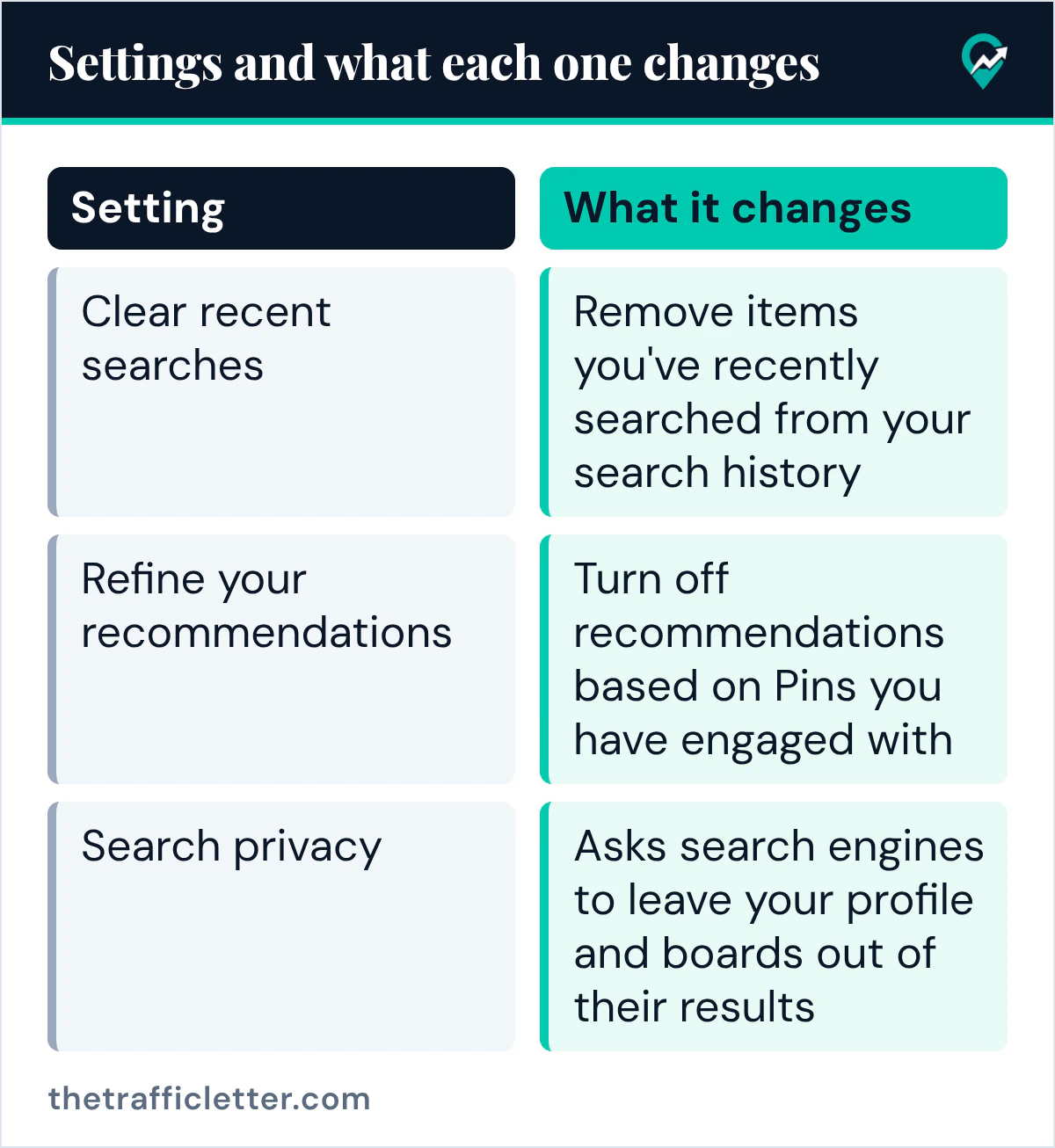
| Setting | What it changes, per Pinterest’s help pages |
|---|---|
| Clear recent searches | Remove items you’ve recently searched from your search history |
| Refine your recommendations | Turn off recommendations based on Pins you have engaged with |
| Personalization settings | Whether Pinterest uses certain information to customize Pinterest or ads |
| Search privacy | Asks search engines to leave your profile and boards out of their results |
Your searches and your home feed
Pinterest’s recommendations page says Pinterest recommends Pins to you based on your saves, searches, and browsing activity. To change that, it points to Refine your recommendations. On the website:
- Log in to your Pinterest account.
- Click the more-options-refresh icon at the bottom left of your screen.
- Select Refine your recommendations.
- Click the AI content or Activity tabs to refine your recommendations.
In the app, tap your profile picture at the bottom-right corner, then the more-options-refresh icon at the top-right of your screen, then Refine your recommendations. On a business account, the page says to tap the ellipsis icon at the top-right corner, then Settings, then Refine your recommendations.
The Activity tab lets you turn off recommendations based on Pins you have engaged with (the app version of the page says Pins you have looked at). The same page says turning recommendations on or off won’t affect the ads you see on your home feed. The AI content tab is explained in our guide to Pinterest AI content settings (opens in a new tab).
Personalization and data settings
Pinterest’s personalization page says it uses information like your activity on Pinterest, such as the Pins you click or the boards you create, to show you more interesting content. Depending on your location, you can choose in your settings whether Pinterest uses or shares certain information to customize Pinterest or ads. On the website:
- Click the more-options-refresh icon at the bottom left of your screen.
- Click Settings.
- Select Privacy and data.
- Adjust your personalization settings.
- Click Save.
The page also lists outside controls, such as your browser’s Do Not Track feature and the ad settings of your Android or iOS device.
Search privacy is a different setting
People sometimes look for search privacy when they mean recent searches. Pinterest’s search privacy page says search engines like Google, Bing and Yahoo may show your profile or boards in their results, and that you can turn on search privacy if you don’t want to appear there. The steps on the website: the more-options-refresh icon, Settings, Profile visibility, then toggle the switch next to Search privacy, click I understand and click Save. The page says you must be at least 18 years old to edit it, and that it is turned on automatically for a private profile.
For a blogger, leaving search privacy off means search engines may still show your profile or boards in their results. How people find a profile inside Pinterest is in our guide to searching for people on Pinterest (opens in a new tab).
Before you clear: keep the useful searches
If you use Pinterest search for keyword research, your recent searches are a short record of the phrases you tried, such as fall wreath ideas, easy meal prep or small balcony garden. Before you clear them, copy the phrases worth keeping into your keyword list, then check each one with our method for finding Pinterest keywords for free (opens in a new tab). Clearing the list afterwards keeps the search bar focused on new ideas. If the search bar does not respond at all, start with our fixes for Pinterest search problems (opens in a new tab) instead.
Right after
- Clear the recent searches you no longer need, on desktop or in the app.
- Open Refine your recommendations and check the Activity tab if your home feed still follows old interests.
- Try a search by image next time words fail you, with our guide to searching Pinterest with an image (opens in a new tab).