

Sometimes you want to look something up on Pinterest without an account: you are checking a competitor’s boards from a work computer, or you simply have not signed up. Pinterest’s own search, as its help pages describe it, starts with logging in. A web search engine reaches the Pinterest pages it has indexed, and Google documents an operator for exactly that. This guide uses the Pinterest and Google pages read on 9 November 2026. The logged-in search bar is in our tour of Pinterest’s own search features (opens in a new tab).
What Pinterest’s help pages say about logging in
Pinterest’s “Log in and out of Pinterest” page opens with: “Log in to Pinterest to discover, save, and search for Pins that inspire you.” Its “Search for ideas on Pinterest” page gives the app steps starting with “Log in to the Pinterest app on your device”, and the steps to search your saved Pins and to use Search with a Pin start with logging in to your account. None of the Pinterest pages read for this guide describes a search without an account, so the methods below go through a search engine instead.
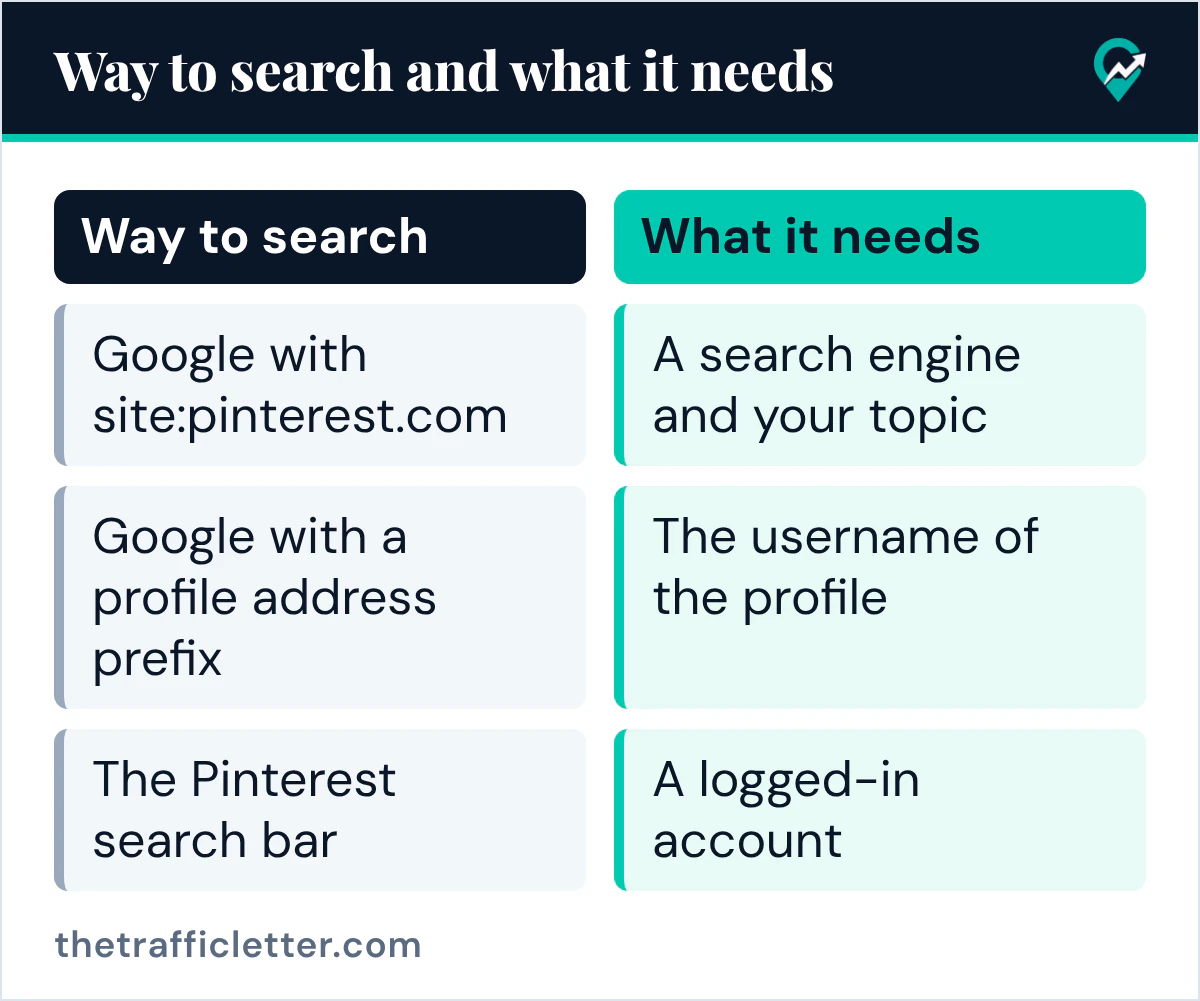
| Way to search | What it needs |
|---|---|
| Google with site:pinterest.com | A search engine and your topic |
| Google with a profile address prefix | The username of the profile |
| The Pinterest search bar | A logged-in account |
Search Pinterest from Google with site:
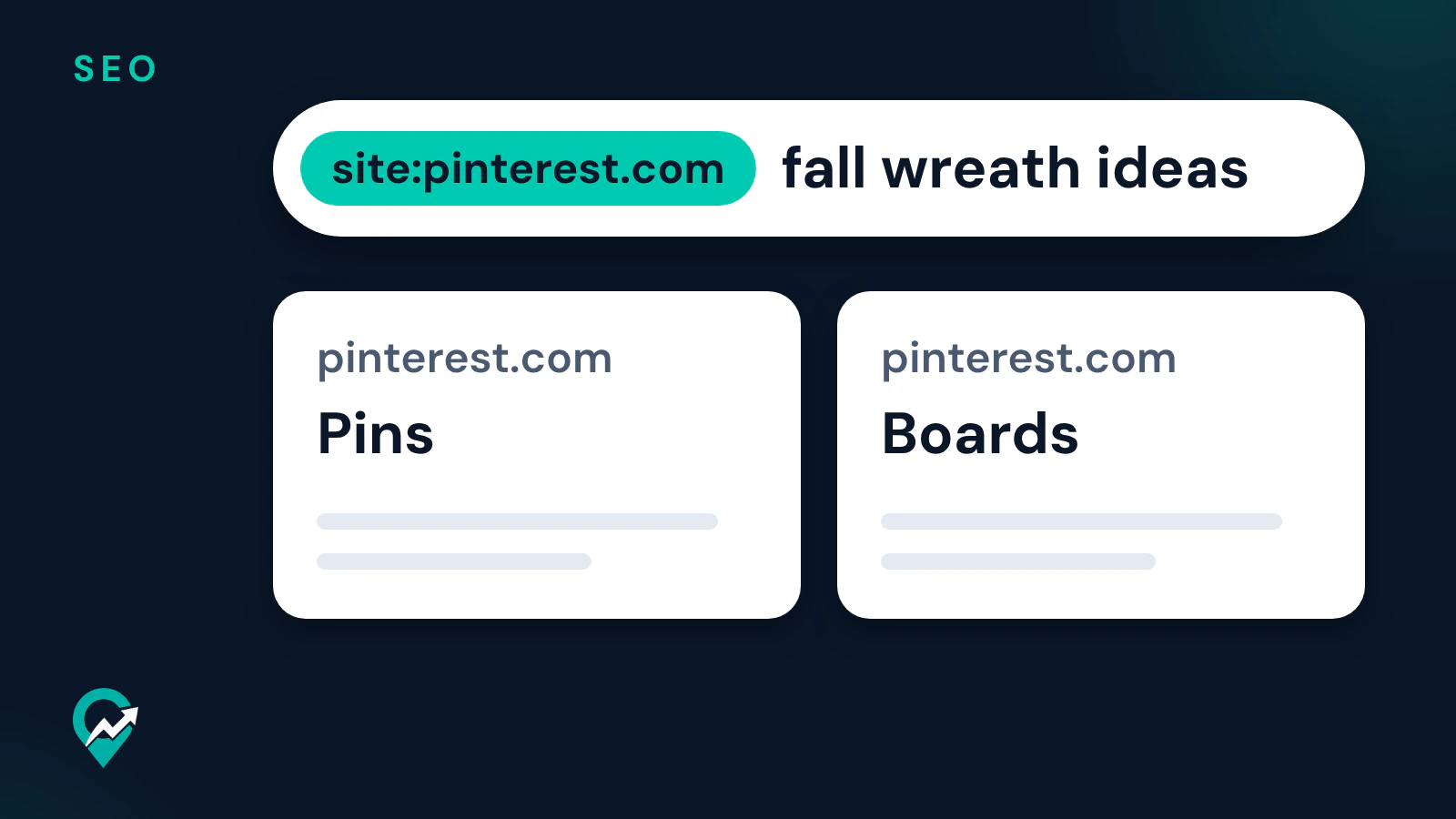
Google’s “Refine Google searches” page says that to search for results from a specific site, you enter site: in front of a site or domain. It also says not to put spaces between the operator and your search term: [site:nytimes.com] works, [site: nytimes.com] won’t. For Pinterest:
- Go to google.com.
- Type site:pinterest.com, a space, then your topic.
- Press Enter and open the results that look relevant.
site:pinterest.com fall wreath ideasGoogle’s site: documentation says a site: query requests results from the domain, URL or URL prefix you specify, and that site:example.com shows results from that domain and its subdomains. Its limits matter here: the operator doesn’t necessarily return all the URLs that are indexed under the prefix, and a site: query without a search term doesn’t rank the results. So always add your topic after the domain.
Narrow the results to one profile
The same Google page says a query such as site:https://www.example.com/ramen (opens in a new tab) tsukemen shows results for pages whose URLs start with that prefix. Pinterest’s “Edit your profile” page says your username gives your profile a unique web address, with the example www.pinterest.com/Pinterest (opens in a new tab). Put the two together and you limit the Google results to pages under one profile’s address:
site:https://www.pinterest.com/Pinterest/ recipesReplace Pinterest with the username you want and recipes with your topic. Google’s page also says www and non-www versions of a prefix don’t return the same results, so try both when a search comes back thin.
Make the Google search more precise
Google’s help page lists other operators that combine with site:
- Quotes for an exact phrase: site:pinterest.com “small balcony garden”.
- A minus sign to leave a word out: site:pinterest.com wreath -christmas.
- The Images filter after a search, to see results as images.
If you start from a picture rather than words, our search by image guide for Pinterest (opens in a new tab) covers Google’s search by image as well as Pinterest Lens.
Open a profile from its web address
When you already know whose boards you want, skip the search. Pinterest’s “Edit your profile” page says your username appears next to your profile picture under your profile name, and that it creates the web address of the profile. You can type pinterest.com/ followed by the username in your browser’s address bar, or use it as a site: prefix in Google as shown above. Pinterest’s “Find your profile” page says anyone can see your profile, but only you can see your secret boards; it does not say whether that includes visitors who are not logged in. Finding a username in the first place is covered in our guide to finding a person’s Pinterest username (opens in a new tab).
What stays out of these results
Some Pinterest pages are kept out of search engines by their owners:
- Private profiles. Pinterest’s “Make your profile private or public” page says private profiles won’t appear in search results on Pinterest or in search engines.
- Profiles with search privacy on. Pinterest’s search privacy page says search engines like Google, Bing and Yahoo may show your profile or boards in their results, and that turning on search privacy adds a tag that lets search engines know to exclude your profile and boards. It also says information may already be in search results when you turn it on.
- Secret boards. Pinterest’s “Find your profile” page says only you can see your secret boards when you view your own profile.
Google’s own limit applies on top: a site: query does not necessarily return every indexed URL, so a missing board is not proof that it does not exist.
When an account is worth it
A search engine shows pages, not Pinterest’s own search tools. Pinterest’s search page describes guides (suggested terms that refine a search), a filter for Pins, Boards, Profiles, Videos and Products, a search of your saved Pins and Search with a Pin, with steps that start from a logged-in account. Pinterest’s “Get a Pinterest account” page lists the steps for a personal account: enter your email, create a password, enter your age, then select 5 or more topics. For a blogger, Pinterest’s business help page says you can set up a free Pinterest business account to get access to analytics on your Pins. Our guide on setting up a free Pinterest business account (opens in a new tab) walks through it.
For bloggers: be findable by people who are not logged in
The same rules work in your favour. A reader who searches Google for your topic can land on your profile or boards when your profile is public and search privacy is off. Pinterest’s business help page says business accounts are public on Pinterest. Name your boards with the words your readers search, as in our guide to how boards and Pins get found (opens in a new tab), and check your own profile with a site: query from time to time.
site:https://www.pinterest.com/[your username]/ [your main keyword]Right after
- Try site:pinterest.com with one topic from your niche and look at which Pins and boards come up.
- Check that your own profile is public and that search privacy is off, if you want it in search engines.
- When you are ready to use Pinterest’s own search tools, follow our guide to Pinterest’s search bar and filters (opens in a new tab).