

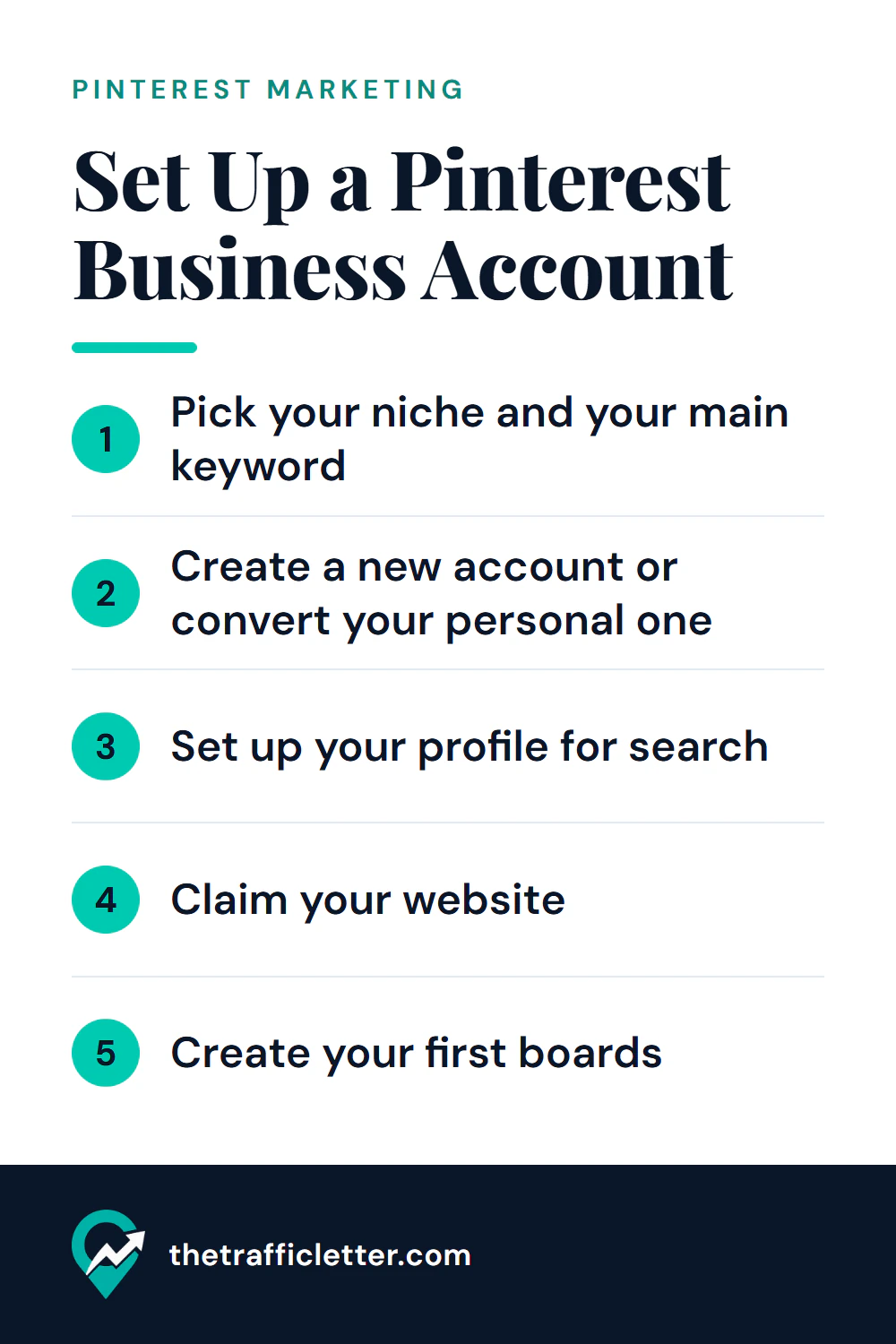
A Pinterest business account takes a few minutes to open. Making it findable takes a little more thought, and most of that thought happens before you click Sign up. This guide follows Pinterest’s own steps for creating or converting the account, then shows how to fill each profile field for search. It is the first step of our step-by-step Pinterest traffic system for blogs (opens in a new tab).
Before you sign up: pick your niche and your main keyword
Every text field of your profile is a chance to tell Pinterest, and the people searching on it, what you publish. You can only use those fields well if you know the answer first.
Start with your niche, then narrow it to a micro-niche you can cover in depth. “Baking” is a niche. “Sourdough baking for beginners” is a micro-niche: a reader knows at once whether your profile is for them, and the words match what they type in search.
Then research the phrases people actually search. Write down one main keyword (for example “sourdough for beginners”) and three to five related phrases. Our routine for finding Pinterest keywords for your niche (opens in a new tab) shows free ways to do it with Pinterest’s own search suggestions and Pinterest Trends. Keep this list open: you will use it for the display name, the username, the About text and the first boards.
Two practical checks before you start:
- Email: Pinterest says the email you use for a new business account must not already be in use on an existing Pinterest account.
- Device: Pinterest says a new business account can only be created from a desktop device at this time.
Create a new account or convert your personal one
Pinterest offers two ways to get a business account: create a new one, or convert a personal account. The right choice depends on what your personal account already holds.
| Your situation | Better choice | Why |
|---|---|---|
| Your personal account is about the same topic as your blog | Convert it | Pinterest says your Pins and followers remain the same |
| Your personal account is about other things | Create a new one | You start with a profile that matches your blog |
| Your personal account is private | Convert only after making it public | Business accounts are public on Pinterest |
| Your personal account is linked to another account | Unlink first | Pinterest asks you to unlink before converting |
Both paths lead to the same free account type. The full comparison of what changes is in our guide to Pinterest business vs personal accounts (opens in a new tab).
How to create a new Pinterest business account
These are the steps on Pinterest’s help page, on a desktop computer:
- Go to pinterest.com and click Sign up at the top-right of your screen. If you are logged in to another account, log out first to see this option.
- Click Create a business account.
- Enter your Email, create a password and enter your Age.
- Click Create account.
- Fill out the fields to Build your profile, then click Next.
- Fill out the fields to Describe your business, then click Next.
- Select if you want to run ads, then click Next.
- Select where you would like to start, or click the x icon to go to your new business account.
Pinterest notes that creating an account means you accept its Business Terms of Service and Privacy Policy.
How to convert a personal account into a business account
On a desktop, Pinterest’s steps are:
- Log in to your personal Pinterest account.
- Click the more options icon at the bottom left of your screen.
- Select Settings.
- Click Account management at the left of the screen.
- Find the Convert to a business account option, then click Convert account.
- Click Convert account again to confirm.
- Fill out the fields to Build your profile and Describe your business, clicking Next after each.
- Select if you want to run ads, then click Next.
In the Pinterest app, tap your profile picture at the bottom-right corner, then your profile photo at the top-left, then Account management. Tap Convert to a business account and Convert account. The app then asks for your profile name, your website URL (you can tap Skip this step), a description of your business from a list, and whether you want to run ads.
Set up your profile for search
Once the account exists, open Settings from your account menu and choose Edit profile. Pinterest’s help pages place that menu in different spots depending on the article (an icon at the bottom left, or an arrow at the top right), so look for Settings rather than a specific icon. Each field below is worth a minute of care.
Display name: your brand plus your main keyword
For a business account, Pinterest asks for your business name under Name. People see this name when they visit your profile, so it should say both who you are and what you cover.
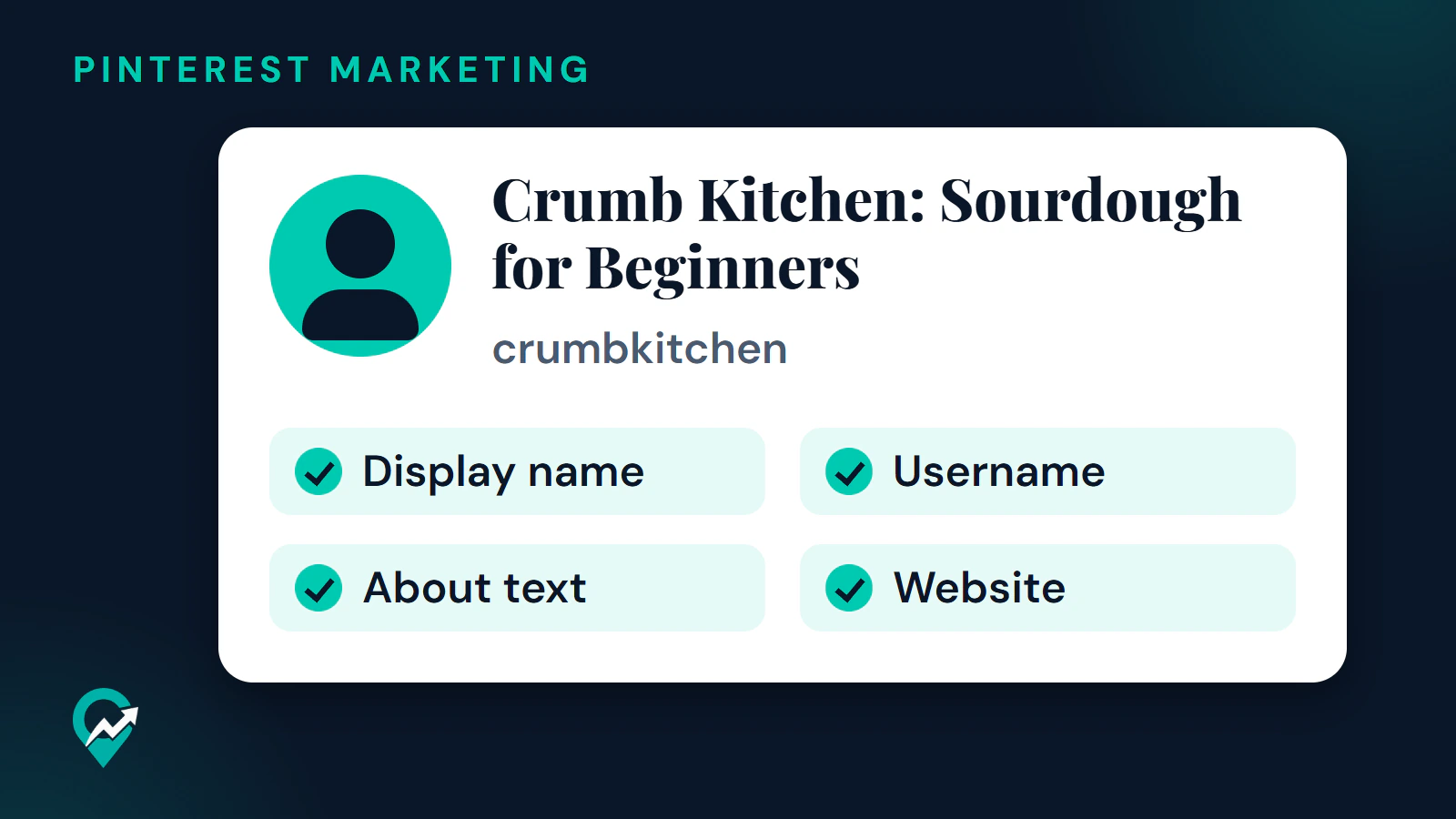
A simple pattern is the brand name followed by the main keyword: “Crumb Kitchen: Sourdough for Beginners”. Write it for a person reading it, not as a list of terms. Pinterest’s help page gives no character limit for this field, so keep it short enough to read at a glance.
Username: short, searchable and close to your brand
Your username creates the web address of your profile: Pinterest’s example is the username “Pinterest” at www.pinterest.com/Pinterest (opens in a new tab). Pinterest Create suggests a username that is short, easily searchable and representative of you, and says it can include your name, your brand name and relevant keywords.
Pinterest’s rules for the username:
- letters only, or a combination of letters, numbers and
_ - between 3 and 30 characters
- no spaces, no punctuation marks, and not made up of numbers only
For the example brand above, a username such as crumbkitchen keeps the address short and close to the name. Choose it carefully, because it becomes the address you print on your blog and share.
Profile photo and cover image
Pinterest Create says your profile image appears on your profile page and alongside each Pin you create, and that a recognizable image helps build credibility. A logo or a clear photo works better than a busy picture. In Edit profile, click Change next to your profile photo, then Choose photo.
Pinterest Create also describes a cover image at the top of your profile and suggests something simple that stands out.
About text: who it is for, with natural keywords
Under About, Pinterest lets you write a bio of up to 500 characters. Pinterest Create says that including keywords in your description can help new people find your profile, and suggests thinking about the terms your audience might search.
A good About text answers three questions in plain words: who the profile is for, what they will find, and where the full content lives. Put your main keyword in the first sentence and one or two related phrases where they read naturally. Avoid a string of keywords: it reads badly, and the person you want to reach is a reader. Examples by niche, a before and after rewrite and two more prompts are in our guide to writing a Pinterest bio that gets found (opens in a new tab).
Website: add it, then claim it
Under Website, enter the address of your blog and click Save. Adding the link lets visitors find your site. Claiming the site is a separate step: Pinterest says that claiming gives you insight into how often your content is shared and links your profile to Pins saved from your site. Our guide on how to claim your website on Pinterest (opens in a new tab) covers every method.
Let AI draft the profile text (3 prompts)
Writing names and descriptions is a good job to hand to an AI assistant, as long as you give it your niche and keywords and check the result. The prompts below work in ChatGPT, Claude, Gemini or any AI assistant. Replace the text in square brackets before you send them.
Prompt 1, display name and username options:
I run a blog about [your niche], written for [your audience]. My brand name is [your brand name] and my main keyword is [your main keyword].

Suggest 5 display names for my Pinterest business profile.
Rules:
- Each name contains my brand name and my main keyword, in plain words a person would type in search.
- Keep each name short enough to read at a glance. No emojis, no hashtags, no lists of keywords.

Then suggest 5 usernames that follow Pinterest's rules: letters only, or letters, numbers and underscores; between 3 and 30 characters; no spaces or punctuation; not made of numbers only.

Output: two numbered lists titled "Display names" and "Usernames".
Prompt 2, the About text:
Write the About text of my Pinterest business profile.

My niche: [your niche]
My audience: [your audience]
My main keyword: [your main keyword]
Two related keywords: [keyword 2], [keyword 3]
What my blog offers: [one sentence]

Rules:
- 500 characters at most, spaces included (Pinterest's limit for the About field).
- Use the main keyword once in the first sentence and each related keyword once, only where it reads naturally.
- Say who the profile is for and what they will find. Plain words, no hashtags, no emojis, no claims or numbers I did not give you.

Output: 3 versions, each followed by its character count.
Prompt 3, five first boards with descriptions:
I am setting up the first boards of a Pinterest business account for my blog about [your niche]. My main keyword is [your main keyword]. The main topics of my blog are [topic 1], [topic 2], [topic 3], [topic 4] and [topic 5].

Suggest one board per topic: 5 board names, each with a description.
Rules:
- Each board name is the phrase a reader would type in Pinterest search for that topic: clear and descriptive, no puns, no emojis.
- Each description is 1 to 2 plain sentences that say what the board holds and use the board's keyword once, naturally.
- No keyword lists, no hashtags.

Output: a table with the columns "Board name" and "Description".
Count the characters of the About text yourself before you paste it, instead of trusting the count the assistant gives. Read every suggestion aloud: if it sounds like a list of search terms, rewrite it.
Create your first boards
Pinterest says boards are collections for your Pins, and its business blog advises giving every board a proper title and description, because people can also discover boards in search results. To create one on a desktop, click the square plus icon in the navigation bar at the left side of your screen, select Board, enter a name and click Create.
Start with one board for each main topic of your blog, named with the phrase a reader would search. Our method for naming boards that people search for (opens in a new tab) has examples, and our board structure guide for bloggers (opens in a new tab) explains when to use sections instead of new boards.
Mistakes to avoid when you set up the account
- Creating the account before choosing a niche, then renaming everything later.
- Using a display name with no hint of the topic, such as a first name alone.
- Filling the About text with a list of keywords instead of sentences.
- Leaving the website field empty, or adding it without claiming the site.
- Creating many empty boards on day one.
Right after: your next three actions
- Claim your blog’s domain with the method that suits your setup, using our website claiming guide with every method (opens in a new tab).
- Create your first five boards with the third prompt above, then check each name against your keyword list.
- Publish your first Pins, each linked to the matching post, and write their text with our guide to Pin titles and descriptions for search (opens in a new tab). When the profile is ready, see how getting followers with a clear profile (opens in a new tab) works, and follow the full order of actions for growth (opens in a new tab).