

The bio is the one place on your profile where you get several sentences to explain what you publish. It is short enough to write in ten minutes and easy to get wrong, usually by saying too much about you and too little about what a visitor will find. This guide covers what the bio does, the limit Pinterest sets, where to edit it and how to write it, and it assumes you already have the account from our guide to setting up a Pinterest business account (opens in a new tab).
What your Pinterest bio does
Pinterest’s help page describes the bio as information that lets others learn more about you, and says people who visit your profile will see it. That is the first job: a visitor who arrives from one of your Pins decides in a few seconds whether the profile is for them.
The second job is search. Pinterest Create advises a concise bio description that is authentic, compelling and relevant, and says that including keywords in your description can help new people find your profile. It suggests thinking about the terms your audience might be searching for. Pinterest does not say how much weight the bio carries compared with a Pin title or a board name, so the practical reading is simple: use your real keywords where they fit a sentence, and do not rely on the bio alone.
A third job matters if you want brand partnerships later. Pinterest Create tells creators to treat the profile as a CV, with a good portfolio of Pins, well-organised boards and a clear bio and description. A vague bio makes that harder.
The limit and where to edit it
The limit comes from Pinterest’s help page on editing your profile, which says to enter your bio “up to 500 characters”. Stay a little under it. The page does not say how many characters show before a long bio is cut on a phone, so the first sentence has to carry the keyword and the point of the profile.
To edit it on a desktop, open Settings from your account menu and choose Edit profile. Pinterest’s help pages place that menu in different spots (an icon at the bottom left, or an arrow at the top right), so look for Settings rather than a specific icon. Then:
- Under About, enter your bio.
- Click Save.
In the Pinterest app with a business account, tap your profile photo at the bottom-right corner to open your profile, tap Edit profile under your profile photo, tap the chevron icon next to About, enter your bio and tap Done. With a personal account, Pinterest’s page has you tap your profile photo at the bottom-right, then your profile photo at the top-left, then View profile and Edit profile before the same About step.
The business name lives in a different field. For a business account Pinterest asks for your business name under Name, and our section on the display name pattern for a business profile (opens in a new tab) shows how to write it so the two fields do not repeat each other.
Before you write: your niche and your main keyword
A bio written without a keyword in mind becomes a list of adjectives. Start with the micro-niche your blog covers, for example “sourdough baking for beginners” instead of “baking”, and pick one main keyword from your research. If you have not done that research yet, our routine for free keyword research for your niche (opens in a new tab) gives the steps, and it is the same list you use for board names and Pin titles.
Write down the main keyword and two or three related phrases. The bio should use the main keyword once, near the start, and the related phrases only where a sentence needs them.
A simple formula for the About text
A readable bio answers three questions in order. They are not a trick, just the questions a visitor has.
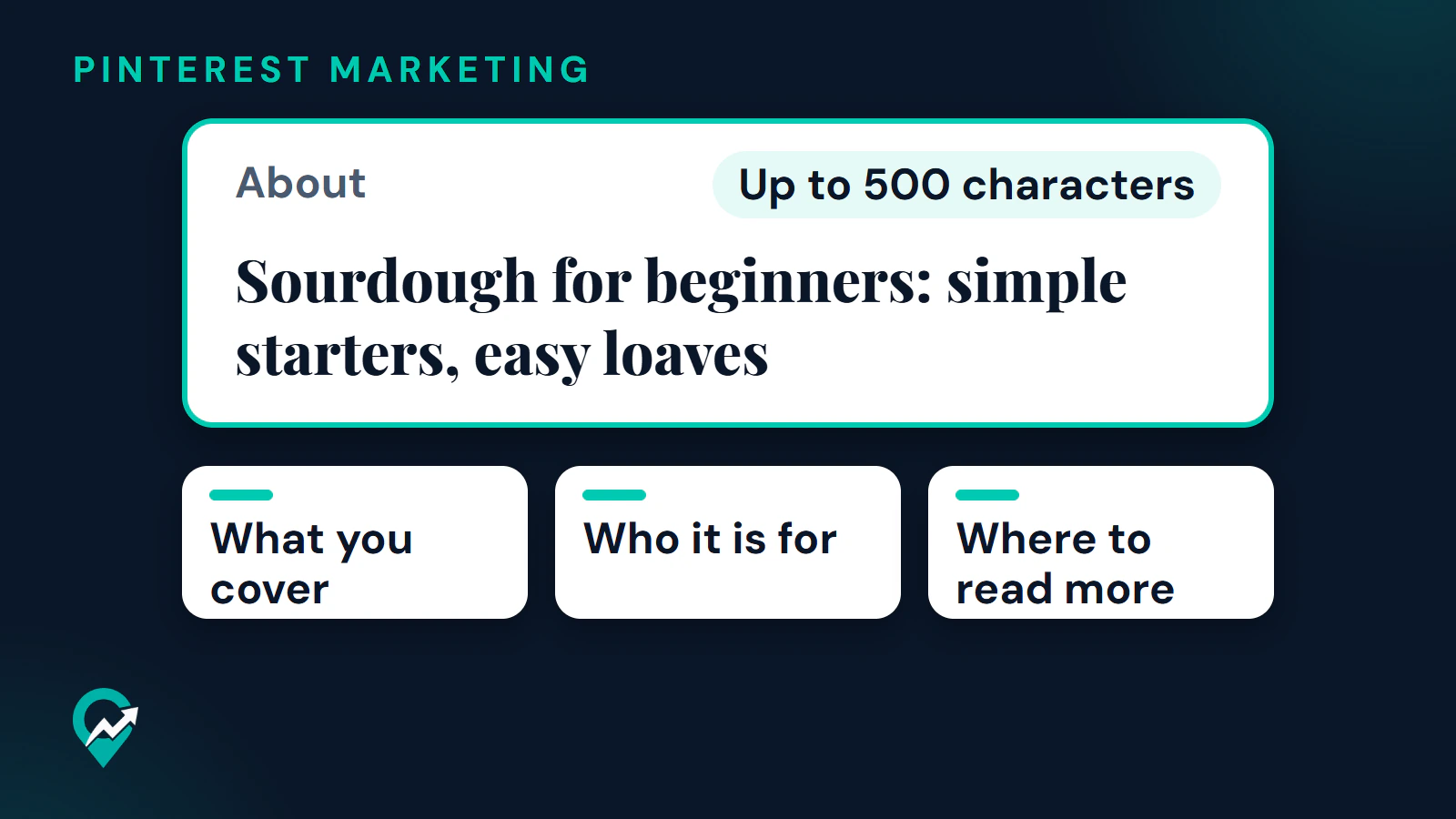
| Part | What it says | Example for a baking blog |
|---|---|---|
| What you cover | Your main keyword, in plain words | Sourdough for beginners |
| Who it is for | The reader and the useful content | Simple starters, easy loaves and fixes |
| Where to read more | A pointer to the full content on your blog | Full recipes and guides on the blog |
Keep sentences short. Write for the person reading, not for a search box, and leave out anything you cannot back up: no promises of results, no numbers you cannot source.
Bio examples by niche
These are illustrations of the formula, not real accounts. Each stays under the limit, with the length counted.
Sourdough baking (192 characters):
Sourdough for beginners: simple starters, easy loaves and fixes for the problems new bakers hit. Pins on sourdough bread, starter care and troubleshooting. Full recipes and guides on the blog.Meal planning (172 characters):
Budget meal planning for busy families. Weekly meal plans, grocery lists and cheap dinner ideas that cut the cost of the shop. Printable plans and full recipes on the blog.Home organization (150 characters):
Small apartment organization for renters. Storage ideas, closet layouts and decluttering checklists for tight spaces. Step-by-step guides on the blog.A weak bio and a clearer one
Here is a common first draft and a rewrite that follows the formula.
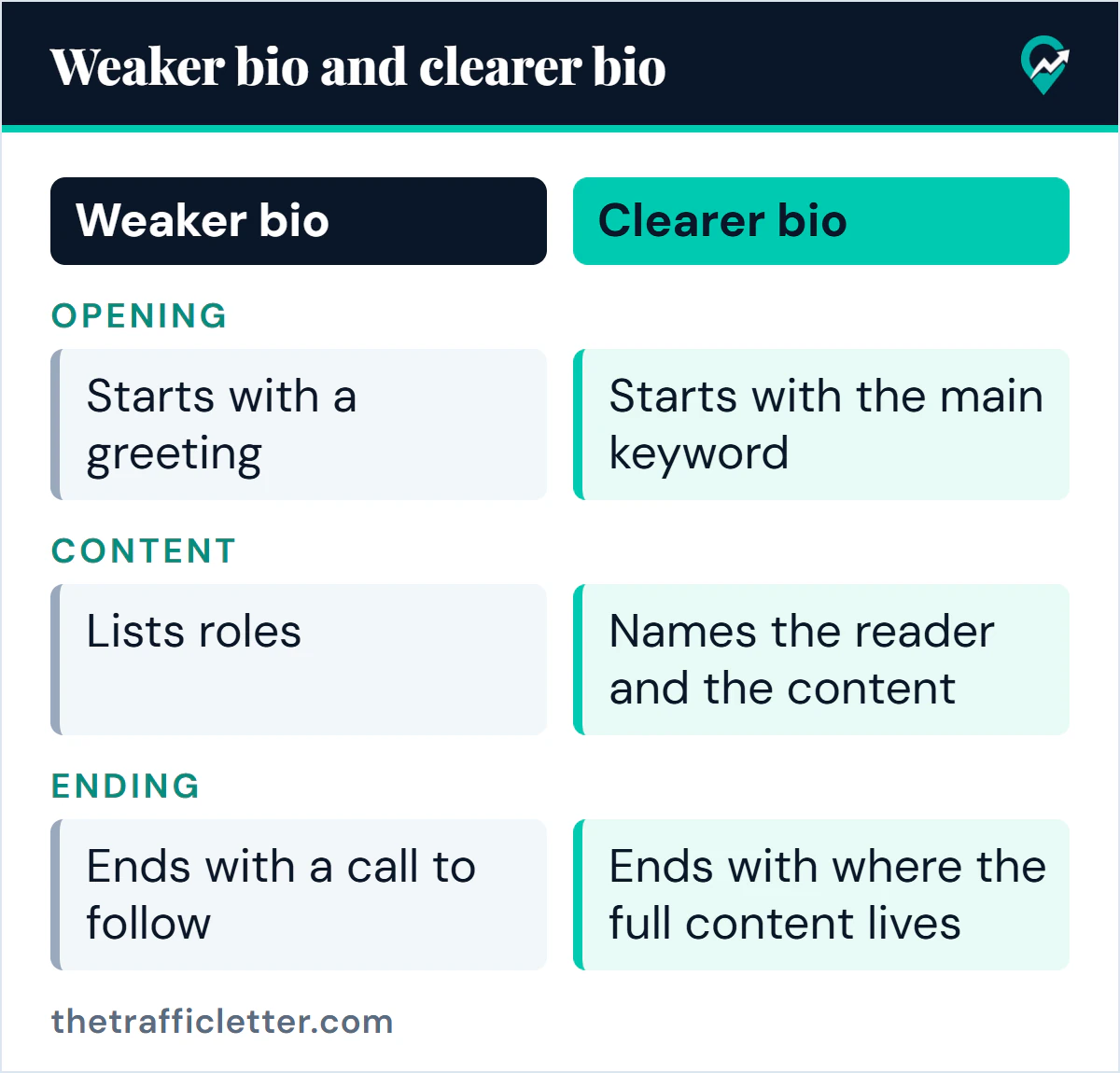
| Part | Weaker bio | Clearer bio |
|---|---|---|
| Opening | Starts with a greeting | Starts with the main keyword |
| Content | Lists roles | Names the reader and the content |
| Ending | Ends with a call to follow | Ends with where the full content lives |
The weak version reads “Hi, I’m Sam! Coffee lover, wife and mom. Welcome to my little corner of Pinterest. Follow for inspo!” (100 characters). The rewrite for a dinner blog reads “Easy weeknight dinner ideas for busy parents. Quick recipes, meal plans and grocery lists. Full recipes on the blog.” (116 characters). The rewrite is longer, and every added word tells the visitor something.
Let AI draft the bio (2 prompts)
An AI assistant is useful for producing options quickly, as long as you give it your niche and keyword and you read the result. The prompts work in ChatGPT, Claude, Gemini or any AI assistant. Replace the text in square brackets first.
Prompt 1, three bio options:
Write 3 versions of the About text for my Pinterest business profile.

My niche: [your niche]
My audience: [who the profile is for]
My main keyword: [your main keyword]
Related phrases: [phrase 1], [phrase 2]
What my blog offers: [one sentence]

Rules:
- Each version is 500 characters or fewer, which is Pinterest's limit for the About field.
- Open with the main keyword in a plain sentence. Use each related phrase once, only where it reads naturally.
- Say who the profile is for, what they will find and that the full content is on the blog. Do not include a link.
- Plain words, no emojis, no hashtags, no promises of results and no numbers I did not give you.

Output: a numbered list of 3 versions, each followed by its character count.
Prompt 2, rewrite a bio you already have:
Rewrite my Pinterest bio so it is clearer for search and for visitors.

My current bio: [paste your bio]
My niche: [your niche]
My main keyword: [your main keyword]

Rules:
- Keep it under 500 characters, and open with the main keyword.
- Remove greetings, lists of roles and phrases that say nothing about the content.
- Keep only facts that are already in my current bio. Do not invent credentials, numbers or results.

Output: the rewritten bio, its character count, and one line per change explaining what you removed or moved.
Count the characters yourself before you paste the result into Pinterest, and read it aloud. If it sounds like a list of search terms, rewrite it.
Mistakes to avoid in a Pinterest bio
- Opening with a greeting or a name instead of the topic.
- Stuffing keywords. Pinterest’s spam rules list “stuffing” irrelevant keywords among the tactics used to improperly influence distribution, so a clean sentence is also the safe choice.
- Repeating the display name word for word.
- Describing yourself with roles and leaving out what the visitor will find.
- Putting your site address in the About text and leaving the Website field empty. Pinterest gives the link its own field in Edit profile.
- Writing it once and never looking again. When your blog’s focus changes, the bio should change with it.
Right after: your next actions
- Add your blog under Website in Edit profile, then claim it with the method in our guide to claiming your website (opens in a new tab), so your profile appears next to Pins saved from your site.
- Fill the other fields around the bio (photo, name, username, cover) with our ideas for each part of your Pinterest profile (opens in a new tab), then check that your boards use the same keywords as your bio, with the examples in our guide to board names built on your keywords (opens in a new tab).
- Move on to growth: the order of actions in our Pinterest growth guide (opens in a new tab) puts the profile first, and our article on earning followers on Pinterest (opens in a new tab) shows what a bio can and cannot do there. For the wider picture of how search works, see how Pins rank in Pinterest search (opens in a new tab).