
Most people who ask whether a Pinterest business account is free are really asking two things: will it cost me anything, and will I lose something by switching. Pinterest’s own pages answer both. This guide sticks to the differences and the cost; the setup itself is in our walkthrough on creating and setting up a Pinterest business account (opens in a new tab).
Is a Pinterest business account free?
Yes. Pinterest’s getting started page says it is free to sign up for a Pinterest business account, and that if you decide to run ads you can always set your own budget. Its help page describes the same thing as “a free Pinterest business account” that gives you analytics on your Pins and the ability to run ads.
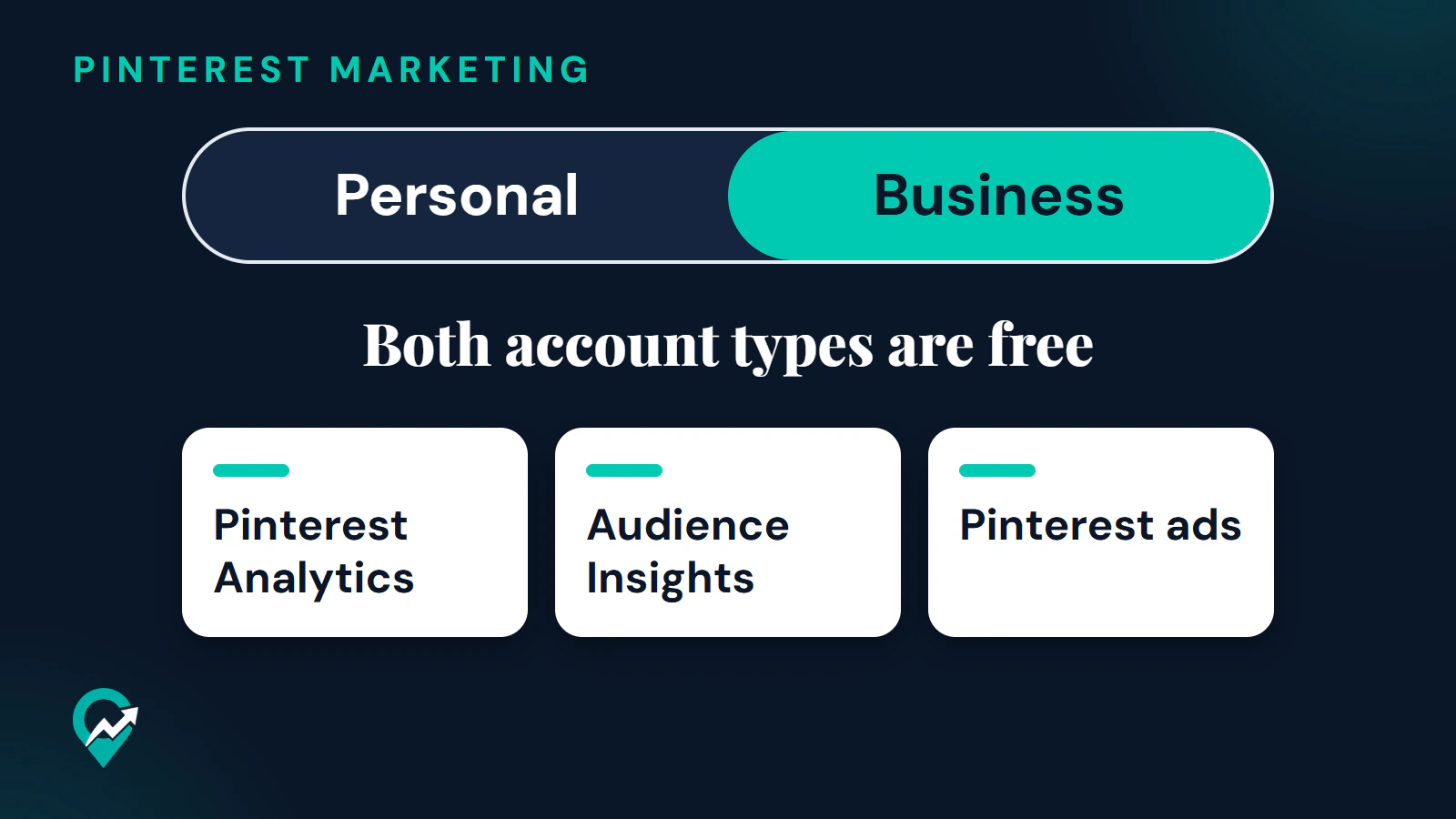
So the account itself costs nothing: both account types are free, and the difference lies in the tools. Money only enters the picture when you choose to promote Pins as ads, and the amount is the budget you set. A blogger who only publishes organic Pins pays nothing to Pinterest.
Business vs personal account: what Pinterest says changes
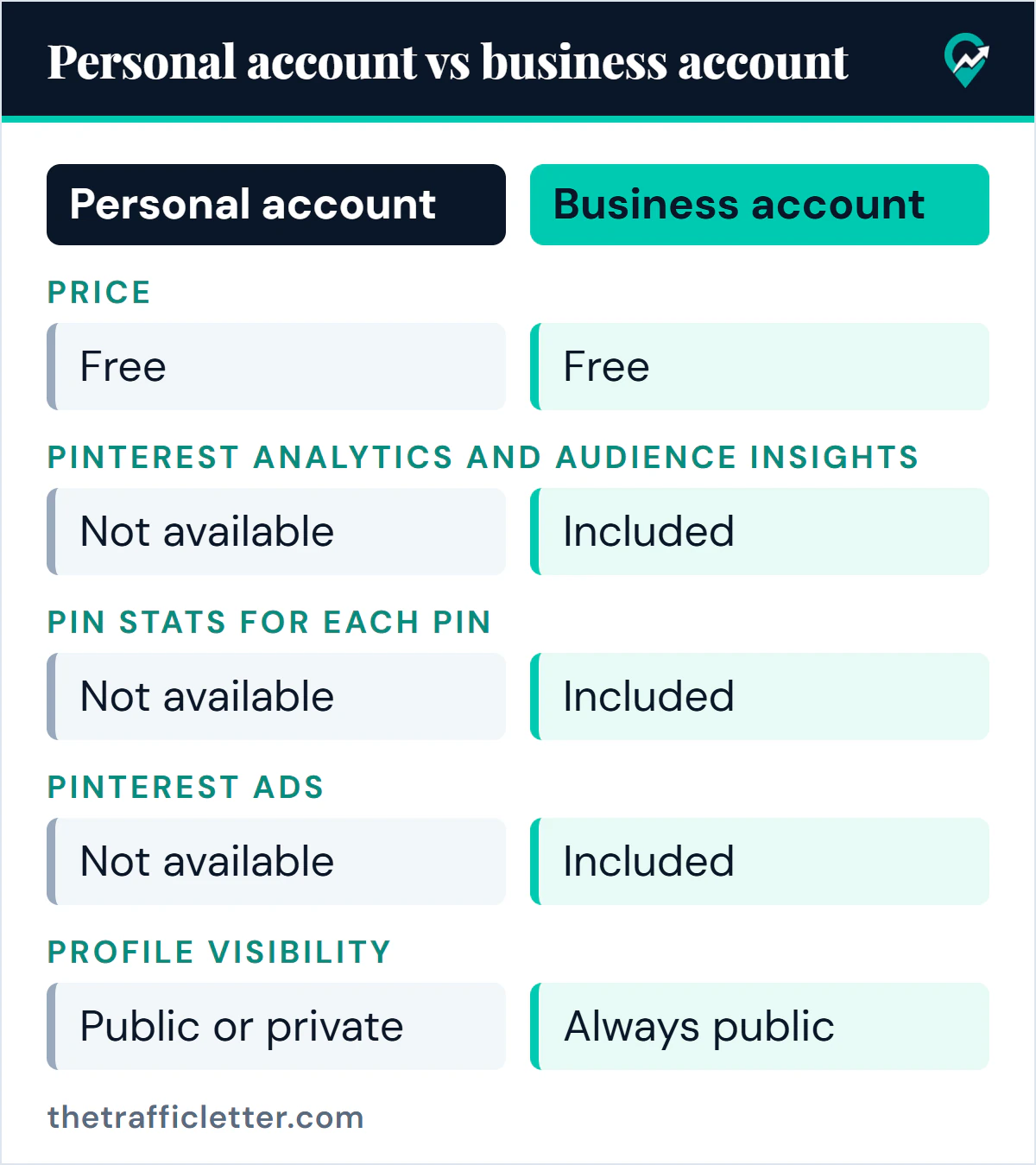
Pinterest describes the personal account as the default when you sign up, made for finding ideas, and the business account as the type designed for creators, publishers, merchants and brands. Its business page adds that ads and analytics are not available on a standard account.
| Feature | Personal account | Business account |
|---|---|---|
| Price | Free | Free |
| Pinterest Analytics and Audience Insights | Not available | Included |
| Pin stats for each Pin | Not available | Included |
| Pinterest ads | Not available | Included |
| Business email, phone and address on the profile | Not available | Included |
| Profile visibility | Public or private | Always public |
The rows come from these official pages:
- Analytics: Pinterest says that to view Pinterest Analytics you need to set up a business account, and the same applies to Pin stats.
- Audience Insights, Pinterest Trends and the Creator Hub: Pinterest Create lists them among the tools a business account gives you that are not available to personal accounts. It says the Creator Hub is accessible in the Pinterest app on mobile devices.
- Ads: Pinterest says business accounts give advertisers and merchants the ability to create ads, for example Idea ads and video ads.
- Profile details: Pinterest’s help page says a business email, phone number and address on your profile are features only available with a business account.
- Visibility: Pinterest says business profiles are always public. To make a profile private you need a personal account.
What about claiming your website?
Claiming connects your blog’s domain to your profile, so Pins saved from your site show your profile picture and a link to your profile. Pinterest says a business account is not required to claim a website, but it recommends one to get the most from your claimed site, and its claim steps start with logging in to a business account. In practice, claim after you switch: our guide to claiming your website on Pinterest (opens in a new tab) lists the four methods.
What stays the same when you switch
Converting is not a fresh start. Pinterest says:
- Your Pins and followers remain the same.
- If your personal account is private, it must be switched to public first, because business accounts are public.
- If your personal account is linked to another Pinterest account, you need to unlink it before converting.
- You can switch back to a personal account at any time.
Pinterest also notes that it is no longer possible to link a personal account to a business account. If you want both a private personal profile and a public business profile, keep them as two separate accounts with different emails. Our guide to running multiple Pinterest accounts (opens in a new tab) covers adding and switching between them.
Who should switch, and when
Pinterest’s business page says you should make sure you use a business account for any marketing goals. For a blog, the clearest reason is measurement: Pinterest Analytics reports outbound clicks, the number that shows whether Pins send readers to your site. Without it you are guessing. Analytics shows counts and audience groups, and our guide on whether you can see who views your Pinterest (opens in a new tab) explains what it does not show about individual viewers.
Switch now if you:
- publish a blog, a shop or any site you want Pinterest to send visitors to;
- plan to earn from Pinterest traffic, for example with the methods in our overview of Pinterest income routes for bloggers (opens in a new tab);
- want to use Pinterest Trends to plan topics, as described in our guide to researching keywords with free Pinterest tools (opens in a new tab);
- may run ads later.
Stay personal if you only save ideas for yourself and want the option of a private profile. Creators who work with brands also have a reason to switch: Pinterest Create says a business account includes features that support collaborations, such as affiliate links and brand partnership tools. If affiliate links are part of your plan, read our affiliate marketing primer for new Pinterest users (opens in a new tab) before your first Pin.
How to switch without losing Pins or followers
Converting keeps everything you already have. On a desktop, Pinterest’s path is Settings, then Account management, then the Convert to a business account option and Convert account. Pinterest then asks you to fill in Build your profile and Describe your business and whether you want to run ads.
Before you convert, set your profile to public if it is private, and unlink any linked account. After you convert, fill in your name, username, About text and website with search in mind: the field by field method is in our hub article on setting up a Pinterest business profile for search (opens in a new tab).
If your personal account is full of Pins that have nothing to do with your blog, creating a new business account with a different email can be cleaner than converting.
How to switch back to a personal account
Pinterest says to convert a business account to a personal account when you no longer use it for business or no longer need analytics tools or access to ads. Outstanding bills must be paid first.
On a desktop: log in, open Settings from the menu at the top right, select Account management from the left side navigation, scroll down to Account changes and click Convert account. In the app: tap your profile picture, open your settings, select Account management, tap Convert to personal account and Convert account.
Decision checklist
Answer each line. One “yes” in the first group is enough to choose a business account.
Choose a business account if:
- you want to see which Pins send clicks to your site;
- you plan to run ads, now or later;
- you want to claim your website with Pinterest’s recommended setup;
- you use Pinterest for any marketing goal, as Pinterest’s business page puts it.
Keep a personal account if:
- you only save ideas for yourself;
- you need a private profile.
Create a new business account instead of converting if:
- your current Pins and boards are unrelated to your blog.
Right after: what to do once you have switched
- Fill each profile field for search with the prompts in our business account setup guide (opens in a new tab).
- Claim your domain using the step-by-step website claiming methods (opens in a new tab).
- Read your outbound clicks in Pinterest Analytics after a few weeks, as described in the measuring step of our Pinterest traffic roadmap for blog owners (opens in a new tab).