

A Pin carries a title and a description, and you usually type them by hand. Rich Pins take that information from the page the Pin links to, and keep it in step with your post. This guide explains what rich Pins are and how to turn them on for a blog, from Pinterest’s help and developer pages read on 17 November 2026. It builds on our formula for Pin titles and descriptions (opens in a new tab) and on our overview of Pinterest SEO (opens in a new tab).
What rich Pins are on Pinterest
Pinterest’s Create rich Pins page says rich Pins are Pins that automatically sync information from your site. You can identify them by the extra information above and below the image when you click into the Pin, and if something changes on the original site, the rich Pin periodically updates to reflect that change.
Pinterest’s developer page adds that the information in a rich Pin is independent of the Pin description, so it stays tied to the Pin. For a blogger, that means the post title and summary you wrote for your site travel with every Pin of the post.
The three types of rich Pins
Pinterest lists three types, on its help pages and on its developer site:
| Type | What it adds to the Pin |
|---|---|
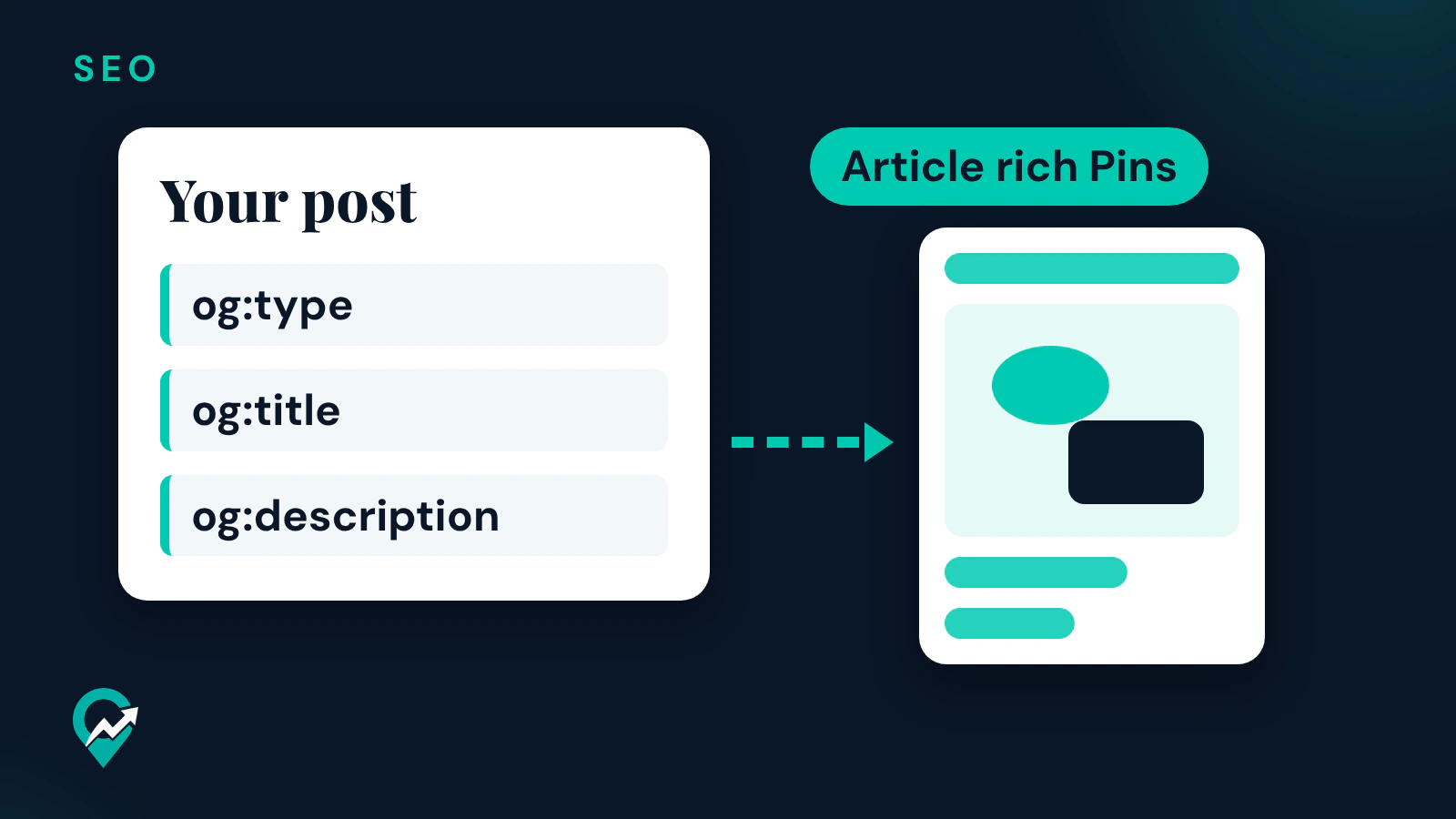
| Article rich Pins | The headline or title, the description and the author of the article or blog post |
| Recipe rich Pins | A title, serving size, cook time, ratings, diet preference and a list of ingredients |
| Product rich Pins | Pricing, availability and product information |
The help page defines an article as a page that contains text, like a news article or blog post, and says Pinterest does not consider listicles or pages with mostly images and little text to be articles. A recipe post fits recipe rich Pins, and a text post fits article rich Pins. The developer page says that if a page has metadata for several types, the type shown follows a priority: product Pins, then recipe Pins, then article Pins.
Pinterest rich Pins example for a blog post
Pinterest’s developer page for article Pins says it supports Open Graph and Schema.org formats. With Open Graph, the required properties are og:type (which must take the value article or blog), og:title and og:description. og:site_name is optional, and the page says using it is strongly suggested. A blog post head could carry these lines:
<meta property="og:type" content="article" />
<meta property="og:title" content="[Your post title]" />
<meta property="og:description" content="[A one or two sentence summary of your post]" />
<meta property="og:site_name" content="[Your blog name]" />
The developer page lists more optional properties, among them og:url for the canonical URL, og:image for up to six images, and its Open Graph example also carries article:published_time and article:author.
How to enable rich Pins on Pinterest
The steps come from Pinterest’s Create rich Pins page:
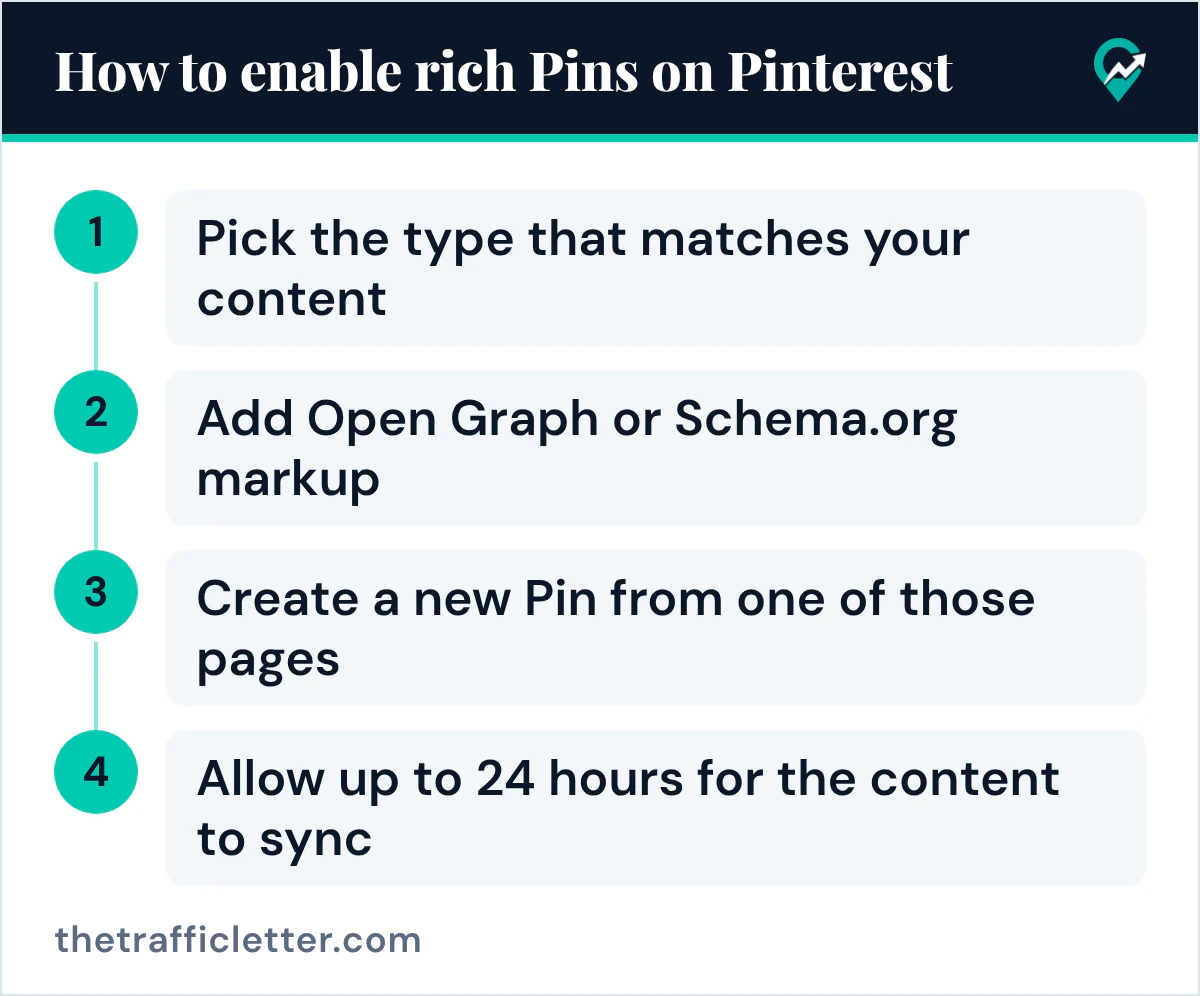
- Pick the type that matches your content: article, recipe or product.
- Add Open Graph or Schema.org markup between the head tags of the HTML of each page you want to enable.
- Create a new Pin from one of those pages, or wait for existing Pins to update.
- Allow up to 24 hours for the content to sync from your site to your rich Pin.
The help page says all content from pages that have the correct meta tags will appear as rich Pins when you create a new Pin, and that existing Pins that link back to pages with rich meta tags will now appear as rich Pins.
Two official pages word this differently. Pinterest’s developer page has a section on applying for rich Pins and says that once you have applied, any content on your site with metadata turns into a rich Pin when a user saves it. The help page, the more detailed of the two, describes no application step. Add the tags first; if your Pins still show no rich information a day later, check the developer site for the current process.
Check that your pages carry the tags
Your blog platform or an SEO plugin may already write Open Graph tags; the pages read for this guide do not say which ones do. Open one of your posts in a browser, view its source, and search for og:type, og:title and og:description. If they are there with the right values, the article markup is in place. If not, check your platform’s documentation for Open Graph settings.
If you have not claimed your site yet, do it at the same stage: our steps to claim your website on Pinterest (opens in a new tab) cover the HTML tag method.
Write the title and description that rich Pins pull
With article rich Pins, the og:title and og:description of your post appear on every Pin of it. Pinterest’s developer page says the title and the description may be truncated, depending on length, and that all formatting and HTML tags are removed.
- Put the main keyword of the post at the start of the title, the words people type into Pinterest search. Our guide to finding Pinterest keywords (opens in a new tab) shows where to find them.
- Write the description as a plain summary of what the reader gets, in one or two sentences, with the keyword once.
- Keep both close to the Pin text you would write by hand, so the Pin and the page say the same thing.
This prompt helps draft both fields. It works in ChatGPT, Claude, Gemini or any AI assistant. The pages read for this guide give no character limit, only the note that long text may be truncated, so the prompt asks for short text.
Here is my blog post: [paste the post or its outline]. The main keyword is [your main keyword].
Write 3 options for an og:title and 3 options for an og:description for this post.
Rules: the title starts with the main keyword and stays short. The description is 1 or 2 plain sentences that say what the reader gets, with the main keyword once. No emojis, no hashtags, no promises of results.
How rich Pins sync, and the edits to avoid
Pinterest’s help page says article rich Pins and recipe rich Pins update automatically to reflect any edits you make to your site. It adds a warning: if you make a manual edit to a recipe or article rich Pin on Pinterest, the new information you add will overwrite the rich metadata. Fix a title or a description on your post, not on the Pin.
For product rich Pins, the page says Pinterest shows the product information only if you have met its merchant guidelines and the product is in stock.
Turn rich Pins off for one page
To remove rich Pin data from a specific page, Pinterest’s help page gives this tag:
<meta name="pinterest-rich-pin" content="false" />The page says the tag overrides the rich Pin meta tags on that page only, and that all other pages stay unaffected unless you add the tag to them. To turn rich Pins back on, remove it. The developer page adds that this tag is not the same thing as the no-pin image attribute, which stops people from saving an image from your site to Pinterest.
Right after
- View the source of your latest post and confirm og:type, og:title and og:description, then save a new Pin from it.
- Rewrite the Pin text of your top posts with our Pin description examples and rules (opens in a new tab), so the page and the Pin agree.
- See how one post can serve both Google and Pinterest search in our guide to making one post rank on Pinterest and Google (opens in a new tab).