
Yes, you can report an AI Pin on Pinterest, but a report is not always the right tool. Pinterest reviews reports against its Community Guidelines, and it offers separate controls for people who simply want fewer AI Pins in their feed. This guide covers both, with the exact steps from Pinterest’s help pages. For how Pinterest itself uses and labels AI, read our hub on Pinterest and AI (opens in a new tab); for making your own Pins with AI, see our workflow for AI-made Pins with checks (opens in a new tab).
Can you report AI on Pinterest?
Pinterest’s report help page says: “If you find content that shouldn’t be on Pinterest, you can report it for us to review.” Its AI help page says the Community Guidelines “apply to all content on Pinterest, regardless of how it has been created,” and asks you to report content that should not be on Pinterest.
The Community Guidelines say the same thing from the policy side: “Our policies apply to everyone and to all types of content, including synthetically generated content.” So an AI-made Pin is judged by the same rules as any other Pin. A report fits when the Pin breaks one of those rules, whether a person or an AI tool made it.
When an AI Pin breaks the Community Guidelines
The Community Guidelines (last updated May 2026) name several cases that involve AI or synthetic content directly:
- Misinformation: “Fabricated or meaningfully manipulated visual or audio content that erodes trust or causes harm.”
- Civic misinformation: fabricated or manipulated content, with content generated with AI tools as the example, making someone appear to do or say something they didn’t with the clear intent of influencing public sentiment about a political figure or an election.
- Harassment and criticism: “Content that is synthetically generated or manipulated to degrade and/ or shame.”
- Impersonation: Pinterest says it will remove synthetically generated or manipulated content that impersonates a person or organization.
The spam rules also apply to AI content like any other. They ask you not to link to websites that are deceptive, untrustworthy or unoriginal, and they list tactics such as “stuffing” irrelevant keywords and buying or selling engagement.
The guidelines page announces an updated version effective 12 November 2026. Read it again after that date before you rely on the exact wording.
How to report an AI Pin
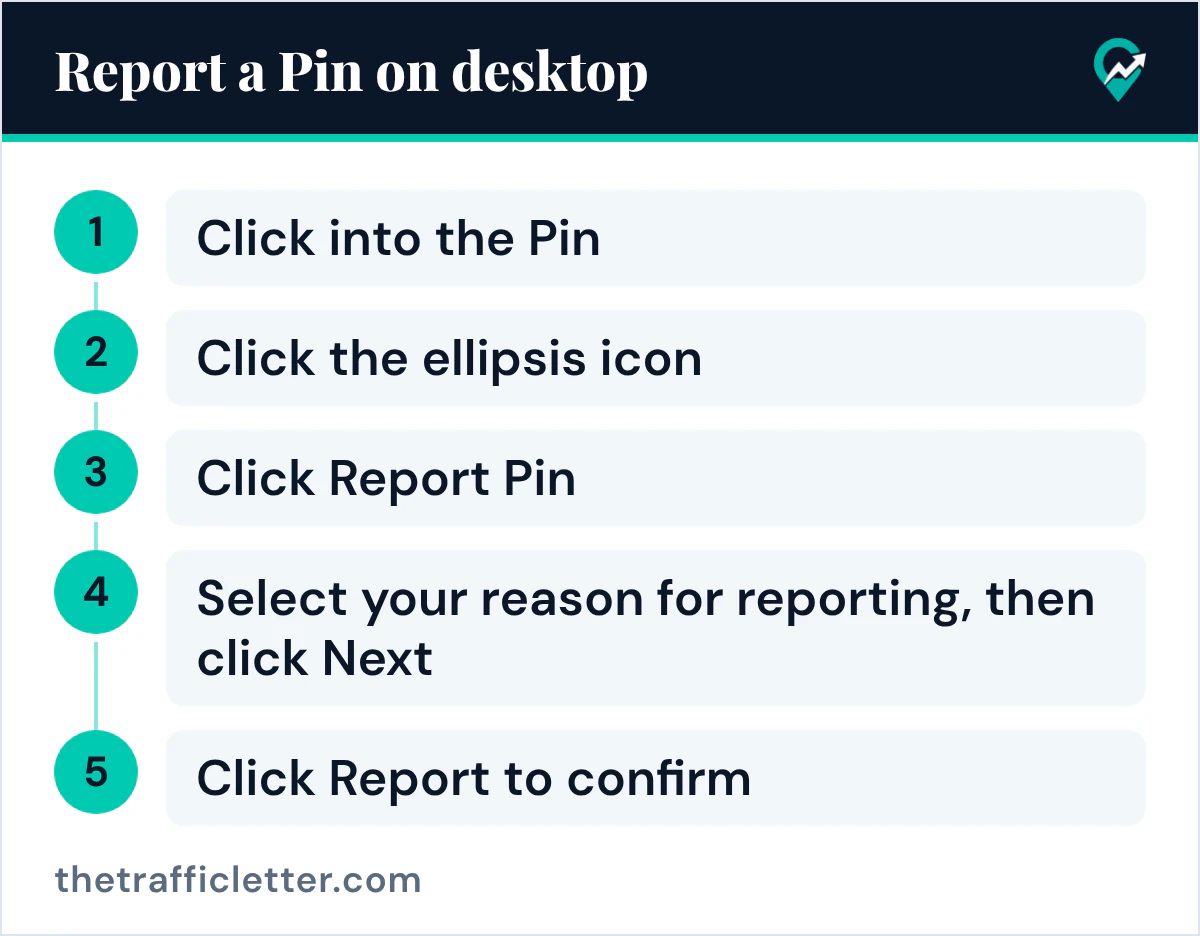
The report help page gives these steps on desktop:
- Click into the Pin.
- Click the ellipsis icon.
- Click Report Pin.
- Select your reason for reporting, then click Next.
- Click Report to confirm.
In the Pinterest app, the help page gives the same path with taps: tap the Pin to open it, tap the ellipsis icon, tap Report Pin (one app version shows Report), select your reason and tap Report to confirm. The help page does not list the reasons themselves, so pick the one that matches the guideline the Pin breaks.
How to report an account that posts AI content
When the problem is the account, such as one that impersonates a person or a brand with AI images, the help page has a separate path. On desktop: open the profile of the person you want to report, click the ellipsis icon at the top-right corner of their profile, click Report, select your reason, click Next, then click Report to confirm. In the app, the ellipsis icon sits to the right of Follow, and the option reads Report account or Report depending on the app.
The same page says you will still be able to see someone’s account, boards, Pins and comments after you report them. To see less of their content, it says you can unfollow or block the person.
The help page also covers comments, messages and boards, each from its own ellipsis icon.
When you only want fewer AI Pins
When an AI Pin breaks no rule and you simply want fewer of them, Pinterest describes two controls instead of a report:
- On a Pin in your feed, the See fewer AI Pins help page says to click or tap the ellipsis icon at the bottom right of the Pin and, if the Pin is in one of the supported categories, select the “see fewer” AI Pins option. The page says this sends a signal to its systems to recommend less of this type of content.
- In Refine your recommendations, the AI content tab has a Show AI content toggle and a Manage AI content by topic section. The help page says that if you turn the toggle off, all AI topics will be turned off.
The full settings path for desktop and the app is in our click paths to turn off AI content (opens in a new tab). Our guide on why so many Pins look AI-made (opens in a new tab) covers what Pinterest says about AI content in the categories it names.
If your own Pin is labeled as AI
The reverse case comes up for bloggers: a Pin you made yourself carries the AI modified label. Pinterest’s Gen AI labels page says the label comes from the Pin’s metadata, from classifiers that detect Gen AI content, or from the content owner indicating AI use. It says: “If you find an AI label on one of your Pins and want to appeal it, contact our support team.” Our explainer on Pinterest’s AI modified label (opens in a new tab) explains how the label works and how to mark AI use yourself.
When you write to support, a short, factual message helps. You can draft it with any AI assistant, such as ChatGPT, Claude or Gemini, then check every line before you send it.
Write a short, polite message to Pinterest support to appeal an AI modified label on my Pin.
Pin URL: [Pin URL]. How I made the image: [your own photo, camera and editing app used, or design tool and steps].
State the facts only, in 4 to 6 sentences, with no claims I cannot back up.
Right after
- Open Refine your recommendations and review your AI content topics with our settings guide for AI content (opens in a new tab).
- Check your recent AI-made Pins and indicate AI use where it applies, as our guide to marking AI use on Pins (opens in a new tab) explains.
- See what Pinterest’s own assistant does in our guide to the Pinterest AI assistant (opens in a new tab).