

A video Pin lets a blogger show a recipe, a craft or a fix in motion and still send people to the post. Pinterest’s creator site calls video “a central part of the content mix on Pinterest”. This guide gathers the size, length and file rules from Pinterest’s pages, the upload steps, and the tips Pinterest gives for each part of the video. It is one piece of our Pinterest traffic routine for bloggers (opens in a new tab), and the rest of the growth plan is in our guide on how to grow on Pinterest (opens in a new tab).
What a Pinterest video Pin is
Pinterest’s creator site says a Video Pin is the content created by uploading short-form video. It has the same fields as an image Pin: a title, a description, a link, a board and related topics, plus a cover image that you choose. Since May 2023, Pinterest’s newsroom says, all video Pins have enhanced metrics, including views and watch time.
To make one Pin from several clips or photos, the Pinterest app can combine them into a stitched video, as the app steps below show.
Size, length and file specs
Two Pinterest pages give numbers, and they serve different purposes. The creator site gives recommendations for organic video. The ad specs page gives the technical limits for standard width videos, which it says can be used in paid campaigns or to generate organic impressions.
| Spec | What Pinterest says | Page |
|---|---|---|
| Aspect ratio | 9:16 (1080 x 1920 pixels) recommended for videos | Creator site |
| Length | Ideal length of between 45 to 90 seconds | Creator site |
| Accepted ratios | Shorter than 1:2 and taller than 1.91:1; square (1:1) or vertical (2:3, 4:5 or 9:16) recommended | Ad specs |
| File type | .MP4, .MOV or .M4V, encoded in H.264 or H.265 | Ad specs |
| File size | Up to 2GB | Ad specs |
| Duration limits | Minimum 4 seconds, maximum 15 minutes | Ad specs |
| Title | Up to 100 characters; the first 40 may show in feeds | Ad specs |
| Description | Up to 800 characters, used to judge relevance | Ad specs |
The ad specs page also recommends 6 to 15 seconds for video ads. That figure is for ads; for organic video Pins, the creator site’s 45 to 90 seconds is the guide to follow.
Plan the frame before you film. The creator site says to leave some space at the top and bottom of your video, because a video player control bar displays at the bottom and a settings icon at the top. Keep text and the main subject in the middle.
How to make a video Pin
These steps come from Pinterest’s Create a Pin help page, read on 19 November 2026.
On desktop
- Log in and click Create at the top-left of your screen. With a business account, select the hamburger icon, then Create Pin under Create.
- Click the arrow-circle-up icon to select a video, or drag and drop it into the upload window. You can select up to 10 videos, and each video creates a new Pin.
- Add the information: Cover (select Edit cover to choose a thumbnail), Title, Description, Link, Board and Tag related topics, up to 10.
- With a business account, use Publish at a later date to schedule up to 30 days in advance.
- Use the Mark as AI-Modified toggles if the content was made completely or partly with AI or includes an AI-generated person.
- Click Publish.
In the Pinterest app
- Tap the add icon at the bottom of the screen, then tap Pin, and select a video from your device.
- If you select multiple images or videos, choose an individual Pin for each or a stitched video that combines them into one clip, then tap Continue.
- Use the menu at the bottom to edit your videos, add text and other effects, then tap Next.
- Add the Cover, Title, Link, Description, Board and related topics, then tap Create.
The help page says that to combine multiple images and videos in one video Pin, you create the Pin with the Pinterest app. Stickers, the creator site adds, are only available in the mobile in-app creation tool.
Pinterest’s tips for each part of the video
Pinterest’s creator site groups its video advice under five headings.
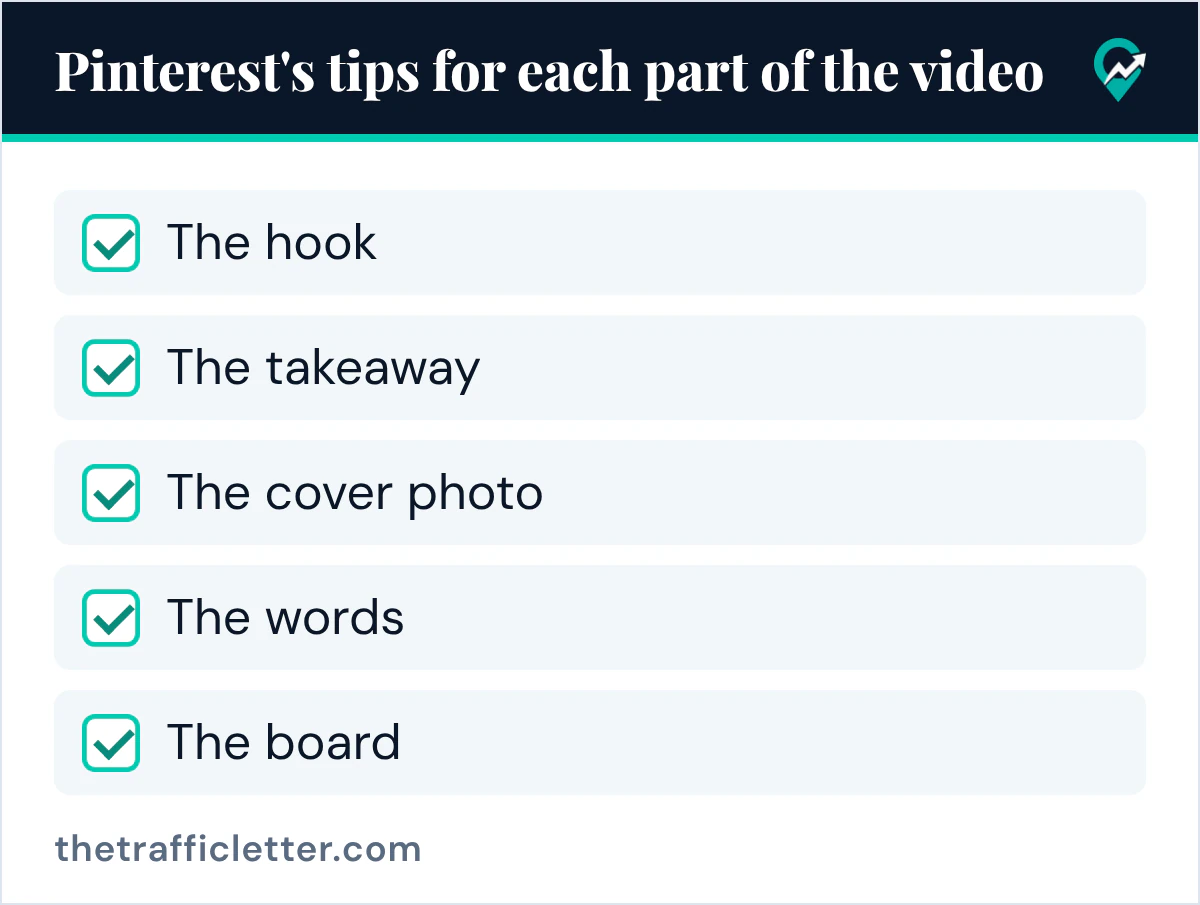
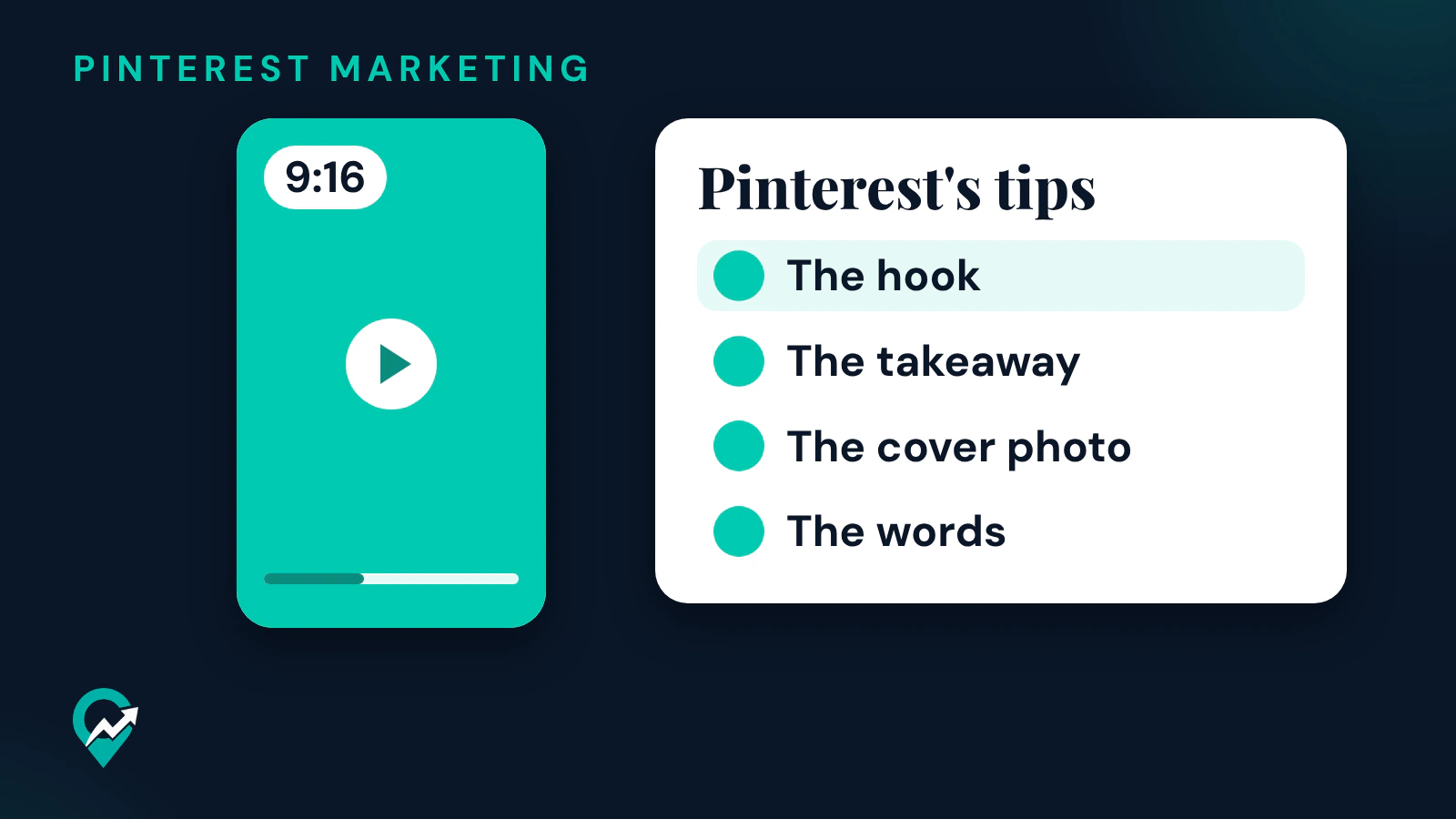
- The hook. Make your first 10 seconds count. Start with a takeaway or useful tip, such as a final product reveal, instead of a long intro, and use text overlay instead of title cards.
- The takeaway. When relevant, aim for videos that show how to accomplish a task, skill or creative element.
- The cover photo. Not all video Pins autoplay in the feed, so choose a clear cover that shows what the video is about. Pinterest says text overlay on it should be less than 30 percent of the screen, and that a recipe video should show the finished meal, not the creator’s face.
- The words. Most people play videos without sound, so add text overlay that reinforces the main ideas. Pinterest suggests a clear title of 40 characters at most and a font of at least 30 points for calls to action.
- The board. Add video Pins to a relevant board that already has engagement, rather than a new board or a “video” board, and fill in the title, description and topic tags.
For a blog, the takeaway tip points to the posts that already teach something step by step. Our list of Pin ideas you can make from your posts (opens in a new tab) helps you pick them, and our Pin description examples (opens in a new tab) cover the text fields.
Plan the video with an AI assistant
An AI assistant can turn a post into a shot list and the text overlay lines. This prompt works in ChatGPT, Claude, Gemini or any AI assistant:
Here is my blog post: [paste the post].

Plan a vertical 9:16 video Pin of 45 to 90 seconds from it.
1. The first 10 seconds: open with the final result or the most useful tip, no intro.
2. A shot list of 5 to 8 shots, each with the text overlay line that appears on screen (8 words or fewer), so the video makes sense without sound.
3. A cover photo idea that shows the finished result.
4. A title of 40 characters or fewer with "[your main keyword]" near the start, and a description of 2 sentences.
Use only facts from the post.
Right after: your next actions
- Pick one post with clear steps and film it vertically, with the result shown first.
- Upload it with a link to the post and save it to a board that already gets engagement.
- After a few weeks, compare its views and clicks in Pinterest Analytics (opens in a new tab), then plan the next videos with our guide to scheduling Pins on Pinterest (opens in a new tab).