

Pinterest Trends is Pinterest’s own window on what people search and save. For a blogger it answers two questions: which wording to use for a Pin, and when to publish a seasonal post. This guide follows Pinterest’s help page for the tool, read on 8 November 2026. How those keywords then help a Pin rank is covered in our explainer on how Pins rank in Pinterest search (opens in a new tab).
What the Pinterest Trends tool shows
Pinterest’s help page says the Trends tool displays a historic view, up to the last two years, of the top search, save and shopping trends across different regions and countries. It lists four uses: learn when people start searching for various keywords, what content people are saving to their boards, which shopping trends are growing, and what is trending among your audience.
The same page opens with a warning: some of the features it describes are in testing and only available for certain regions. So your screen may show fewer sections than the help page. Where you see a crystal-ball icon, Pinterest says trend predictions are available too.
| Section | What it shows, per Pinterest’s help page |
|---|---|
| Trends in the spotlight | What is trending based on Pin saves, by interest |
| Shopping trends | Trending product categories, filtered by Top vertical, Age, Gender and Ranked by |
| Search trends | Popular keywords, whether a trend is seasonal, its weekly, monthly and yearly change |
| Moments | Seasonal and cultural events and how interest builds, peaks and cools |
| Growing trends your audience loves | Top trends among your engaged users and followers |
| Editors’ Picks | Trends chosen by Pinterest’s editors and analysts |
How to open Pinterest Trends
Pinterest’s help page tells you to log in to your Pinterest business account first. Its business account page says to set up a free Pinterest business account to get access to analytics and ads; our guide to setting up a Pinterest business account for search (opens in a new tab) walks through it.
Then, on the web:
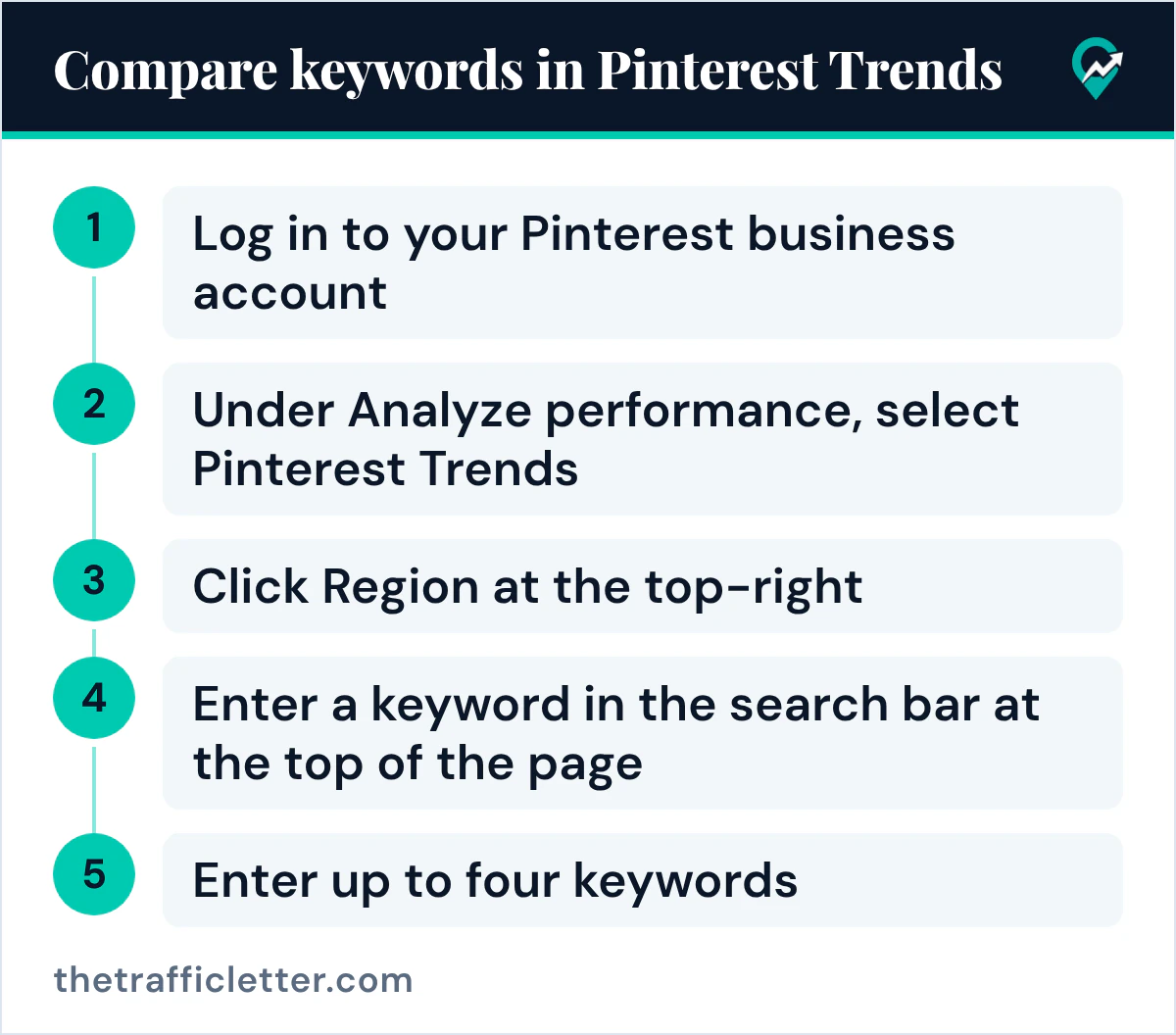
- Log in to your Pinterest business account.
- Click the hamburger icon at the top-left of the page.
- Under Analyze performance, select Pinterest Trends.
- Click Region at the top-right to select which region you want to see data from.
The region you pick applies to most of the data on the page until you change it. Pick the country most of your blog readers come from.
On a phone, the help page says that at the moment you need to use your desktop browser or mobile browser to access Pinterest Trends.
Search trends: find and compare keywords
Search trends is the part a blogger uses most. The help page gives these steps:
- Click the magnifying-glass-sparkle icon Search trends at the left side of your screen.
- Click a trend to learn more about it.
- Below Date range at the top of the graph, select the window of time you want to see data from.
- Enter a keyword in the search bar at the top of the page.
The list of search trends shows popular keywords, whether a trend is seasonal, and the weekly change, monthly change and yearly change of each one. Click a keyword trend to see it on a graph.
To compare, Pinterest says you can enter up to four keywords in the search bar at one time. Click the x icon next to a term to remove it. You can also select a keyword below Related trends to compare it on the graph.
How to read the Trends graph
The graph is the part people most often misread. Pinterest says it normalizes search volume by looking at the ratio of searches for each trend to the total number of searches on Pinterest in the same time frame. On each plot, the highest point of the search term is indexed to 100 and the lowest point to 0.
So 100 means the peak of that term in the period you chose, not a number of searches. Two practical readings follow:
- Timing. The line shows the weeks when interest starts to climb and when it peaks. Publish before the climb.
- Wording. When you add two phrasings of one idea, the graph shows which one is stronger and when.
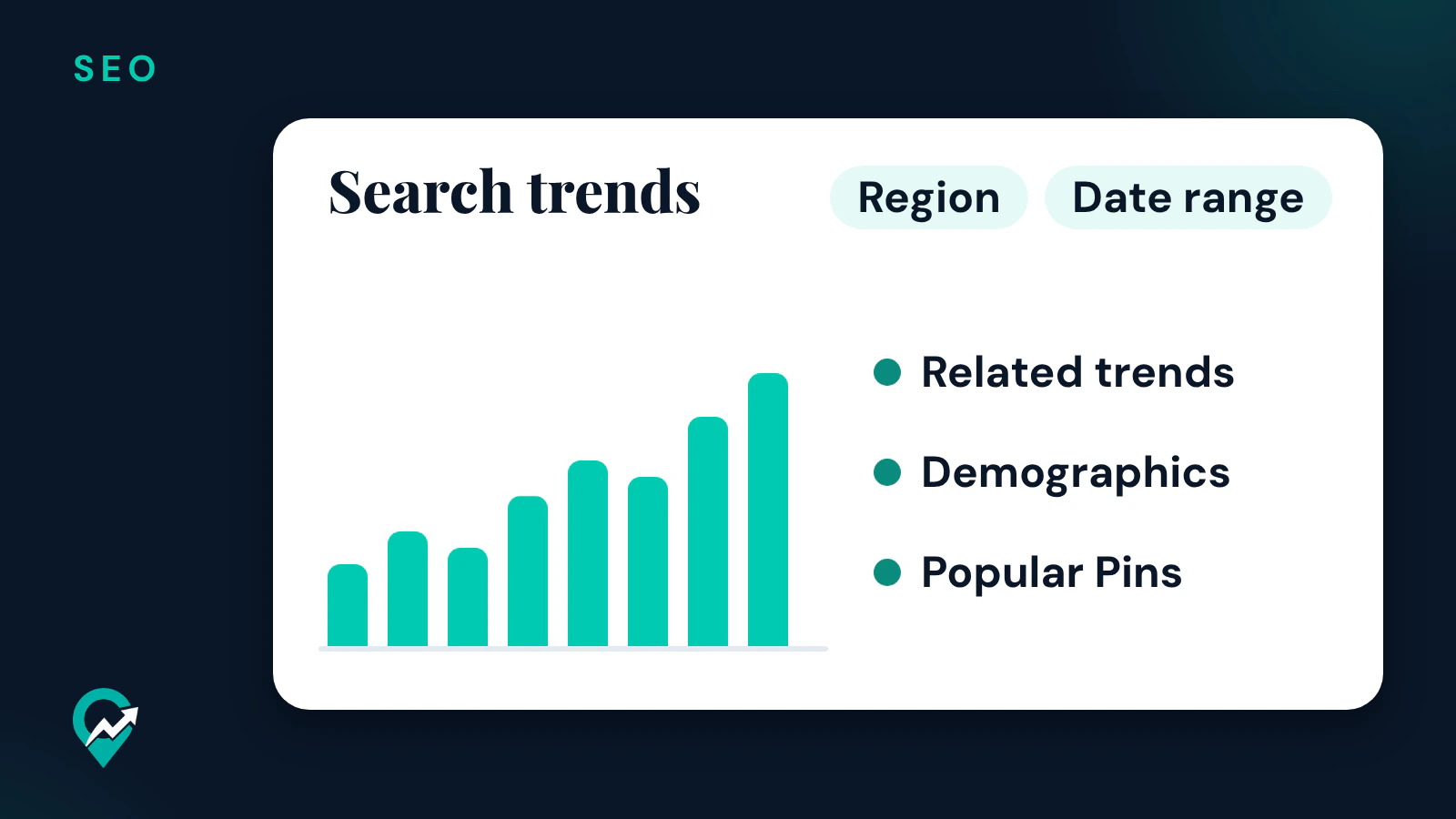
Under the graph, Demographics shows the age and gender distribution for each keyword you added. Popular Pins, at the bottom of the page, shows top Pins for those keywords, and a click opens the real Pinterest search results. That view helps you see how others title and design Pins for the phrase.
For the other keyword tools, what each one measures and when to use it, see our side by side of Pinterest keyword tools (opens in a new tab).
Moments, shopping trends and editors’ picks
These sections are less about keywords and more about ideas.
Moments
Pinterest says Moments highlight seasonal and cultural events, like holidays and key shopping periods, and show how interest builds, peaks and cools over time. Each phase has a detail page with guidance for that point in time. To open them: click the magnifying-glass-sparkle icon Search trends at the left side of your screen, then select a moment. For a blogger, a Moment is a ready list of seasonal topics with their timing.
Shopping trends
Click the tag-star icon Shopping trends at the left-side of your screen, then filter by Top vertical, Age, Gender and Ranked by. A product category page shows its performance history, predictions where available, demographics, related products, similar categories and related searches in the category. If you write gift guides or product roundups, the related searches are the useful part.
Trends in the spotlight and Editors’ Picks
Trends in the spotlight is based on Pin saves: click Interest, to the right of Trends in the spotlight, and pick one of the options. Editors’ Picks, further down, are trends chosen by Pinterest’s editors and analysts.
Trends for your own audience
Pinterest’s help page says that with a Pinterest business account you can browse the top trends specific to your engaged users and followers from the past 90 days. The data is updated daily and reflects your worldwide audience, even when you have a region selected.
To open it, go to Search trends, then below Growing trends your audience loves, click All interests to pick an interest. The help page says that if the feature is not showing up, it is because your audience is not large enough yet. A new account may not see it yet; your own Pinterest analytics reports (opens in a new tab) are the place to read what your audience does in the meantime.
Use Pinterest Trends to plan blog posts and Pins
Pinterest Create’s article on trends gives the practical use: check rising keywords and topics, consider adding them to your titles and descriptions, and plan seasonal content weeks or even months in advance so it surfaces when people start searching. Here is that advice as a routine.
- Start from your niche. List the topics of the posts you plan to write or refresh. Find the phrases people type first, with our method for finding Pinterest keywords (opens in a new tab).
- Compare wordings. Enter two to four phrasings of the same topic in Search trends, in your main region. Keep the one with the stronger line.
- Check the season. Look at when the line climbs over the last two years. Plan to publish the post and its first Pins before that point.
- Write the Pin. Put the winning phrase at the start of the Pin title and in the first sentence of the description, once. Our Pin description formula with examples (opens in a new tab) shows where each part goes.
- Review later. After a few weeks, check the Pin in your analytics, not in Trends.
An AI assistant can turn your notes from Trends into Pin text. The prompt below works in ChatGPT, Claude, Gemini or any AI assistant. It gives no limits of its own, since the Trends help page lists none for Pin text.
I write a [your niche] blog. In Pinterest Trends I compared these phrases for one post: [phrase 1], [phrase 2], [phrase 3]. The strongest was [winning phrase], and interest rises around [month].
Write 3 Pin titles that start with [winning phrase] and 2 Pin descriptions that use it once in the first sentence.
Do not invent numbers, results or claims. Plain wording, no hashtags.
Check every line it returns against your post before you use it.
Limits to keep in mind
- No search counts. The help page describes an index from 0 to 100 per term. It gives no number of searches.
- Region and testing. Some features are in testing and limited to certain regions, so a section may be missing on your account.
- A browser for now. The help page says to use a desktop browser or mobile browser to access Trends.
- Small accounts. The audience trends need an audience large enough, which the page does not quantify.
When a phrase is missing from Trends, try a broader wording or another region before you drop it.
Right after
- Open Search trends and compare two wordings for your next post, then use the winner in the Pin title.
- Note the month when your main seasonal topic starts to climb, and plan the post before it with our guide to timing your Pins on Pinterest (opens in a new tab).
- Name the board for that topic with the same phrase, using our Pinterest board name examples (opens in a new tab).