
Pinterest’s business site describes Pinterest as a place where people discover new ideas, plan and shop, and it puts one step before every marketing tool: “It all starts with a business account.” This plan uses Pinterest’s tools in that order, for a small business with its own website or online shop. It builds on our guide to getting a Pinterest business account (opens in a new tab) and fits into our Pinterest traffic system for blogs and sites (opens in a new tab).
What Pinterest offers a small business
Each tool below comes from a Pinterest business page or help page read on 20 November 2026.
| Tool | What Pinterest says it does | Pinterest page |
|---|---|---|
| Business account | Access to ads, analytics and custom audience insights; free | Pinterest Business home |
| Claimed website | Your profile picture appears alongside Pins saved from your site | Claim your website |
| Pins | Images, videos or both, and every Pin can link directly to your site | How to make Pins |
| RSS auto-publish | Pins created for each image in your RSS feed | Auto-publish Pins from your RSS feed |
| Retail catalog | Product Pins with title, description, price and availability | Get started with retail catalogs |
| Pinterest Analytics | Your overall performance, top Pins and top boards | Review Pinterest Analytics |
Pinterest’s business FAQ says ads and analytics “aren’t available on a standard Pinterest account”, and that you can convert a personal account or sign up for a new one if you prefer to keep personal and work accounts separate. Our comparison of Pinterest business versus personal accounts (opens in a new tab) covers that choice.
The setup plan, step by step
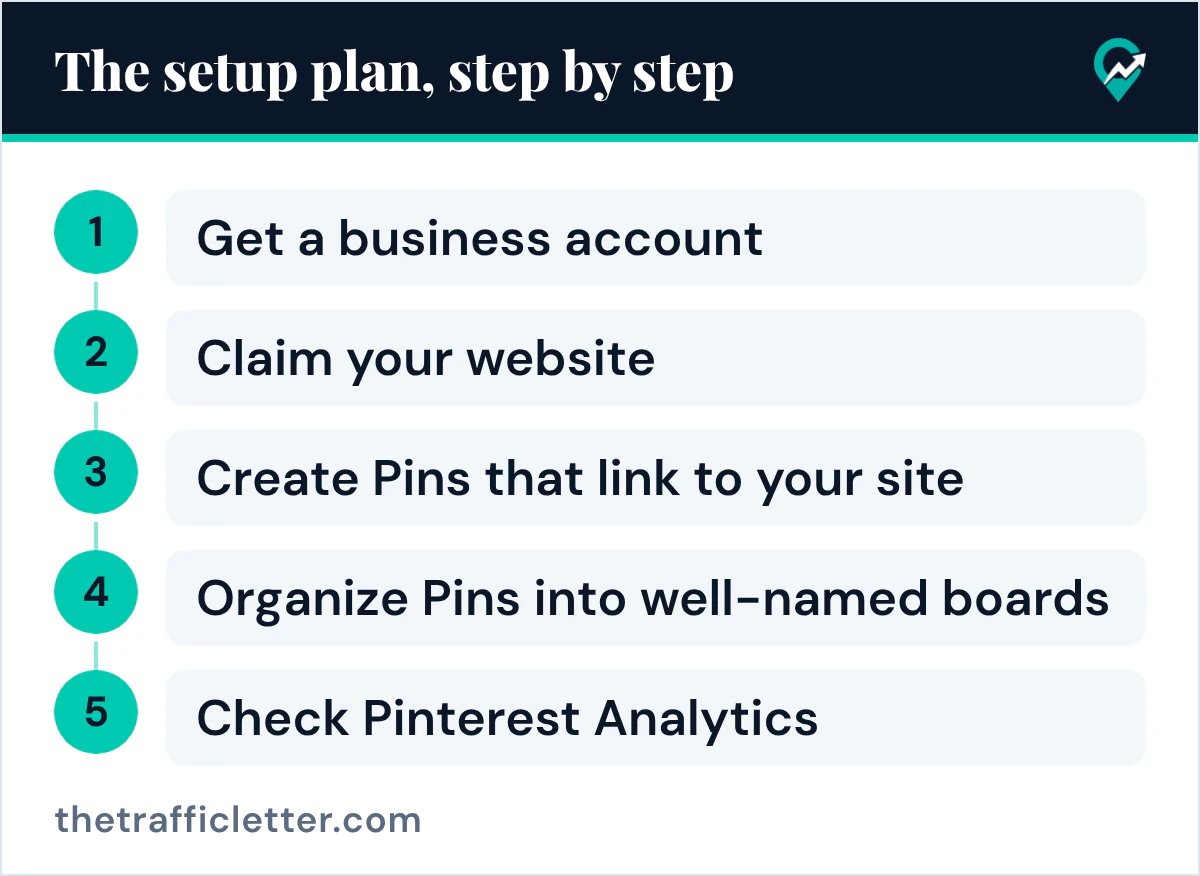
The five steps follow the order of Pinterest’s pages: the account first, because the RSS feed and the analytics need it and Pinterest recommends one for a claimed website.
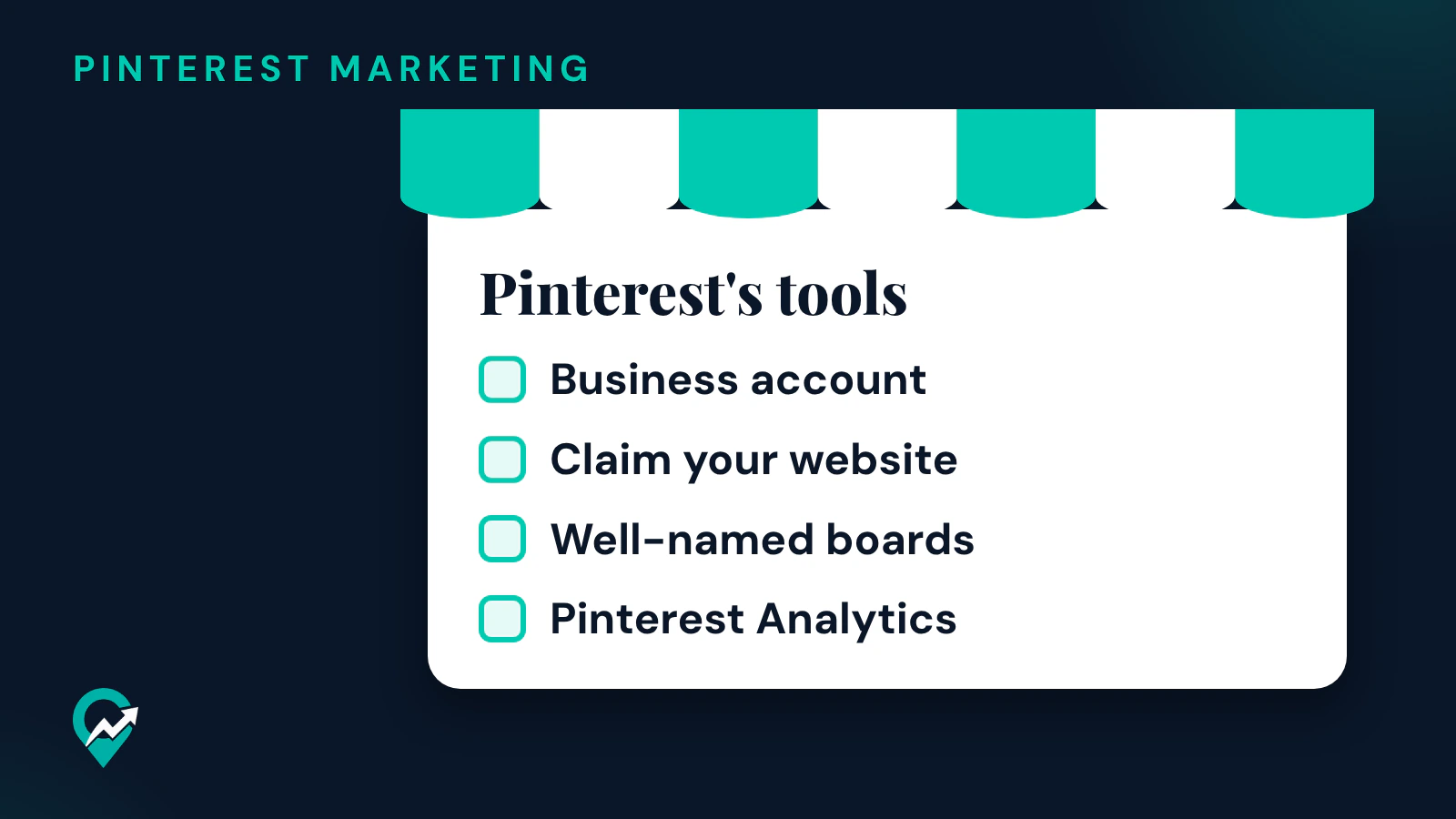
- Get a business account: create a new one, or convert your personal account.
- Claim your website, so Pins saved from your site carry your profile.
- Create Pins that link to your site, starting with your most useful pages.
- Organize Pins into well-named boards that match what your customers search.
- Check Pinterest Analytics once your first Pins have had time to be seen.
The account and your website
Pinterest’s help page gives two ways to get a business account: create a new one or convert a personal account. It says a new business account can only be created from a desktop device at this time, and that the email you sign up with must not already be in use on another Pinterest account. When you convert, your Pins and followers remain the same, and a private personal account must be switched to public first, because business accounts are public on Pinterest.
Claiming your website comes next. Pinterest says that whenever an image from your claimed website is saved, your profile picture appears alongside the Pin, the Pin links to your Pinterest profile and people see the option to follow you. The rules on the claim page:
- You must own the domain, subdomain or subpath and be able to edit the source code.
- A website can only be claimed by one Pinterest account.
- There are four ways to claim: connect with Google Merchant Center (currently available for some accounts), add an HTML tag, upload an HTML file, or add a DNS TXT record.
On a desktop, the claim starts in your Settings: click Link to Pinterest from the left-side navigation, then click Claim next to Websites. Our walkthrough on verifying your website on Pinterest (opens in a new tab) covers each method.
Pins that bring visits to your site
Pinterest’s How to make Pins page names four places where content gets discovered: the home feed, search, related Pins and shopping. Its advice for a Pin strategy is short:
- Create new original Pins at least once a week, for a steady stream of content.
- Add a URL that drives traffic back to your site.
- Schedule your Pins with Pinterest’s scheduling tool.
For the format, Pinterest’s creative best practices page says most people use Pinterest on mobile devices and recommends a vertical 2:3 aspect ratio. Its standard image ad specs give 1000 x 1500 pixels, a Pin title of up to 100 characters (the first 40 are most likely to show) and a Pin description of up to 800 characters. Those specs are written for ads; the pages read for this guide give no separate numbers for organic Pins.
Write the title and description from what your customers type. Start from your niche, pick one main phrase per Pin and use it once in the title and once in the description, without a list of keywords. Our routine for finding keywords on Pinterest (opens in a new tab) shows where those phrases come from.
Pinterest’s scheduling page says a business account can schedule a Pin up to 30 days in advance and have up to 10 Pins scheduled for the future. Our guide to scheduling Pins ahead of time (opens in a new tab) gives the desktop and app steps.
Boards with clear names
Pinterest’s How to make Pins page asks you to organize Pins into well-named boards and to give boards “clear and descriptive titles such as ‘Easy No-bake Dinners’ to help with search.” For a small business, try one board per product line, service or customer question: “Handmade Ceramic Mugs” tells a searcher more than “Shop”. Our list of naming Pinterest boards for search (opens in a new tab) has more patterns.
Publish Pins from your site automatically
Two Pinterest tools turn content you already have into Pins. Both need a claimed website.
From your blog: the RSS feed
Pinterest’s RSS help page says that once you connect a feed, Pins are created for each image in it. The rules it lists:
- You can add as many RSS feeds as you want, as long as they match your claimed website, and each feed can publish to a different board.
- When you update your feed, your content is added to your boards as Pins within 24 hours, and the oldest content is published first.
- Pins are created with a limit of up to 200 Pins per day.
- Pinterest supports RSS 2.* and RSS 1.* (RDF) formats and says “We currently do not support Atom.”
- The Pin title and description come from the
<title>and<description>tags of each item.
The page says you need a desktop to connect the feed: in Settings, select Create Pins in bulk, then under Auto-publish click Connect RSS feed.
From your shop: a retail catalog
A retail catalog uploads your products as product Pins, which Pinterest says contain a product title and description, as well as pricing and availability. Before you add one, Pinterest’s catalog page asks you to:
- get a Pinterest business account;
- claim your website;
- install the Pinterest tag;
- have a website that meets its merchant guidelines, with easy-to-find contact details, shipping policy and refund policy.
The same page links to the list of regions where Catalogs is available to business accounts, so check yours before you prepare the data file.
Read Pinterest Analytics
Pinterest says you need a business account to view Pinterest Analytics. On a desktop, click the hamburger icon at the top-left of the page, then under Analytics select Overview. The Overview shows your Overall performance, Performance over time, Top boards and Top Pins from the last 30 days, and Pinterest notes that these real-time metrics are estimates and subject to change.
For a small business site, three metrics from the help page answer the main question, which is whether Pinterest sends people to you:
| Metric | Pinterest’s definition |
|---|---|
| Impressions | The number of times your Pins or ads were on screen |
| Outbound clicks | The number of times people perform actions that lead them to a destination off Pinterest |
| Saves | The number of times people saved your Pin to a board |
Pinterest’s own example of using the data: if an item on your site is driving traffic, make sure it is available, feature it in more Pins and save it to more boards. Our guide to reading your Pinterest Analytics (opens in a new tab) explains every metric.
Ads, once the organic side works
Pinterest’s business site says a business account gives access to ads and that you set your own budget if you decide to run them. Its How to make Pins page sets organic Pins, created for free, beside ads you pay to promote. A small business can start with organic Pins, learn from the analytics which products and pages draw clicks, and promote those first.
A prompt for your first Pins
The text of a Pin can be drafted with ChatGPT, Claude, Gemini or any AI assistant. Give it the facts and keep the limits from Pinterest’s specs:
I run a small business that sells [your products or services] to [your customers].
Write 5 Pinterest Pin ideas for this page of my website: [page URL and a short summary].
For each idea, give:
- a Pin title of up to 100 characters, with the phrase [your main keyword] in the first 40 characters;
- a Pin description of up to 800 characters that says what the page offers and uses [your main keyword] once;
- a short text overlay for a vertical 1000 x 1500 image.
Do not invent prices, discounts, results or customer quotes.
Check every title against the page it links to before you publish.
Right after
- Claim your website today, with our guide to the HTML tag and other claim methods (opens in a new tab).
- Make your first five Pins and schedule them over the next weeks, using Pinterest’s own scheduling tool (opens in a new tab).
- Open your analytics after your first month and note which Pins earned outbound clicks.